Introduction
Finding anything on your Samsung Galaxy phone is now simpler than ever, thanks to a mix of built-in search tools and AI-powered features. Whether you’re looking for an app, a file, or just want to freshen up your wallpaper, this guide walks you through the different ways to make the most of your device.
Search Options Overview
Here’s a quick comparison of the main search options available on modern Galaxy smartphones:
| Search Method | What It Does | How to Access | Key Feature |
|---|---|---|---|
| Universal Search | Finds apps, contacts, settings, and files across your phone | Open Apps tray > Use the search bar at the top | Searches almost everything on your device at once |
| S Finder | Older search tool on legacy models (Android Lollipop/Marshmallow) | Swipe down > Notifications panel | Extra filters to refine results (on supported devices) |
| Dynamic Lock Screen | Updates lock screen wallpaper automatically | Settings > Wallpaper and style > Dynamic Lock screen | Downloads themed packs that refresh every two weeks |
| Photo Ambient Wallpaper | AI-powered wallpapers that adapt to time and weather | Settings > Wallpaper and style > Create with AI > Photo ambient | Creates living wallpapers that change in real time |
Searching Across Your Phone
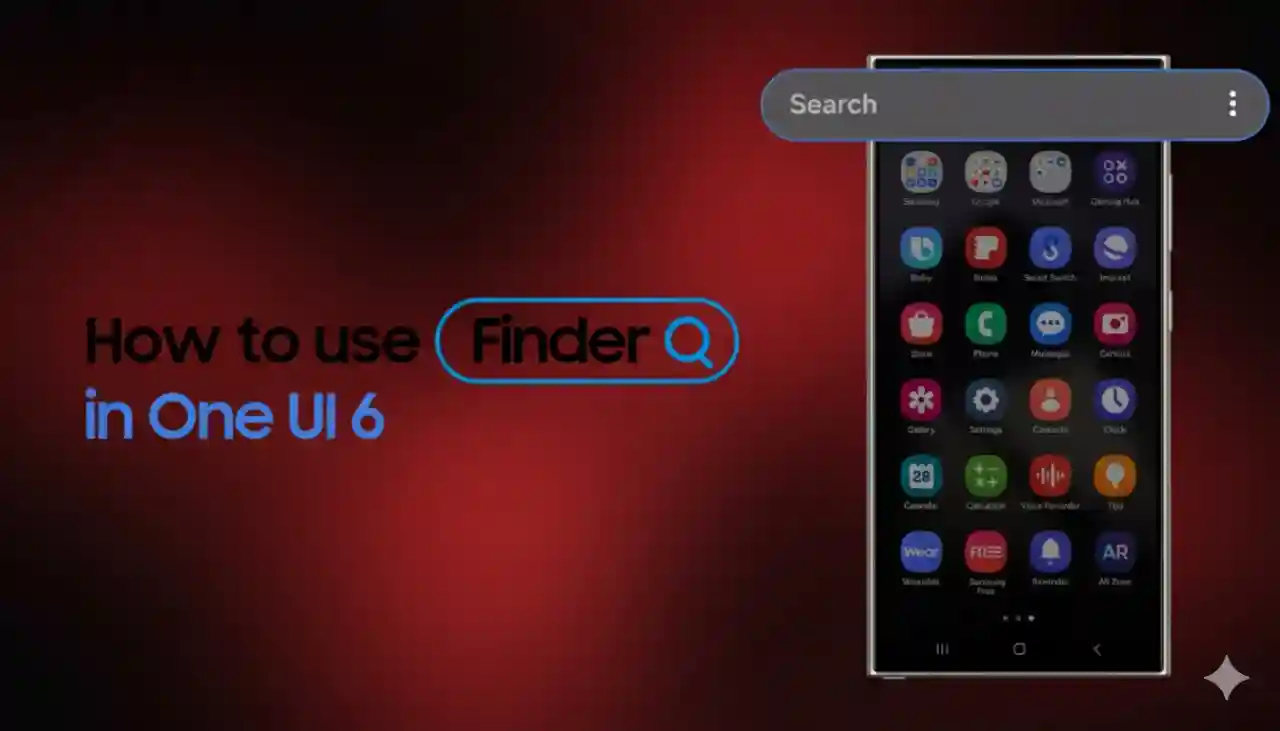
The easiest way to search is through Universal Search, built right into modern Galaxy devices. Just swipe up to open your apps tray, then use the search bar at the top. This tool doesn’t just find apps—it can pull up contacts, settings, emails, and even files linked to your keyword. Type “camera,” for example, and it might show the Camera app, photo folders, or settings related to the camera.
If you’re on an older Galaxy device running Lollipop or Marshmallow, you’ll find S Finder instead.
- How to open it: Swipe down from the top to open your notification panel, and tap the S Finder button.
- How it works: Similar to Universal Search, it scans apps, files, and settings.
- Customization: If the icon isn’t there, you can add it through the “Edit” option in the notifications panel. You can also remove it the same way if you prefer a cleaner look.
Searching for New Looks with Wallpapers
Samsung takes the idea of “search” a step further with features that refresh your phone’s look automatically.
Dynamic Lock Screen
Dynamic Lock Screen rotates through wallpapers so your lock screen always feels fresh. To turn it on:
- Long-press on a blank spot on your lock screen and tap Wallpapers.
- Scroll to Dynamic Lock screen.
- Pick a theme pack (like Animals, Landscapes, or Art) and hit Download.
Now, every time you wake your phone, you’ll see a new image from that pack. You can also control whether it updates over mobile data and set auto-updates in settings.
Photo Ambient Wallpaper
For something even smarter, newer Galaxy phones with One UI 6.1.1 or later support Photo Ambient Wallpaper. Powered by Galaxy AI, this feature adapts your wallpaper in real time, adjusting colors and moods based on the current weather or time of day.
To try it:
- Go to Settings > Wallpaper and style > Change wallpapers.
- Tap Photo ambient under the “Create with AI” section.
- Select Try now, choose a gallery photo, and let AI transform it into a dynamic wallpaper.
Pro Tips for Smarter Searching
- Use clear keywords: Be specific—searching “Wi-Fi password” works faster than just typing “Wi-Fi.”
- Filters in S Finder: On older devices, refine results by file type, date, or location.
- Refresh your packs: With Dynamic Lock Screen, check back for new wallpaper packs to keep your phone looking fresh.
Conclusion
With these tools, you’ll never waste time hunting through menus again. From everyday searches to AI-driven personalization, your Galaxy makes it easy to find (and see) exactly what you want.