
Adding a location on Snapchat is one of the best ways to make your Snaps and Stories more engaging. Whether you’re traveling, visiting a cool café, or simply want your friends to know where you are, Snapchat gives you multiple ways to tag your location.
In this updated 2025 guide, you’ll learn how to add a location on Snapchat using stickers, geofilters, Snap Map, and more—with easy step-by-step instructions for both iPhone and Android users.
Step 1: Enable Location Services on Your Device
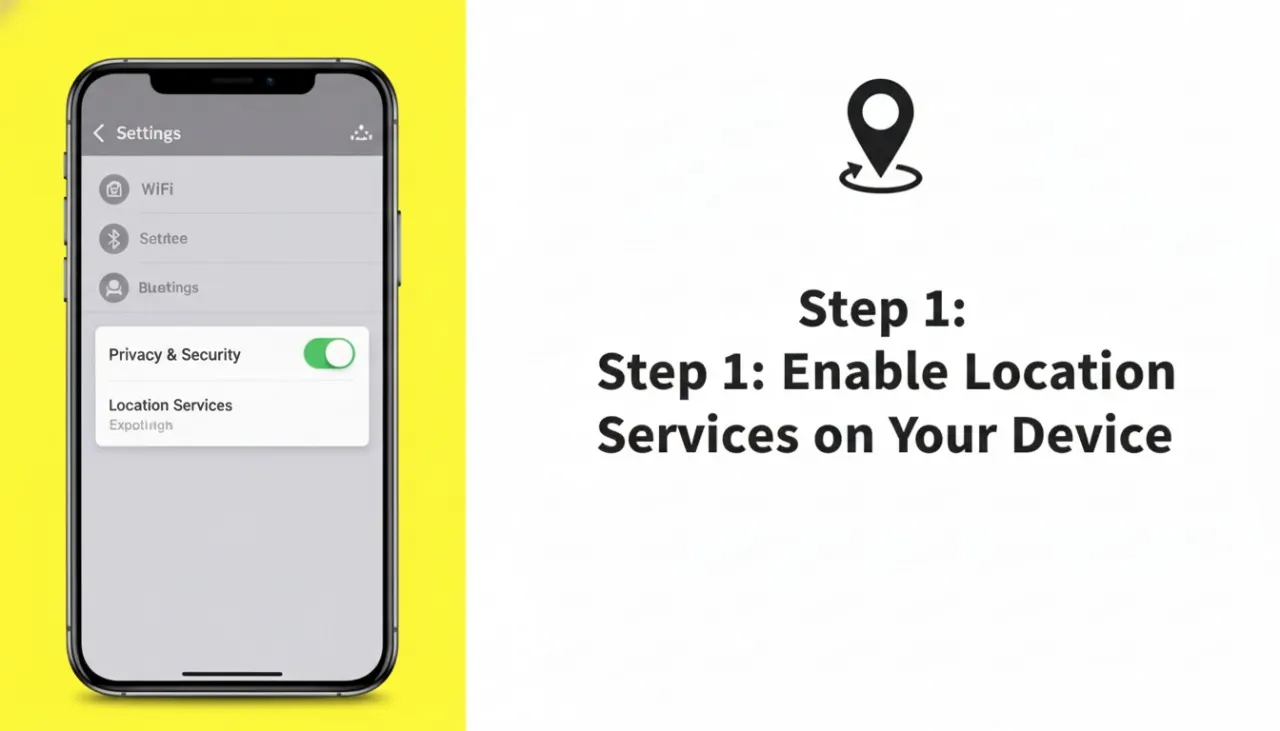
Before Snapchat can detect where you are, you need to allow the app to access your location.
For iPhone Users
- Go to Settings → Privacy & Security → Location Services.
- Make sure Location Services is turned ON.
- Scroll down, find Snapchat, and choose either:
- While Using the App – only tracks your location when Snapchat is open.
- Always – updates your location even when the app is closed.
For Android Users
- Open Settings → Location, and toggle it ON.
- Go to Apps → Snapchat → Permissions → Location.
- Choose Allow only while using the app or Allow all the time depending on your preference.
⚠️ Note: Without these permissions, Snapchat won’t be able to detect your GPS location.
Method 1: Add Location Using a Location Sticker
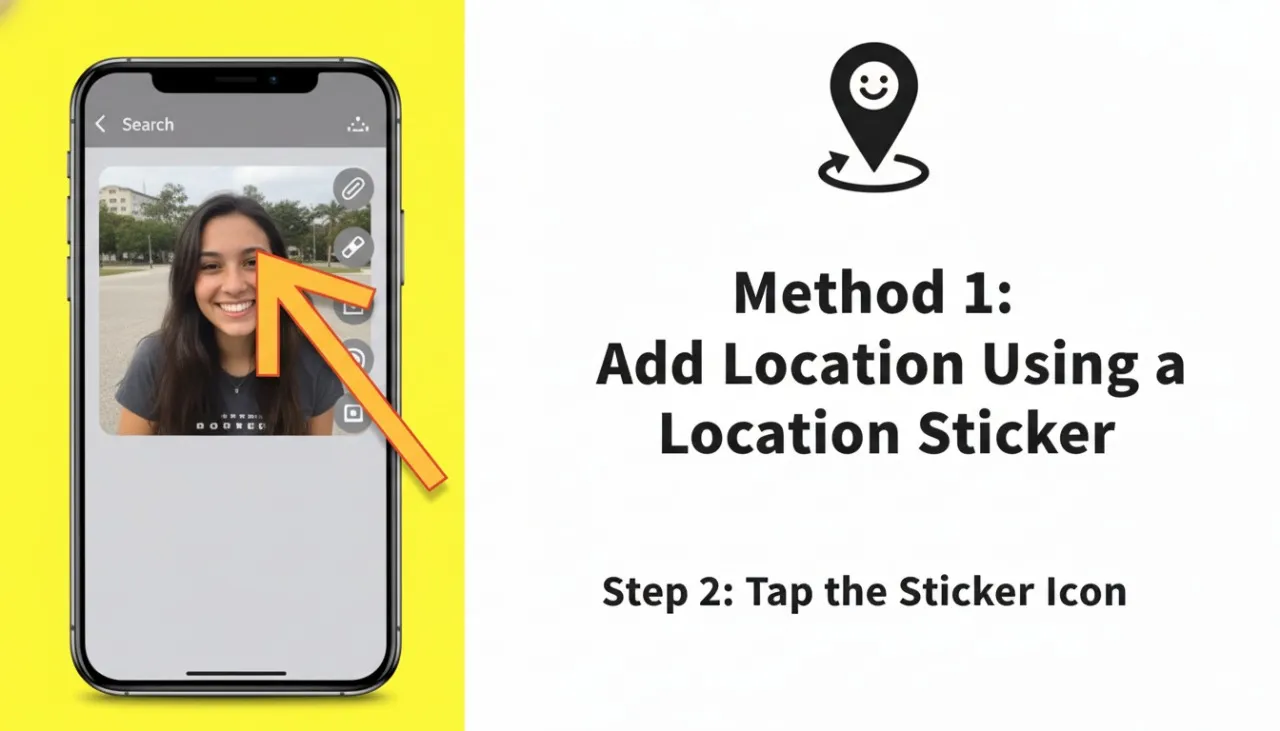
This is the most popular way to tag your location on Snapchat.
- Open Snapchat and take a photo or record a video.
- Tap the Sticker icon on the right side of the screen.
- Select the Location Sticker (map pin icon).
- Choose a location from the suggested list or use the search bar.
- Once added, you can resize, rotate, or move the sticker anywhere on your Snap.
- Hit Send To and share it with your friends or add it to My Story.
✅ Tip: Works for both photos and videos.
Method 2: Add Location with Geofilters
Snapchat’s geofilters automatically show your city, neighborhood, or event location.
- Capture your Snap.
- Swipe left or right to browse through available filters.
- Pick a geofilter that displays your city name or area.
- Post it to your Story or send it to friends.
💡 Pro Tip: Some geofilters are exclusive to certain areas or events—perfect for travel and special occasions.
Method 3: Share Location on Snap Map
Snap Map lets you share your real-time location with friends through your Bitmoji on an interactive map.
How to Open Snap Map
- From the camera screen, pinch two fingers together or tap the Map icon at the bottom left corner.
Set Your Sharing Preferences
- Tap the ⚙️ gear icon on the Snap Map screen.
- Choose your visibility:
- Ghost Mode – hides your location from everyone.
- My Friends – visible to all your Snapchat friends.
- My Friends, Except… – hide from specific people.
- Only These Friends – share with selected friends only.
Location Update Options
- While Using – updates when Snapchat is open.
- Always (Live Location) – updates in real time, even when the app is closed.
Method 4: Add Location to Your Snapchat Story
Want everyone to see where you are? You can add your location directly to your Story.
- Tap your Bitmoji/profile icon in the top-left corner.
- Select + New Story or choose an existing one.
- Add your Snap or upload media.
- Use a Location Sticker or Geofilter.
- Post to your Story and your location will appear for 24 hours.
Ideal for: Sharing travel updates, concerts, or events.
How to Add a Business or Custom Location on Snap Map
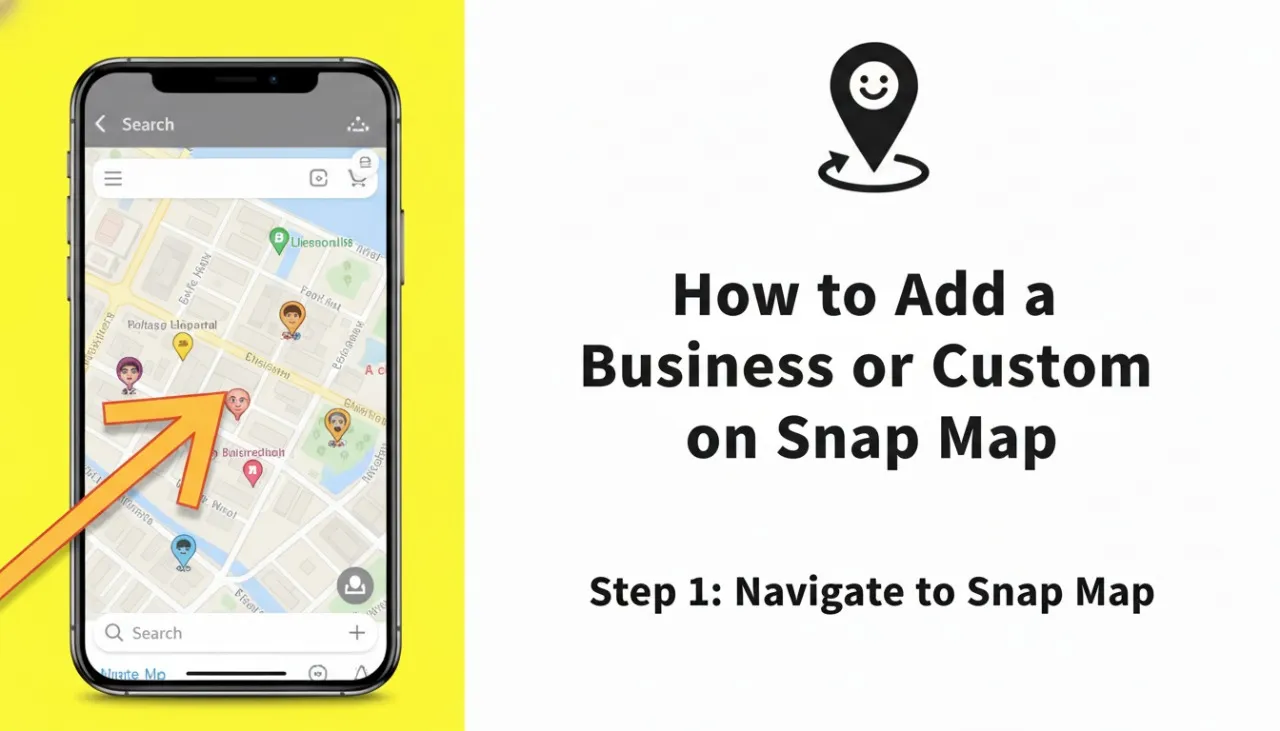
If your business or favorite spot doesn’t appear on Snapchat, you can suggest a new one.
- Open Snap Map and tap the ⚙️ settings icon.
- Scroll down and tap Suggest a Place.
- Fill in details like name, address, and category.
- Submit your suggestion.
Once Snapchat reviews and approves it, your location will appear on Snap Map.
🎨 Note: You can also create Custom Geofilters for events or promotions through the Snapchat website. Just upload a design, define a geofence, and pay a small fee.
Ghost Mode vs. Hide My Live Location: What’s the Difference?
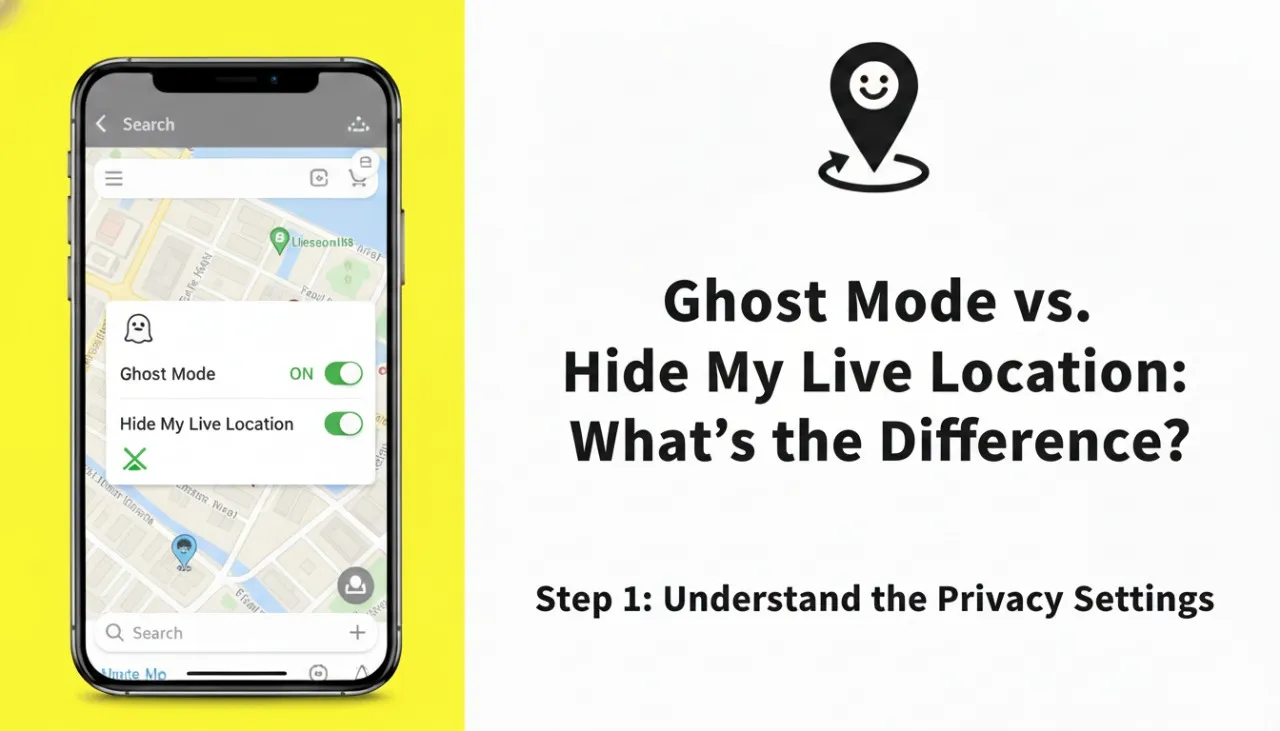
Many users confuse these two privacy options:
- Ghost Mode – makes your Bitmoji invisible on Snap Map.
- Hide My Live Location – hides your real-time location from some users, but you can still share your general location.
To enable Ghost Mode:
- Open Snap Map.
- Tap the ⚙️ icon → Toggle Ghost Mode ON.
- Choose a duration: 3 hours, 24 hours, or Until Turned Off.
Troubleshooting: Snapchat Location Not Working?
If Snapchat can’t detect your location, try these fixes:
- ✅ Move to an open area – weak GPS signals can cause errors.
- ✅ Check your internet connection – switch between Wi-Fi and mobile data.
- ✅ Update Snapchat to the latest version.
- ✅ Restart the app or device to refresh GPS.
- ✅ Disable VPNs or spoofing apps that may interfere.
- ✅ Ensure Ghost Mode is off if you want your location visible.
- ✅ Recheck permissions in your device settings.
Privacy & Safety Tips for Location Sharing
Location sharing is fun—but always think about safety first.
- Share your location only with trusted friends.
- Review privacy settings regularly.
- Avoid using “Always” mode for long periods—it drains battery.
- Remember: Snaps submitted to Snap Map may be visible publicly.
- Locations expire automatically after 24 hours if not updated.
Final Thoughts
Adding your location on Snapchat helps personalize your stories, connect with friends, and share adventures in real time. From location stickers and geofilters to Snap Map and business listings, Snapchat gives you flexible tools to make your posts more interactive.
Just remember to balance creativity with privacy—share smartly and safely!
Frequently Asked Questions (FAQ)
Q: Why can’t I add a location on Snapchat?
A: Make sure Location Services are enabled for Snapchat in your phone settings. Also, check that Ghost Mode is off and your app is updated.
Q: Does Snapchat show my location all the time?
A: Only if you enable Live Location (Always). Otherwise, it updates your location only when the app is open.
Q: Can I fake or change my Snapchat location?
A: Using third-party apps or VPNs to spoof location violates Snapchat’s Terms of Service and may lead to account issues.
Q: How long does a location stay visible on Snap Map?
A: If you stop using Snapchat, your last known location disappears after 24 hours.
Q: How can I add my business location on Snapchat?
A: Go to Snap Map → ⚙️ Settings → Suggest a Place, then submit your business details for review.