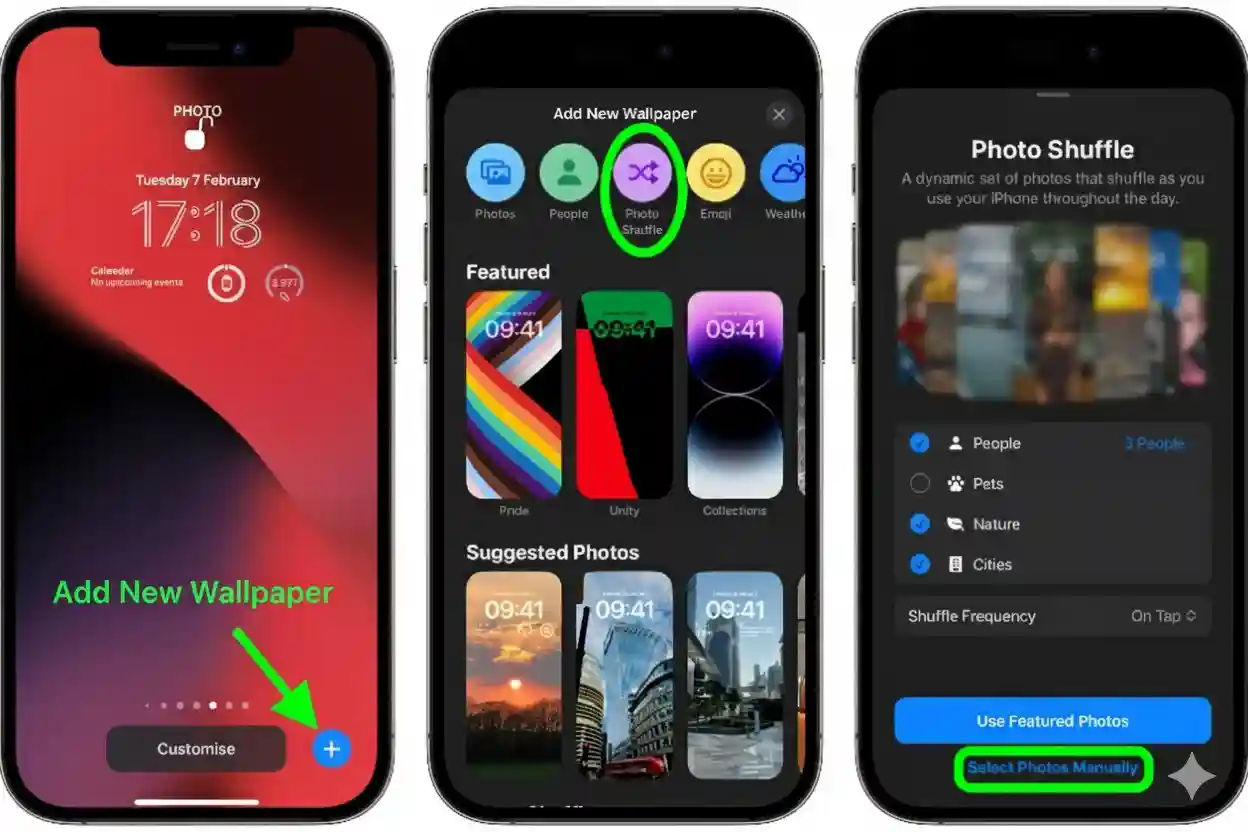
Why Change Your iPhone Wallpaper?
- Personalization – Showcase your style or favorite memories.
- Fresh Look – A new wallpaper can make your iPhone feel brand-new.
- Productivity – Minimalist or calming backgrounds help reduce distractions.
How to Change Wallpaper on iPhone (Step-by-Step)
Apple makes it simple to customize your lock screen and home screen wallpaper. Here’s how:
1. Open Settings
- Unlock your iPhone and go to Settings.
- Scroll down and tap on Wallpaper.
2. Tap “Add New Wallpaper”
- You’ll see your current wallpapers.
- Tap Add New Wallpaper to explore Apple’s options or choose your own photo.
3. Pick Your Wallpaper Style
- Photos – Select from your camera roll.
- People – Portrait shots with depth effects.
- Photo Shuffle – Rotate between selected images.
- Emoji, Weather & Astronomy – Fun and dynamic designs.
4. Customize the Look
- Pinch to zoom or reposition the image.
- Adjust filters or depth effects (if available).
5. Set Wallpaper
- Tap Set as Wallpaper Pair to apply it to both the lock screen and home screen.
- Or, choose Customize Home Screen if you want different backgrounds.
Tips for Choosing the Best iPhone Wallpaper
- Resolution Matters – Use high-quality images for a crisp display.
- Keep It Simple – Busy wallpapers may make app icons harder to see.
- Dark Mode Friendly – Dark wallpapers can save battery on OLED iPhones.
FAQs About Changing Wallpaper on iPhone
1. Can I set different wallpapers for lock screen and home screen?
Yes! When you select a wallpaper, choose Customize Home Screen to set a different image.
2. Does changing wallpaper affect battery life?
Static wallpapers don’t, but live or dynamic wallpapers may use slightly more battery.
3. Can I use a video as wallpaper on iPhone?
Not for the home screen, but you can set Live Photos as lock screen wallpapers that animate when pressed.
Final Thoughts
Learning how to change wallpaper on iPhone is quick, fun, and an easy way to personalize your device. With iOS offering so many built-in options—and the ability to use your own photos—you’ll never run out of creative choices. So go ahead, try it now, and give your iPhone a fresh new look!