
Introduction
If you want to know how to check battery health in Samsung, there are built-in tools and apps that can help you find out if your battery is still good, degrading, or if you need to replace your battery. I personally followed these steps on my Galaxy device and got satisfying results.
In this article, we’ll cover:
- How to view battery health using Samsung Members and Diagnostics
- How to use the settings app and usage patterns to estimate health
- Dial codes and external applications
- When to think about changing a battery
Why is It Important to Check Battery Health
Batteries eventually lose their capacity due to multiple factors such as charging cycles, excessive heat, and usage. Slower charging, reduced battery life, and overall lagging performance of the phone are major concerns. One time I realized that my phone had dropped from 24 hours of usage to 16 hours of usage, and I then checked the phone battery health and realized it was not good.
How to View Battery Status Using Samsung Members
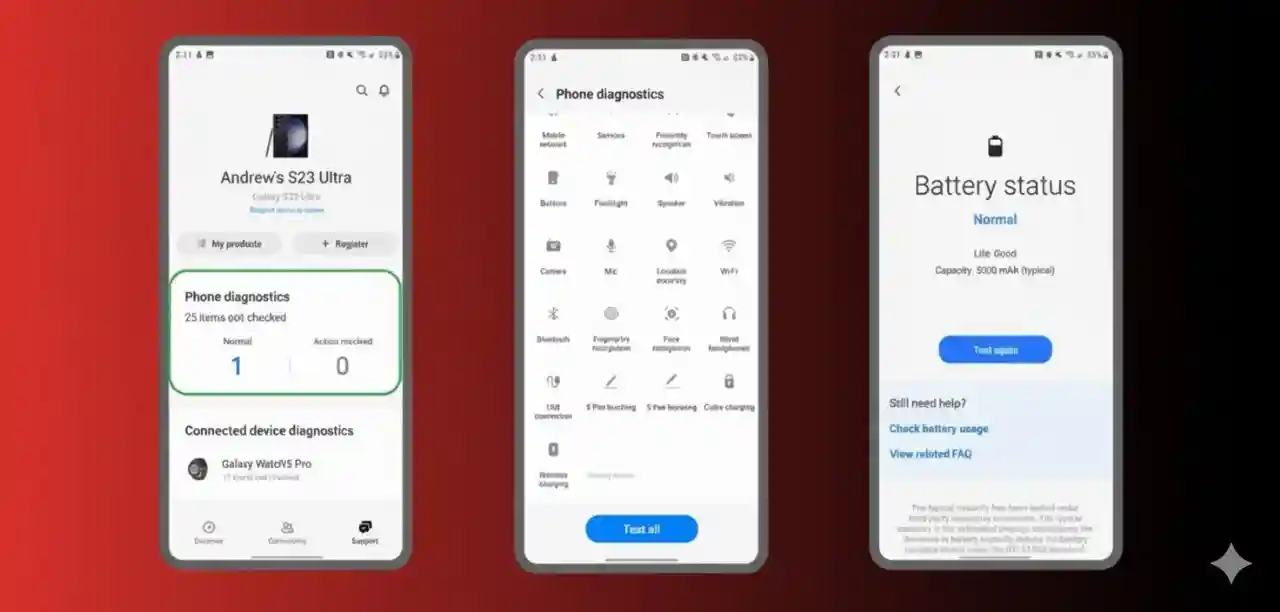
Knowing the duration of battery life on a Samsung phone can be as easy as using the built-in Samsung Members app. This app is designed specifically by Samsung to be user-friendly and tends to be the most accurate.
Step-by-Step Instructions
- Open Samsung Members on your phone. If you do not have the app, you can download it from the Galaxy Store or the Play Store.
- On the app, select Support from the bottom panel or “Get Help” in “Diagnostics”.
- Select Phone Diagnostics or the Battery Status option.
- Select either the Test All or Battery test options, and it will give you results like Good, Normal, or Poor.
This will tell you if the battery is losing life. The exact capacity percentage may not be shown, but the “Life” or “Status” indicator is helpful to know the condition of the battery.
Using Settings App & Usage Patterns

Even without diagnostics, your phone gives clues:
- Go to Settings > Battery and Device Care > Battery. You'll be able to see the amount of usage of which apps are draining more, the temperature, etc.
- Check how the battery drains throughout the day, based on normal use like screen-on time and background apps. If your phone is dead within a short time when it reaches 20-30%, it means that battery capacity has decreased.
I did this over a week and noticed Battery Usage times shrinking, confirming what Samsung Members showed.
Dial Codes & Third-Party Apps

Certain Samsung (and Android) phones have hidden diagnostic menus that can be accessed via dial codes, but they might not be compatible with every One UI version.
- Dial *#*#4636#*#* - If battery information appears, it could show temperatures, health, or battery level.
- Call *#0228# on certain models to see the battery level and other statistics. However, this code may not work with new models.
- If built-in tools are missing, third-party applications such as AccuBattery, DevCheck, or CPU-Z can help. They monitor charging cycles, capacity, and use patterns. These apps require some time (days/weeks) to collect information.
When You Might Need Battery Replacement
These are the warning signs which may indicate that the Samsung battery needs replacement:
- The battery "Life" in Samsung Members displays Moderate or Poor.
- Your smartphone shuts off even if your battery has a charge.
- Charge time is increased and drains rapidly even with minimal use.
- The device is often hot or the battery bulges (rare but critical).
If these occur frequently, contact an authorized Samsung service center.
Tips to Maintain Better Battery Health

While checking health is important, preserving it is equally so. Here's what helped me:
- Do not charge up to 100% all the time. It is recommended to charge between 80 and 90%.
- Do not let your battery dip to 0% often. Try to keep it within the middle ranges whenever you can.
- Utilize power-saving options within Settings > Battery and Device Care to restrict background application use.
- Make sure your phone's software is up-to-date as firmware can improve battery performance.
Conclusion
Understanding the best way to monitor battery health on Samsung can help you spot problems early, before your device begins to behave badly. Utilize your Samsung Members app diagnostics, look at usage in settings, and try dial codes or trusted apps to look for any warning signals. By keeping a regular check and attentive application, you'll help your Samsung battery last longer and avoid the need for replacement.
There are tools available to use, as well as methods to prolong the life of your battery to keep your smartphone running smoothly.
Frequently Asked Questions

Does Samsung provide a health score for its batteries?
Samsung Members app displays information such as Good, Normal, Poor for numerous phones. The exact percentage may not be accessible.
What does "battery status" mean in Samsung diagnostics?
It's a quick assessment of how the battery performs compared to its state when it was brand new. This isn't a precise measure of battery capacity all the time, but it is useful.
Are dial codes available to test the health of my battery on Samsung?
Yes, codes such as *#*#4636#*#* or *#0228# could display battery status. However, the latest Samsung phones may not support these codes.
Are third-party apps able to provide accurate information about the health of your battery?
They're estimates based on usage and charging history. They may help you see patterns, but they are not necessarily "factory spec" numbers.
How often should I check battery health on Samsung?
Once every few months is fine unless you notice performance or battery drops drastically.