
Introduction
If you've ever shared your phone with someone, you're aware how important it is to keep your call list private. The good news is that clearing your call list on iPhone takes just a few taps. When I first decided to erase my list of missed calls, I was unsure whether It would remove one number or the whole list. After doing it for myself I came up with a method to erase individual numbers and erase the entire history of calls.
In this article I'll guide you through each method to clear call history on iPhone, step by step. We'll discuss the methods to delete one call, or multiple calls in one go as well as how to erase the entire call log. We'll also provide some suggestions to see whether deleted calls are still recoverable.
Why You May Want to Delete Call History

Before we dive through the steps, we need to be aware of the reasons you may want to clear it:
- Your phone is shared with your family or friends.
- You don't want long call lists cluttering the Phone app.
- You made calls you'd rather keep private.
- You're just looking for an opportunity to have a fresh start with no record.
Whatever the reason, deleting the history of calls is safe and doesn't affect contacts, saved phone numbers, or text messages.
Method 1: Delete a Single Call
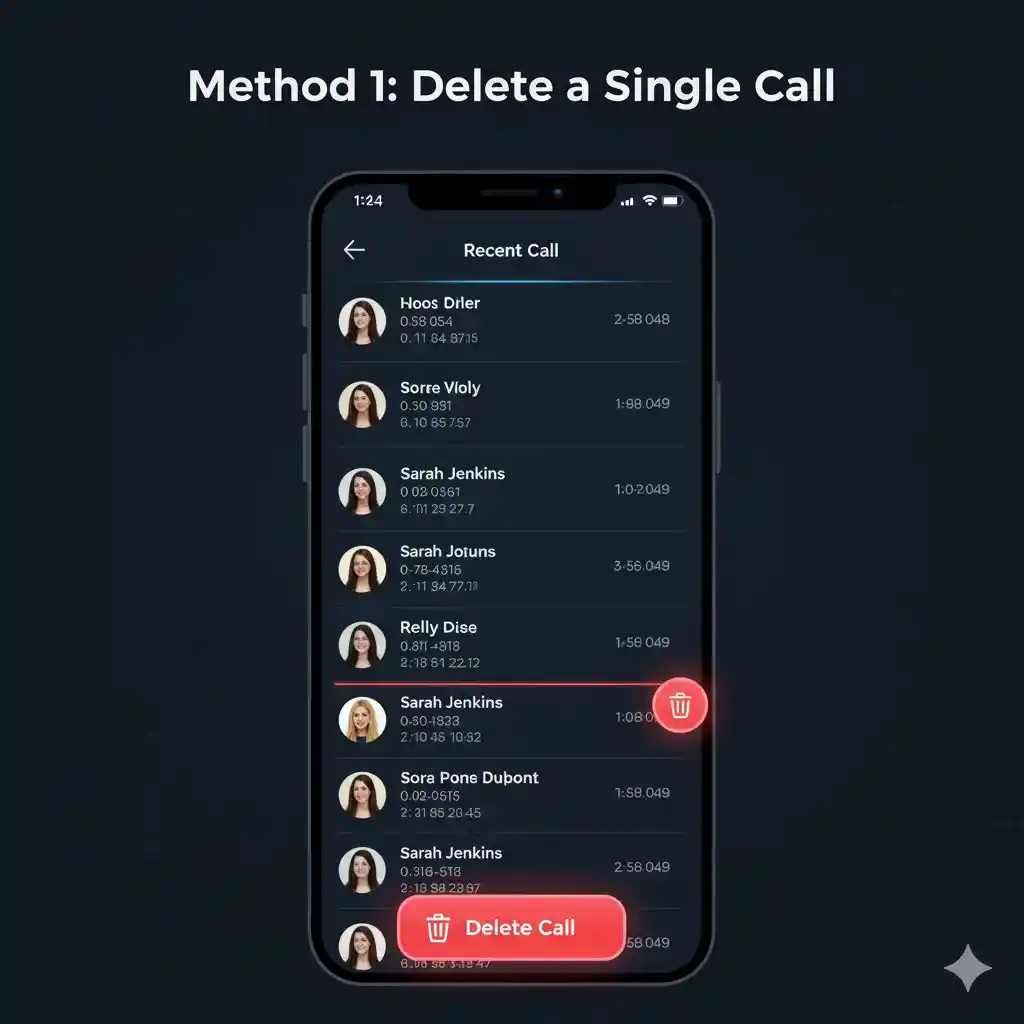
Sometimes, you just need to clean out one call without wiping out the entire list.
Here's how I did it:
- Start the Phone app on your iPhone.
- Click on the Recents tab at the bottom.
- Find the name or number you would like to delete.
- Swipe left on that specific call.
- Tap the delete button that appears.
That's it! The call goes away instantly. I tried this on one missed call and it went away without any effect on rest of the call log.
Method 2: Delete Multiple Calls at Once

When I received several calls from the same phone number, swiping them one by one can waste your lots of time and it felt slow. iPhone offers the option to erase multiple entries at one step.
Here's how:
- Open the Phone app and go to Recents.
- Tap Edit on the upper-right corner.
- Then, you'll notice the red plus (-) button beside every call.
- Click the red minus symbol for the calls you would like to remove.
- Confirm by pressing Delete.
This way, you'll be able to get rid of several calls with just a couple of taps.
Method 3: Delete Entire Call History
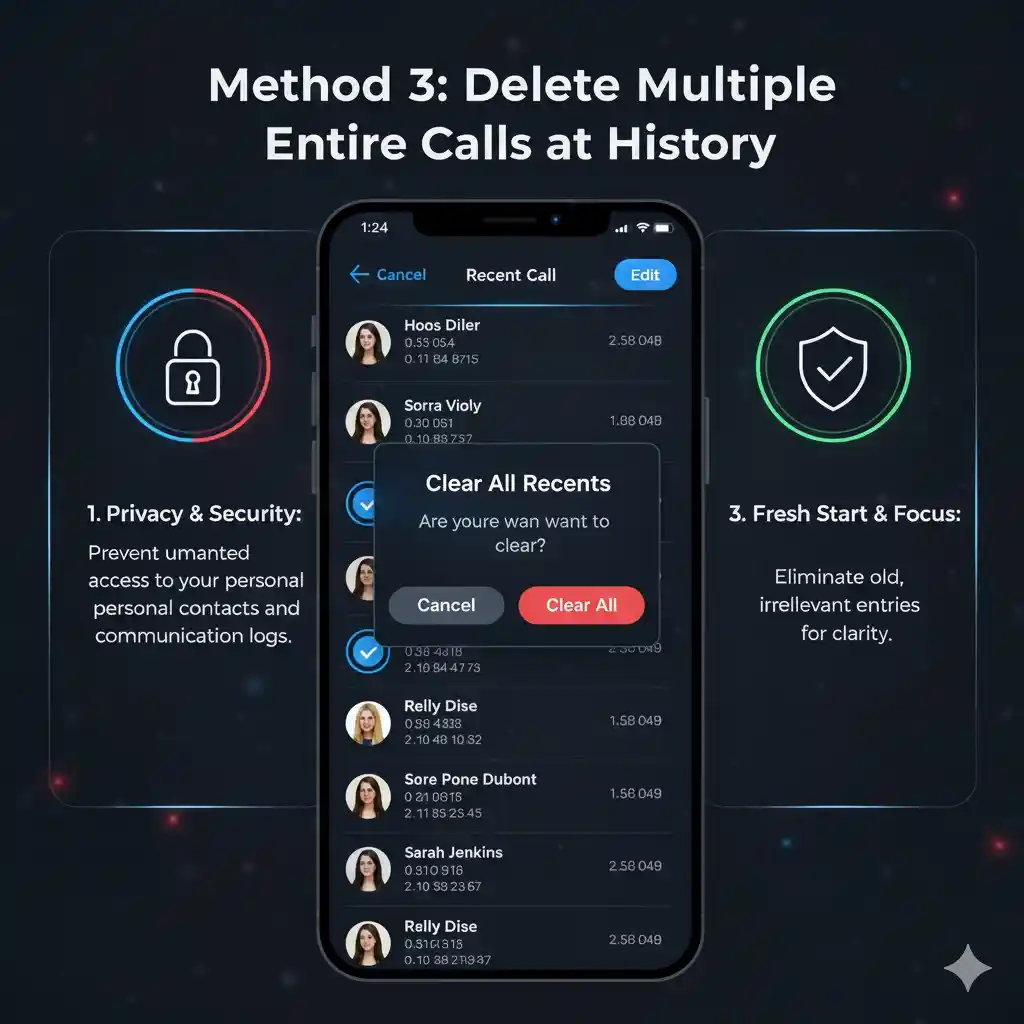
If you're looking to start with a clean slate, you can clean the entire call history in just a few seconds. I've done this prior to handing over my phone to my friend, and it worked flawlessly.
Follow these steps:
- Start the Phone app and click on the Recents tab.
- Tap Edit in the upper-right corner.
- You'll find an option Clear on the top left-hand side of the screen.
- Tap Clear All Recents.
- If asked, confirm.
And boom! Your entire call history on your iPhone disappears.
Method 4: Delete Specific Call History via Search
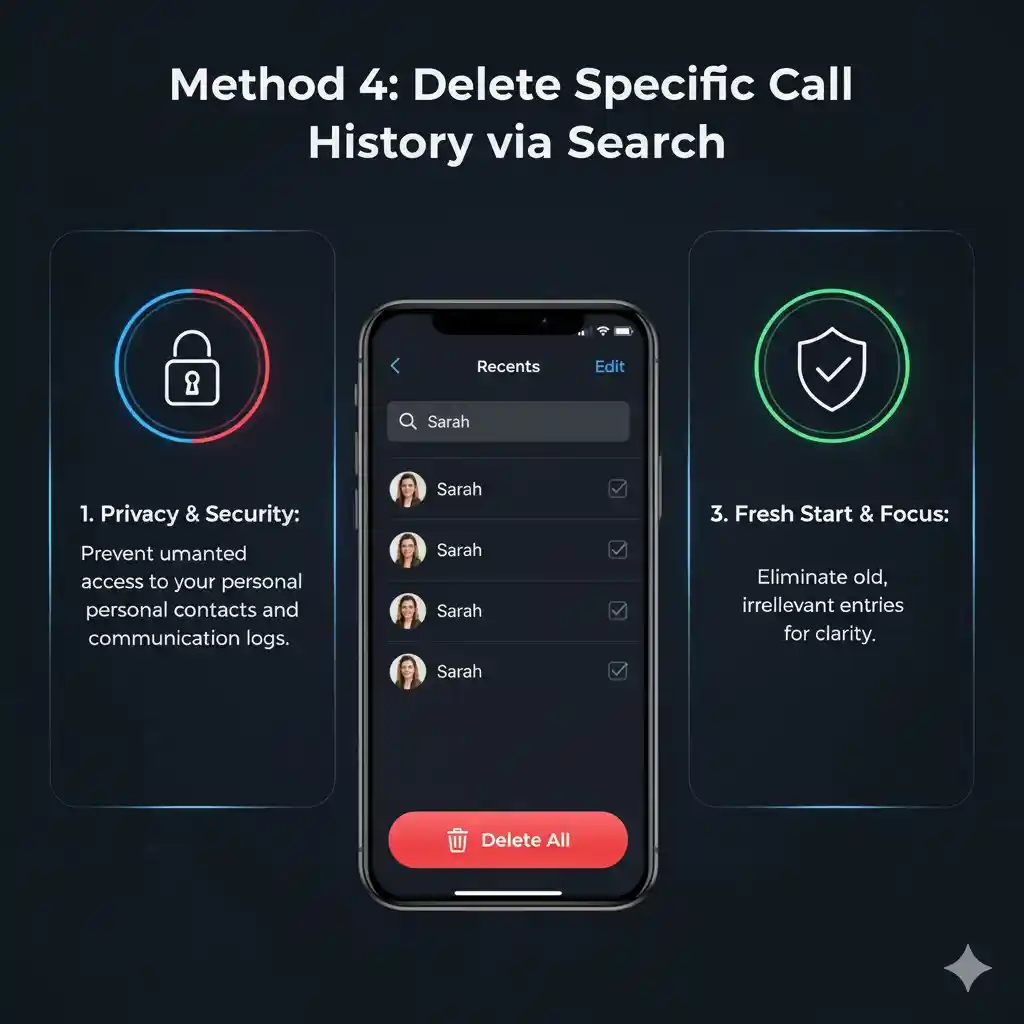
Sometimes, I could not find the number in the long list. One of the simplest methods I used was the search function within the Phone application.
Here's how:
- Start the Phone app.
- Tap downwards to see the search bar.
- Enter the contact's name or the number.
- Once it appears, swipe left or tap edit - delete.
This is particularly useful when you have a lot of calls saved.
Method 5: Remove Call History from iCloud
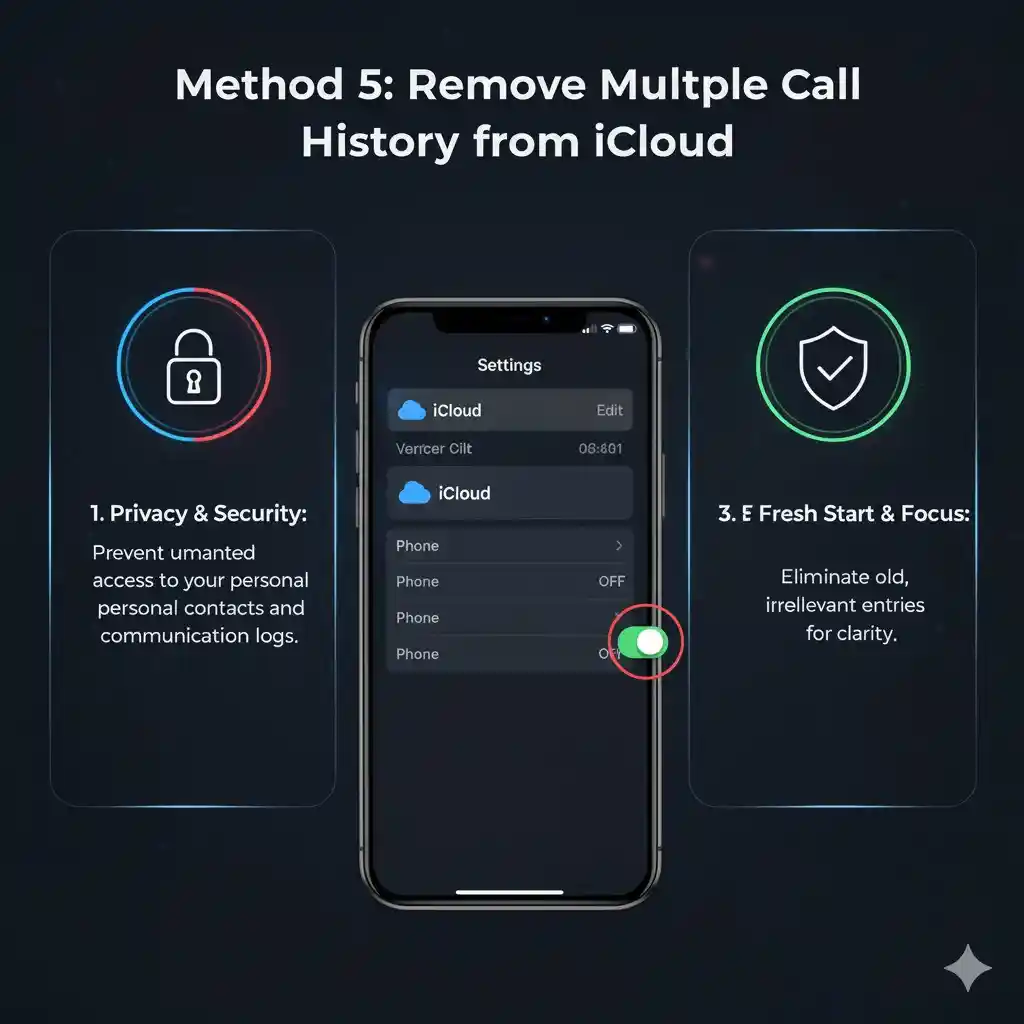
I discovered that if you have same Apple ID on multiple devices Your call history could be synced across all of them. The deletion of one device could erase it from the rest too.
If you want to stop the syncing:
- Go to Settings, Tap your name.
- Choose the iCloud.
- Locate iCloud Drive, or iCloud for iPhone.
- Turn off sync of Call history.
Now, When you delete a call from an iPhone, it won't disappear from your iPad or any other iPhone connected to your Apple ID.
Method 6: Delete Call History from Third-Party Applications
If you are using apps such as WhatsApp, FaceTime, or Skype, they also keep call history separately from the standard Phone app.
Here's what I did on FaceTime:
- Open the FaceTime app.
- Swipe left on any phone and Tap delete.
- You can also tap Edit - select several calls - delete.
For WhatsApp:
- Open WhatsApp - Go to Calls tab.
- Long press a call - Tap Delete.
- Clear multiple entries if required.
Also, don't forget to test these apps as well, because the deletion of call history from the Phone app will not clear them automatically.
Method 7: Can Deleted Calls Be Recovered?
This is something I've discovered the hard way: when you erase your call history, it will not show up in the Phone app any more. But, some traces may still exist in backups.
iCloud Backup: If your phone automatically backs up every day, the old call logs may still be stored in backup.
iTunes / Finder Backup: If you connect your iPhone to a Mac or Windows PC, older backups may still have your call logs.
To avoid recovery, make sure that you overwrite old backups after deletion of call logs. This way, the new backup won't contain them.
Bonus Tip: Use Siri for Quick Call Deletion
I was pleasantly surprised to discover that Siri can also aid. Although it can't delete call logs but you can request Siri to "show my call history." When it's open, you can swiftly swipe and delete the data without having to navigate manually.
FAQs
Q: If I delete my call history on my iPhone, will it also delete on iCloud?
A: Yes, If iCloud sync is enabled. To stop this, turn off call syncing in iCloud settings.
Q: Can I delete the missed calls only and save the other calls?
A: No, the iPhone does not have a single-tap "delete missed calls" option. But you can delete missed calls one at a time.
Q: Do deleting my call history have an effect on my contacts?
A: Not at all. It simply erases the records of calls and not the saved numbers or the contacts themselves.
Q: Can police or Apple still view the deleted call logs?
A: Apple states that deleted call logs have been removed from the device, but certain details may exist in backups, or even with your carrier.
Q: Can I recover deleted call logs with no backup?
A: Not officially. Third-party recovery tools claim they can do it, however results differ and could require computers.
Conclusion
It is simple to delete call records when you know where to look. If you're looking to delete only one particular call, several entries or all of them, iPhone gives you all the options within the Phone app.
The next time you're wondering how to delete call history on iPhone, follow these steps to clear your phone's history in just a few minutes.