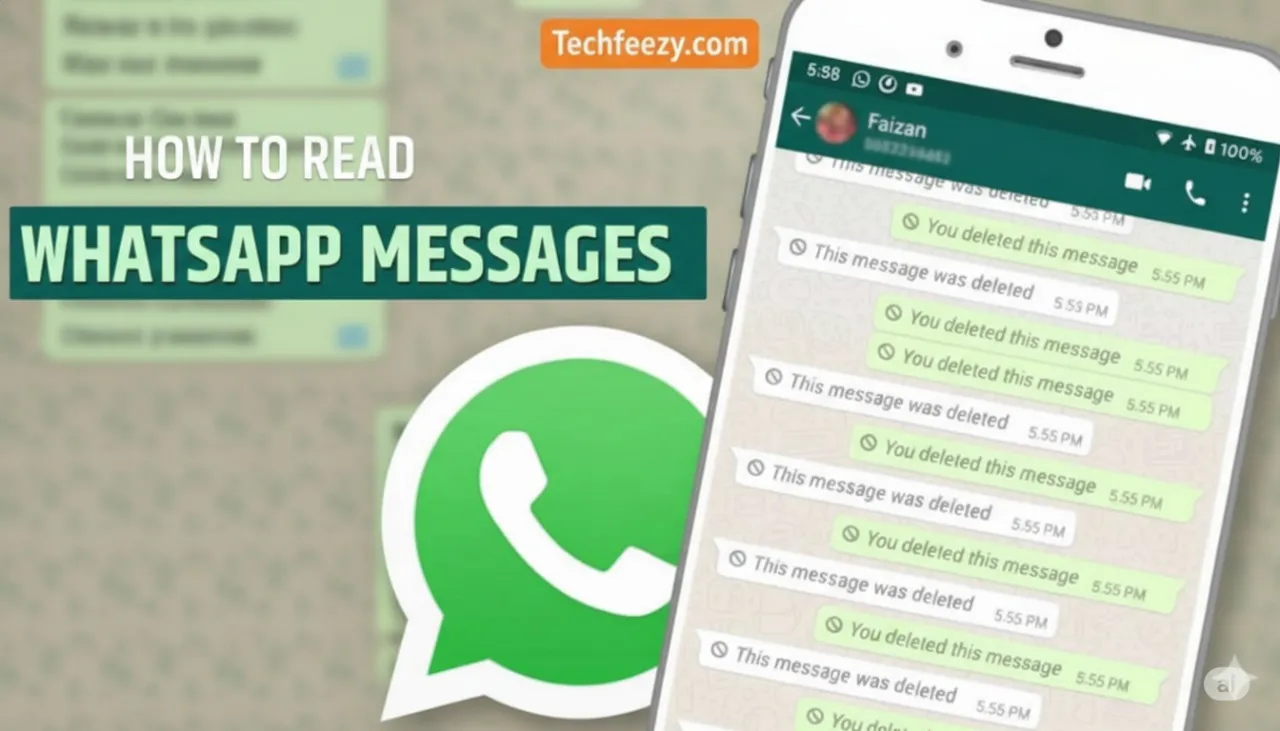
Why WhatsApp Messages Get Deleted
Before we jump into recovery, let's understand why messages disappear.
- Someone deleted a message sent by mistake.
- Group chats often have people deleting awkward texts.
- WhatsApp's "Disappearing Messages" feature auto-deletes chats.
Whatever the reason, curiosity hits fast when you see "message deleted." Luckily, you can still recover them.
1. Check Notification History (Android Only)
Android keeps a log of your notifications, including WhatsApp messages. Even if they get deleted later, the log may still show them.
Steps:
- Long-press on your home screen → choose Widgets.
- Add the Settings widget.
- Pick Notification Log from the list.
- Now you can view past WhatsApp notifications, including deleted ones.
If your phone doesn't have this option, don't worry—there's another way below.
2. Use Notification History Apps
.webp)
If your phone doesn't support a built-in log, try apps that do it automatically. The ones I tested and liked most are:
- Notification History Log (by ikva eSolutions)
- Notisave (free version works fine)
- WAMR – Recover Deleted Messages
How it works:
These apps store your incoming WhatsApp notifications, so even if a message gets deleted, you can still read it in the app. Some even save deleted photos or voice notes.
Pros:
- Super easy to use
- Can recover images and voice notes
- No need to root your phone
Cons:
- Won't recover messages from before installation
- Free versions may show ads
3. Restore Messages from WhatsApp Backup
.webp)
If you deleted messages yourself, restoring from backup is the best fix.
For Android:
- Uninstall WhatsApp.
- Reinstall it and verify your number.
- When prompted, tap Restore from Google Drive or local backup.
For iPhone:
- Delete WhatsApp.
- Reinstall and log in.
- Tap Restore Chat History from iCloud.
This restores all deleted messages up to your last backup.
Pros:
- 100% safe and official
- Works for both Android and iOS
Cons:
- You'll lose any new messages after the last backup
- Needs enough storage and internet connection
4. Recover Deleted Photos, Videos, and Voice Notes
.webp)
If your deleted message included media, try checking your file folders.
For Android:
- Open File Manager → WhatsApp → Media → WhatsApp Images.
- Check both "Sent" and "Received" folders.
For iPhone:
- Go to Photos → Albums → Recently Deleted.
- Restore within 30 days if available.
If not, check your Google Drive or iCloud backups.
5. Try WhatsApp Web or Linked Devices
.webp)
If you've used WhatsApp Web or linked your account to another device, deleted messages might still appear there temporarily.
Why it works:
When a message is deleted, the update doesn't always sync instantly across all devices, giving you a short window to read it.
Just open web.whatsapp.com or your linked device and check the chat preview.
6. Check Archived or Exported Chats
If you've ever exported or archived a chat, those files may still contain deleted messages.
How to export:
- Go to Settings → Chats → Chat History → Export Chat.
- Select a chat and choose "With" or "Without Media."
It'll create a text file with all your old messages.
7. Recover Deleted Messages Without Backup
No backup? You can still try professional recovery tools.
Recommended Tools:
These can scan your device memory to recover deleted chats, even without backup.
Pros:
- Works even without prior backup
- Can restore chats, photos, and media
Cons:
- Needs a PC or Mac
- Free versions have limited recovery
8. Protect Yourself for the Future
After trying all this, I learned it's best to prevent message loss.
Here's what I do now:
- Install a notification saver app early.
- Turn on Daily Backups in WhatsApp settings.
- Export important chats monthly.
- Avoid clearing WhatsApp cache too often.
These simple steps make sure you never lose messages again.
Quick Summary
| Method | Pros | Cons |
|---|---|---|
| Notification History | Free, quick | Works only on some phones |
| Third-Party Apps | Easy, recovers media | Needs permissions |
| Backup Restore | Safe, official | Overwrites new messages |
| File Manager | Finds images/videos | Media only |
| Recovery Tools | Deep scan | PC needed, limited free use |
FAQs
1. Can I read deleted messages without any app?
Yes, Android's built-in notification history can show deleted messages if available.
2. Are apps like WAMR and Notisave safe?
Yes, if downloaded from Play Store. Allow background access for best results.
3. How can iPhone users see deleted messages?
Restore from your last iCloud backup or use tools like iMyFone ChatsBack.
4. Can I recover chats without backup?
Yes, by using PC recovery tools like Tenorshare UltData or Dr.Fone.
5. Does WhatsApp officially allow this?
No, but backup and notification-based recovery are safe and allowed.
Final Thoughts
Now you know how to read deleted WhatsApp messages — whether through backup restore, notification logs, or recovery tools. Personally, I use Notisave and daily backups to stay covered.
So next time you see "This message was deleted," you'll know exactly what to do.