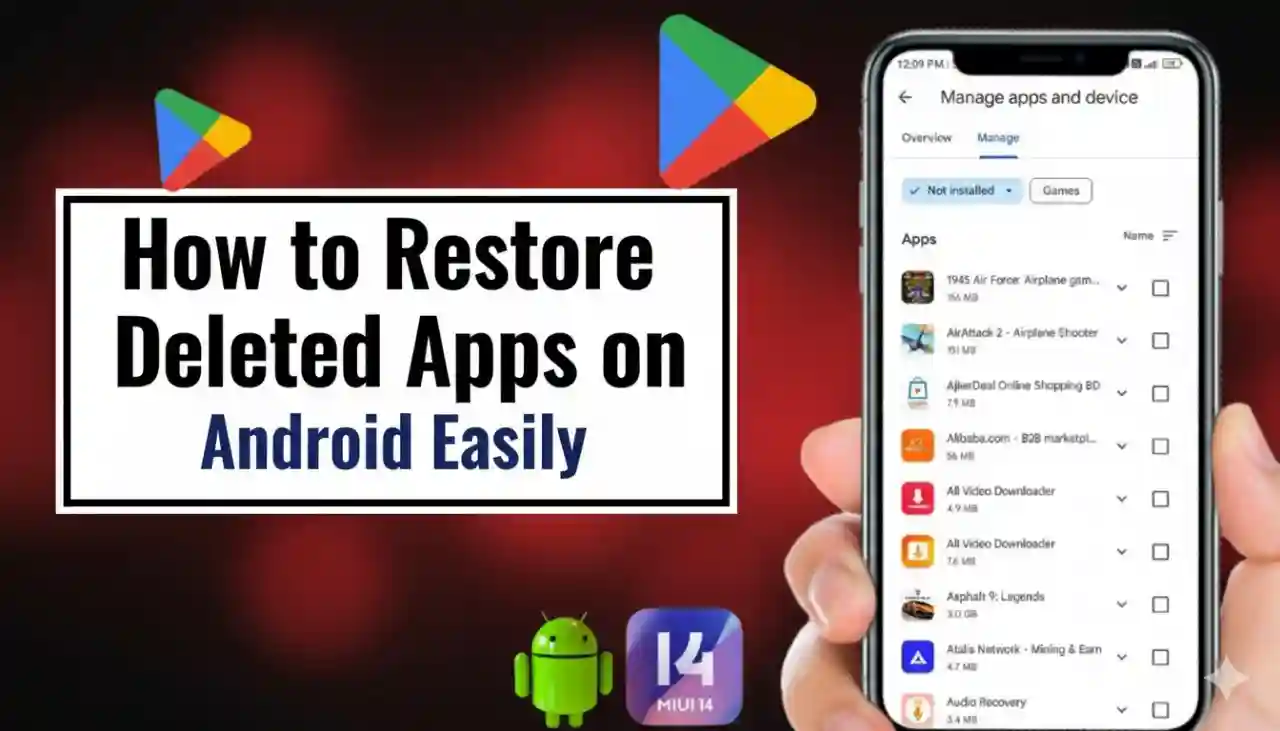
How to Restore Deleted Apps on Android?
There's been a time. It's easy to uninstall an application in error, or you delete your phone, only to realize that you need the application. I had this happen to me recently--I accidentally deleted a budget tracking app and didn't know what to do to get it back. If you're thinking how to recover lost apps from Android Don't fret. There are methods to restore these apps without wasting time.
In this article I'll provide step-by-step instructions to locate deleted applications, then reinstall them, and even recover lost app information If it's possible.
Why Apps Get Deleted on Android?
Before we can restore, let's look at the reasons apps go away:
- It was accidentally removed off The Home screen
- Factory reset on the Android phone
- Cleaning apps for storage that can uninstall applications
- Making a switch to a new phone without having a backup
- Not knowing the app's Google account was running the app
If I ever lost mine, it was due to clearing applications to save space and then realized I had to get it to get it back.
Method 1: Use Google Play Store Library
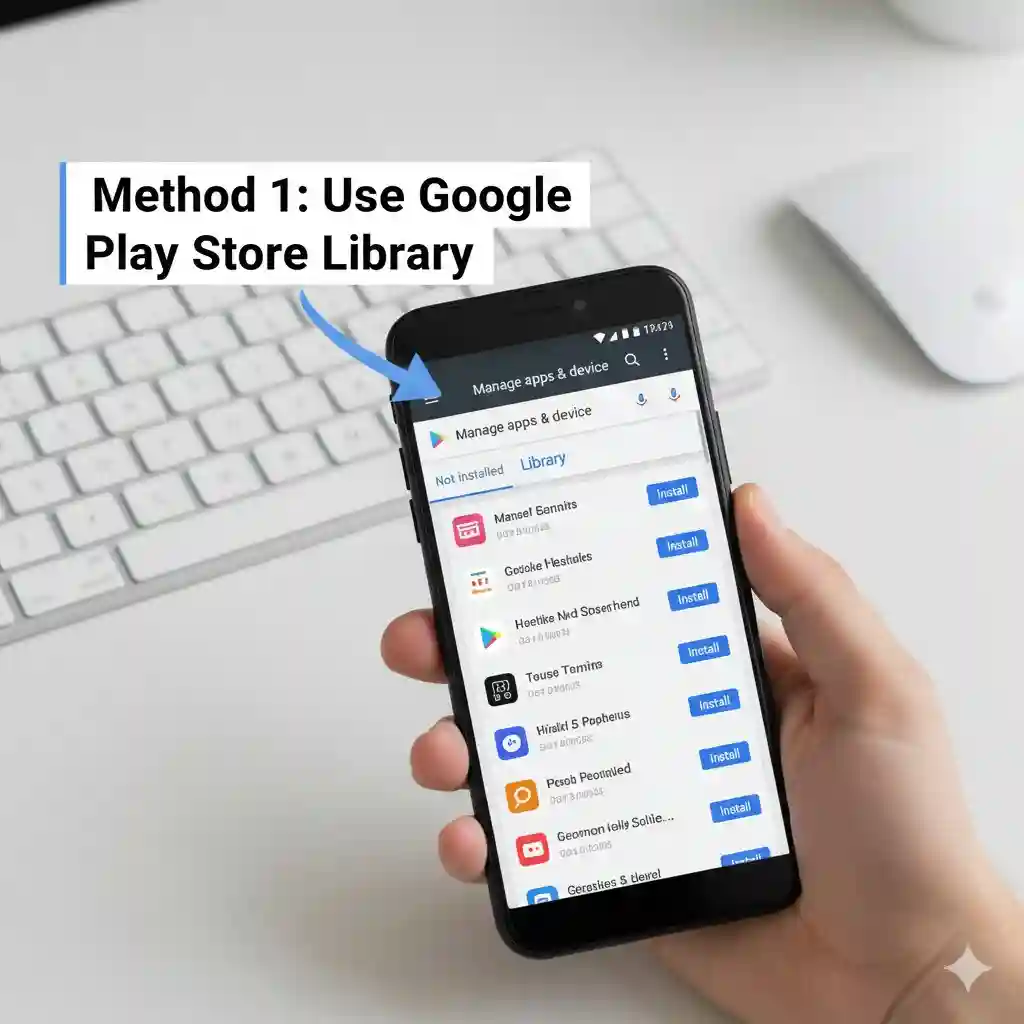
The most efficient way to retrieve is via Google Play Store. Every app you've ever downloaded through you Google Account is saved there.
- Go to your Google Play Store on your Android phone.
- Tap on your account icon on the top-right of the screen.
- Navigate to Manage apps and devices and then Manage.
- Tap Installed > Not Installed.
- You'll find the list of deleted apps for Android connected on your Account.
- Simply tap the Install button to make the change you require.
I used this method and in a matter of minutes my budget tracker application was returned.
Method 2: Search and Reinstall Directly
If you can remember the name of the app:
- Open the Google Play Store.
- Search bar to locate the application.
- Tap Install.
This works great when you have apps that you know However, sometimes it's easy to forget the names of apps. This is when Play Store Library comes in handy.
Method 3: Restore via Google Account Backup
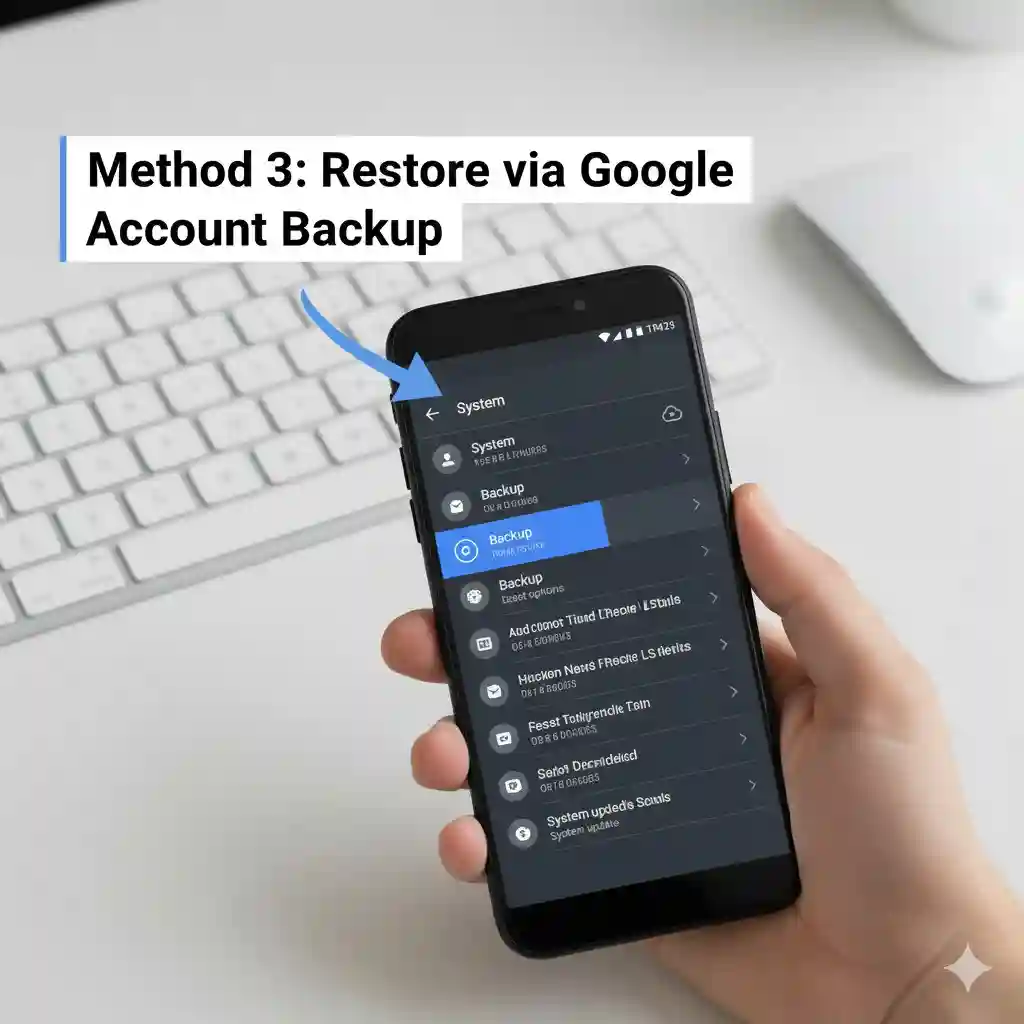
If you have recently changed your phone or reset an Android smartphone, the backup of your Google account backup could be restored to restore apps.
- During the phone setup, sign in using Google account.
- Select the option to Restore backup.
- Select the date of the backup that is the most recent.
- The apps connected to that account will automatically reinstall.
When I switched to a new phone I took advantage of this feature and saved myself hours of manual installation.
Method 4: Use Third-Party Backup Apps
Certain people like backup apps such as Titanium Backup or Helium. These apps are able to save not only apps but also data from apps. They may also require additional permissions and some may require root access.
I tested it using an old Android phone and it worked, restoring both the app as well as my settings that I had saved. But, I'd suggest sticking with Google's own tools to protect yourself.
Method 5: Restore App Data (If Possible)
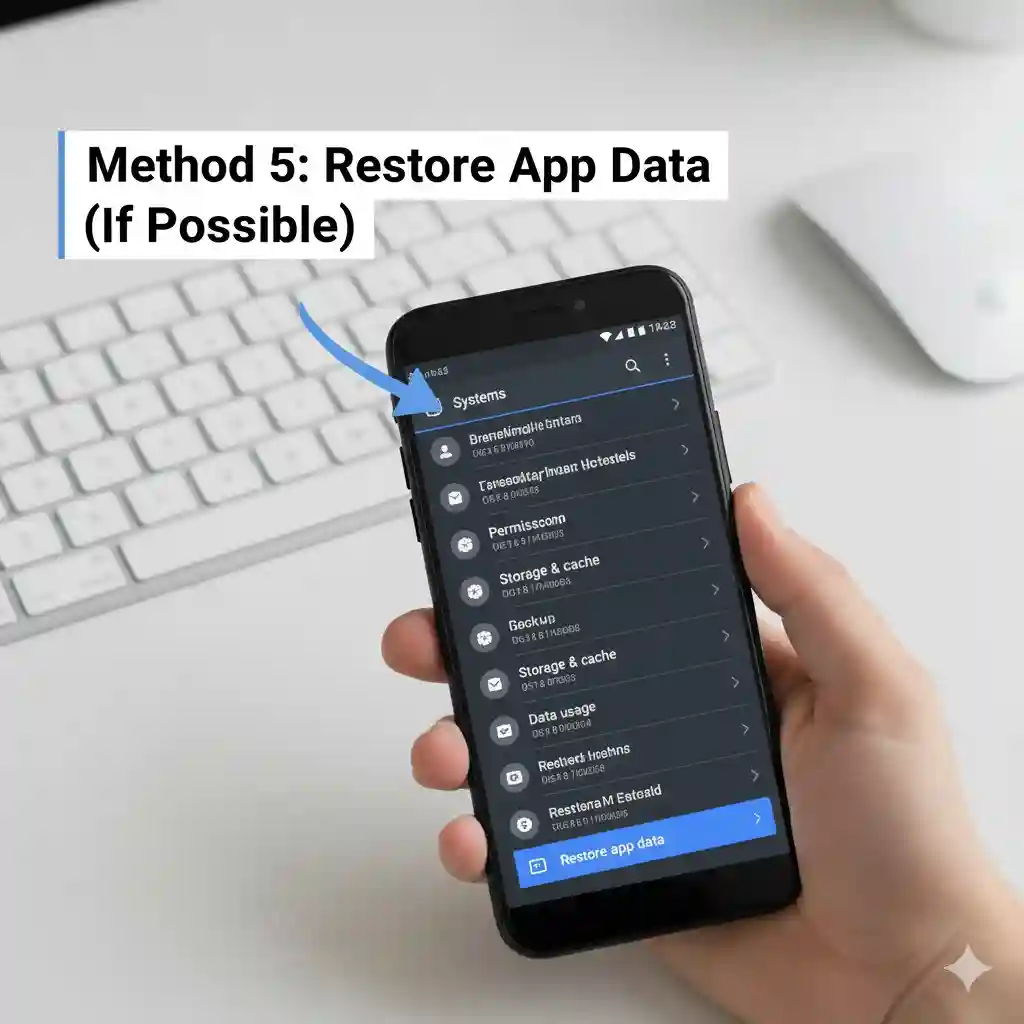
Reinstalling apps is a breeze however, what happens to deleted app information such as chats, progress as well as saved file?
- For cloud-based applications (WhatsApp, Google Photos, Gmail) Data is transferred back after you log in.
- For apps that are local-only, the data might be lost unless there was backup.
- Certain apps provide their own backup feature within their setting app.
I've also restored WhatsApp chats after enabling Google Drive backup before uninstalling--it was an absolute lifesaver.
Pros and Cons of Different Methods
Pros:
- Google Play Store makes recovery easy.
- Google account backup saves time during phone switch.
- Third-party apps can recover the app's data.
Cons:
- Local-only app data could be lost.
- It requires to have the exact Google account.
- Third-party apps might not be always secure.
FAQs on How to Restore Deleted Apps on Android
Q1. Can I restore apps with the Play Store?
Yes, if you've got the APK file or third-party backup, Play Store will be the most secure way to go.
Q2. Is reinstalling my app's information?
It's not always the case. Cloud-based applications like WhatsApp and Gmail recover data, but apps that are local only may lose it.
Q3. What can I do to determine what apps I've deleted?
Visit Google Play Store > Manage apps and devices > Manage > Don't installed.
Q4. Can I get my apps back after the factory reset?
Yes, you can log in using your Google account to set up and then restore backup.
Q5. What happens if I have several Google accounts?
You'll need to check the Play Store library for each account to find deleted apps.
Conclusion
The mistake of deleting an app can be a frustrating But the good news is that, you are able to bring them back. By using your Google Play Store library, your Google account backup and even third-party tools, you don't have to worry about losing your most-loved apps. You now know how to restore deleted apps on Android which means that next time you face this issue you can restore it in just minutes.