Introduction
In today's image-driven world, WhatsApp is the most popular messaging app for sharing moments, media, and memories. But here's the issue: when you send a photo the usual way, WhatsApp compresses it—reducing clarity and detail by up to 98%. That's fine for memes, but a disaster for photographers, designers, or professionals who need crystal-clear images.
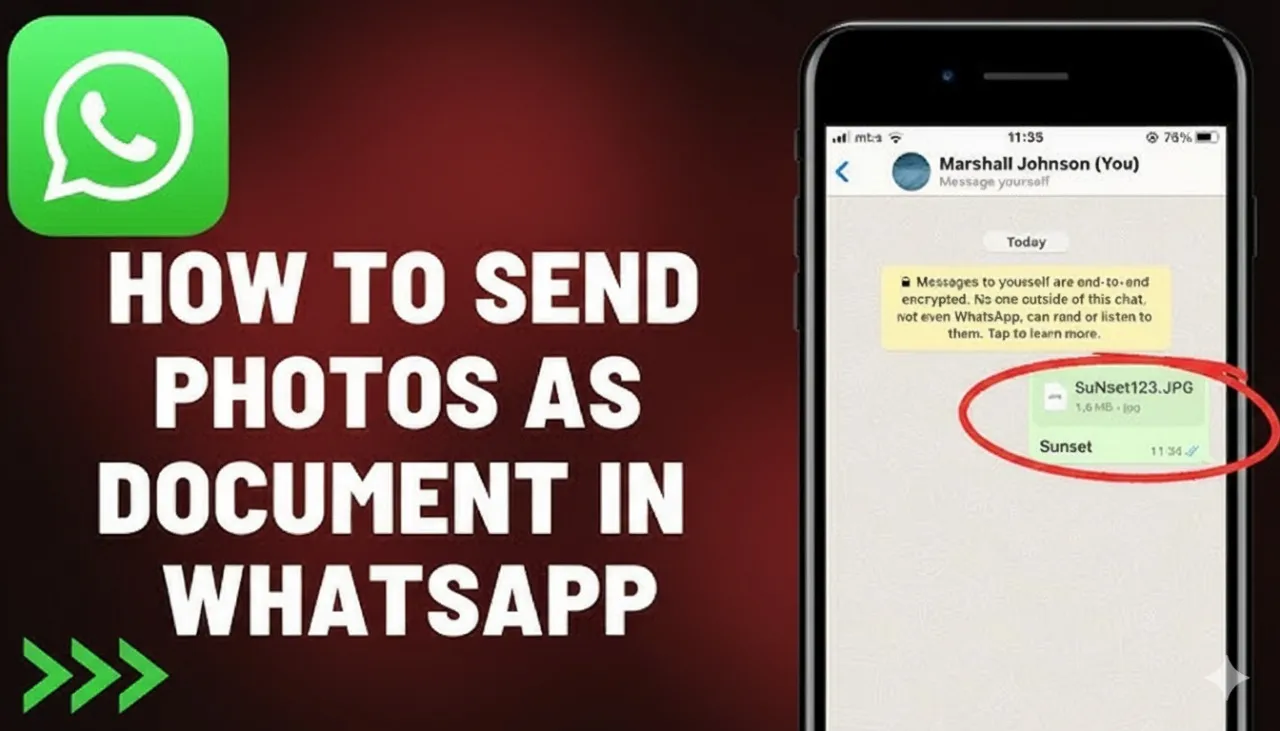
Luckily, there's a simple fix: send photos as documents in WhatsApp. This method bypasses compression, preserves the original resolution, and allows file sizes of up to 2GB—without any third-party apps.
Whether you're using Android, iPhone (iOS), or WhatsApp Web/Desktop, this guide walks you through every step. Updated for WhatsApp 2025, it includes troubleshooting tips, best practices, and answers to the most common questions users have.
Why Send Photos as Documents? The Benefits Breakdown
Here's why sending photos as documents on WhatsApp is the smarter choice:
- No Quality Loss: Keep your photo's full resolution, color accuracy, and metadata intact.
- Send Multiple Photos Easily: Share dozens of images in one go.
- Control Over Storage: Large files are shared only when you choose—great for managing mobile data.
- Cleaner Gallery: Document photos don't clutter your phone's photo gallery.
- Cross-Platform Support: Works seamlessly on Android, iPhone, and Desktop.
How to Send Photos as Documents on Android
.webp)
Follow these steps to send uncompressed photos via WhatsApp on Android (v2.24 and above):
- Open WhatsApp and choose the chat where you want to send the image.
- Tap the paperclip icon (📎) and select Document.
- Your file manager opens—navigate to the folder containing your photos (e.g., DCIM > Camera).
- Select one or multiple images (hold to choose several).
- Tap Send.
How to Send Photos as Documents on iPhone (iOS)
.webp)
Since iOS restricts direct file access, you'll need to use the Files app. Here's how to send high-quality photos as documents on iPhone (iOS 18 and later):
Method 1: Using the Files App (Recommended)
- Open the Photos app and select your desired image(s).
- Tap the Share icon → Save to Files.
- Choose a location (e.g., iCloud Drive > WhatsApp Shares).
- Open WhatsApp → Chat → + → Document.
- Select the file(s) from Files and tap Send.
Method 2: Direct Send (WhatsApp Beta 2025)
Some newer beta versions let you pick "Photos & Videos" under Documents—a shortcut to bypass compression directly. If not available, use Method 1 for consistent results.
How to Send Photos as Documents on WhatsApp Web or Desktop
.webp)
You can also send high-resolution images directly from your computer:
- Open web.whatsapp.com or the WhatsApp Desktop app.
- Click the paperclip icon → Document.
- Browse your computer and select the photo(s) you want to send.
- Click Open → Send.
How Recipients Can View or Save Photos Sent as Documents
If you're receiving document-style photos:
- Android: Tap the file → Save or forward it → Find it in WhatsApp/Documents/
- iPhone: Tap → "Save to Files" or "Add to Photos"
- Desktop: Right-click the file → "Download"
Troubleshooting: Common WhatsApp Photo-Sending Issues
| Problem | Cause | Solution |
|---|---|---|
| File too large | Over 2GB limit | Compress non-lossy via TinyPNG or split files. |
| Image still compressed | Wrong send method | Re-send using "Document," not "Gallery." |
| Files not visible (iPhone) | iCloud sync delay | Restart Files app or disable iCloud Photos temporarily. |
| Received photos not in gallery | Document isolation | Save manually from Files or use "Export to Photos." |
| HD option missing | Outdated app | Update WhatsApp via App Store/Play Store. |
Pro Tips for Sending Photos as Documents
- Rename File Extensions: Temporarily change
.jpgto.pdfif WhatsApp blocks certain formats. - Use ZIP for Bulk Files: Zip multiple images to send them as one document.
- Privacy Advantage: Photos sent as documents don't auto-download—great for sensitive files.
- Compare File Sizes: Document photos should be several times larger than compressed ones.
- For Businesses: Perfect for designers, photographers, and vendors sharing proofs or product catalogs.
Conclusion
Sending photos as documents in WhatsApp is the ultimate hack to preserve full quality, clarity, and resolution. Whether you're sharing wedding photos, artwork, or professional documents, this method ensures every pixel stays perfect.
Next time you send an image, skip the "Gallery" shortcut—choose Document instead. Your friends, clients, and followers will notice the difference instantly.
FAQs About Sending Photos as Documents in WhatsApp
Q: Why does WhatsApp reduce image quality?
A: WhatsApp compresses photos to save bandwidth and load chats faster, but this drastically reduces image quality.
Q: Can I send videos as documents too?
A: Yes, you can send videos as documents (up to 2GB). This prevents quality loss and maintains original resolution.
Q: Is there a file size limit for document sharing?
A: Yes—WhatsApp currently allows document sharing of up to 2GB per file.
Q: Will the recipient see a photo preview?
A: No. Photos sent as documents appear as file icons, not image previews—but they retain full quality.
Q: Does this work on WhatsApp Business?
A: Absolutely. Both regular WhatsApp and WhatsApp Business support this feature.
Q: What's the difference between HD photos and document photos?
A: HD photos are lightly compressed; document photos are 100% original with zero compression.
Q: Can I send RAW or TIFF files as documents?
A: Yes. WhatsApp supports most image formats when sent as documents, including RAW, TIFF, PNG, and JPEG.