Introduction
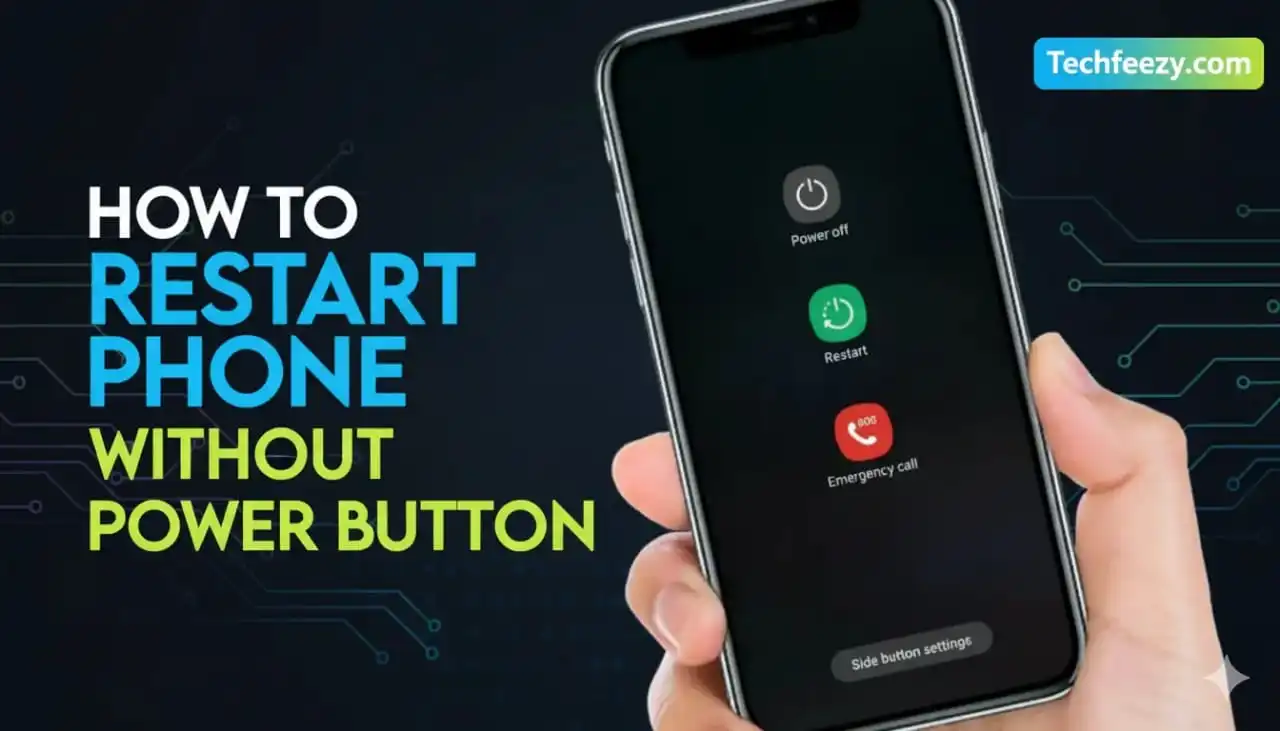
One day the power button did not function properly, and I became panicked. We normally press and hold on the power button to turn off the phone, however what if it's broken or not responding? There's a good thing: you do not actually require the power button in order to reboot your device.
In this article I'll walk you through how to restart your phone without power button, using built-in functions on each Android or iPhone. We'll walk you through the process step-by-step and will also discuss the pros and cons of each technique to help you decide the best option for your particular situation.
Method 1: Restart Using Notification Shade (Android)
On the latest Android phones, the option to restart is integrated into the Quick Settings Panel (also known as the notifications shade). This is the most convenient method of restarting without touching the power button.
Why this works?
Manufacturers such as Samsung, OnePlus, and Pixel have added the software power menu, so users don't always rely on hardware buttons.
How to do it
- Swipe down from the top of your screen twice to open Quick Settings.
- You should look for the power icon (usually located in the upper-right hand corner).
- Tap it and choose Restart.
- Your phone will be shut down and restart automatically.
Pros & Cons
- ✅ Rapid and integrated.
- ✅ No additional setup is required.
- ❌ Only available on the latest Android models.
- ❌ Sometimes hidden in deeper menus depending on brand.
Method 2: Use Accessibility Menu (Android)

When my power button first broke, I activated this feature and found it extremely useful. The Accessibility Menu adds a floating button that appears on the screen and lets you restart the device with just tapping.
Why this works?
This feature was created to help people who have difficulty using physical buttons to use. It displays software shortcuts directly on your screen.
How to do it
- Go to Settings > Accessibility.
- Select Accessibility Menu and switch it on.
- A floating icon will show up on your screen.
- Tap it - Choose Power - Select Restart.
Pros & Cons
- ✅ Reliable and works on most Android phones.
- ✅ Great for long-term button replacement.
- ❌ It requires setup.
- ❌ The button that floats remains on the screen. Some users may be able to see as distracting.
Method 3: Scheduled Power On/Off (Android)

If your phone is frequently lagging but you don't want to play around with buttons, a scheduled restarts can save you.
Why this works?
Some Android manufacturers (like Xiaomi, Oppo, Vivo) permit customers to set up automatic reboots in order to ensure smooth performance.
How to do it
- Navigate to Settings > Battery or Scheduled Power Off/On (name differs by the brand).
- Set a restart time (for example, at 3:00 am).
- Save settings, and then the phone will restart automatically at that time.
Pros & Cons
- ✅ Hands-free restart.
- ✅ Good for regular maintenance.
- ❌ Not accessible on majority of Android devices.
- ❌ It's not a good idea if you need an immediate restart.
Method 4: Use Voice Assistants (Android & iPhone)
It's one of the most innovative and efficient ways to restart without pressing a button. Both Google Assistant (Android) and Siri (iPhone) can assist you to shutdown or restart your device by using the simple voice command.
Why this works
Voice assistants are fully built into modern phones, and some commands which are system-level (like restart shut down, turning off or turning off screen) are also supported.
How to do it (Android and Google Assistant)
- Speak "Hey Google" or press the Assistant shortcut.
- Say "Restart my mobile" Or "Power off my mobile."
- On the majority of devices, the power menu will appear for confirmation.
- Confirm, and your phone restarts.
How do I do it (iPhone using Siri)
- Say "Hey Siri."
- After that, you can say "Restart the iPhone" or "Turn off my iPhone."
- Siri will ask for confirmation.
- After confirmation, the iPhone shuts down. If you require it to be turned back on, simply connect it to a charger.
Pros & Cons
- ✅ Absolutely hands-free.
- ✅ It works immediately, if Assistant/Siri is enabled.
- ❌ This is not supported by all the older devices.
- ❌ You must have internet connectivity to use the Assistant/Siri function.
Method 5: Use AssistiveTouch (iPhone)
For those who are iPhone use, Apple has a built-in AssistiveTouch function that functions exactly like Google's accessibility Menu.
Why this works?
It places a floating on-screen button that can perform many functions such as restart, so you don't need the physical side button.
How to do it
- Open Settings > Accessibility > Touch > AssistiveTouch.
- Turn it ON.
- The floating AssistiveTouch button will be displayed.
- Tap it - Go to Device > More - Select Restart.
Pros & Cons
- ✅ Apple's official solution, that is safe to use.
- ✅ Quick once you've enabled it.
- ❌ It requires setup.
- ❌ The floating button remains in the screen.
Method 6: Restart from Settings (iPhone)
Another way I came across on my iPhone was by going to Settings > General.
Why this works?
Apple has added the "Shut down" option within the settings, it can be used when your buttons stop working.
How to do it
- Go to Settings > General.
- Scroll down to the bottom, then tap to shut Down.
- When the phone is turned off, connect it to a charger.
- It will restart automatically.
Pros & Cons
- ✅ Simple and built-in.
- ✅ No floating button required.
- ❌ Slower than AssistiveTouch.
- ❌ It needs a charger to switch back on.
Method 7: Third-Party Apps (Android)
When my old Android's buttons totally broke, I tested Button Mapper as well as Power Menu apps. They allow you to create restart functions from different buttons or gestures.
Why this works?
Apps have the ability to use hidden system settings and initiate the same restart commands as a hardware button.
How to do it
- Install a reputable app from Google Play (like Button Mapper or Power Menu).
- Start the app and grant necessary permissions.
- Create your own shortcut (e.g. you can double-tap the volume button to re-start).
- You can use it at any time to restart your phone.
Pros & Cons
- ✅ It's a great option for long-term use if your button is broken completely.
- ✅ Customizable.
- ❌ Some apps may consume extra battery.
- ❌ Requires permissions, which can be a concern for privacy-conscious users.
Quick Comparison Table
| Method | Android | iPhone | Setup Needed | Instant Restart? |
|---|---|---|---|---|
| Notification Shade | ✅ | ❌ | No | Yes |
| Accessibility Menu | ✅ | ❌ | Yes | Yes |
| Scheduled Restart | ✅ | ❌ | Yes | No |
| Voice Assistants | ✅ | ✅ | No | Yes (if supported) |
| AssistiveTouch | ❌ | ✅ | Yes | Yes |
| Settings + Charger | ❌ | ✅ | No | No |
| Third-Party Apps | ✅ | ❌ | Yes | Yes |
FAQs
Q1: Can I reboot my phone if the volume and power buttons do not work?
Yes, you can use Accessibility features, AssistiveTouch (iPhone) as well as applications (Android).
Q2: Is it safe to restart with third-party apps?
Yes, if the application is from Play Store. Do not download from unknown sources.
Q3: Can I restart my phone by using voice commands?
For some Androids equipped with Google Assistant, saying "Restart my phone" might work. If you're using an iPhone, Siri can help shut down but restart isn't always supported.
Q4: Should I repair the power button if I find a software method?
Yes, because these are temporary solutions. A working button is still important.
Conclusion
The power button might malfunction, but your smartphone isn't ineffective. From Notification Shade and Accessibility Menu on Android to AssistiveTouch, Siri, and Google Assistant on iPhone, there are many methods to restart your device without power button.
The next time this happens, remember that you can restart your phone without pressing power button with these easy tricks.