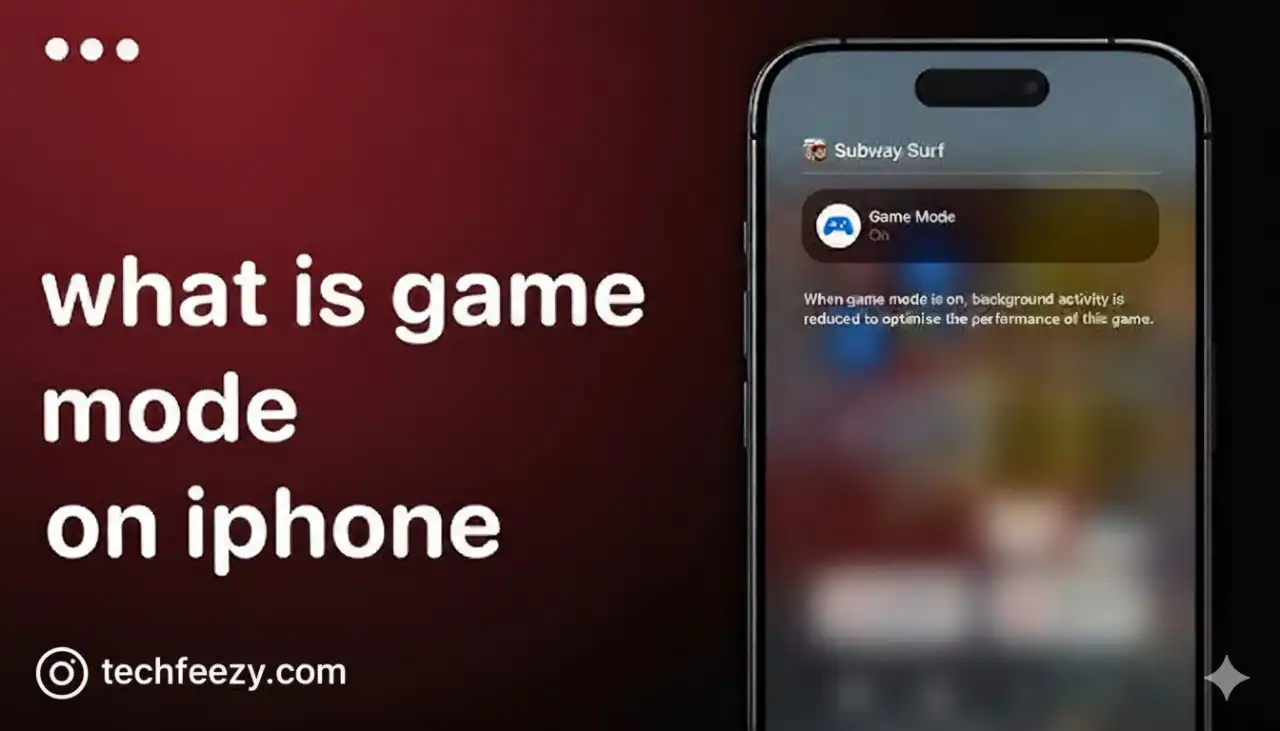
Apple has officially stepped up its mobile gaming game with Game Mode in iOS 26 , a feature designed to make your iPhone run smoother, faster, and more responsive while you play. Whether you’re diving into AAA console-quality titles or casual App Store favorites, Game Mode ensures your device prioritizes performance and cuts out distractions.
In this guide, we’ll break down exactly what Game Mode does, how it works, which iPhones support it, and how you can use it for the best mobile gaming experience.
What is Game Mode on iPhone?
Game Mode is Apple’s dedicated gaming performance setting. It kicks in automatically whenever you launch a game, showing a quick “Game Mode On” banner at the top of your screen. Once active, your iPhone reallocates its resources—like CPU and GPU power—to focus on your game while minimizing background tasks.
That means fewer slowdowns, smoother frame rates, and a distraction-free gaming session every time.
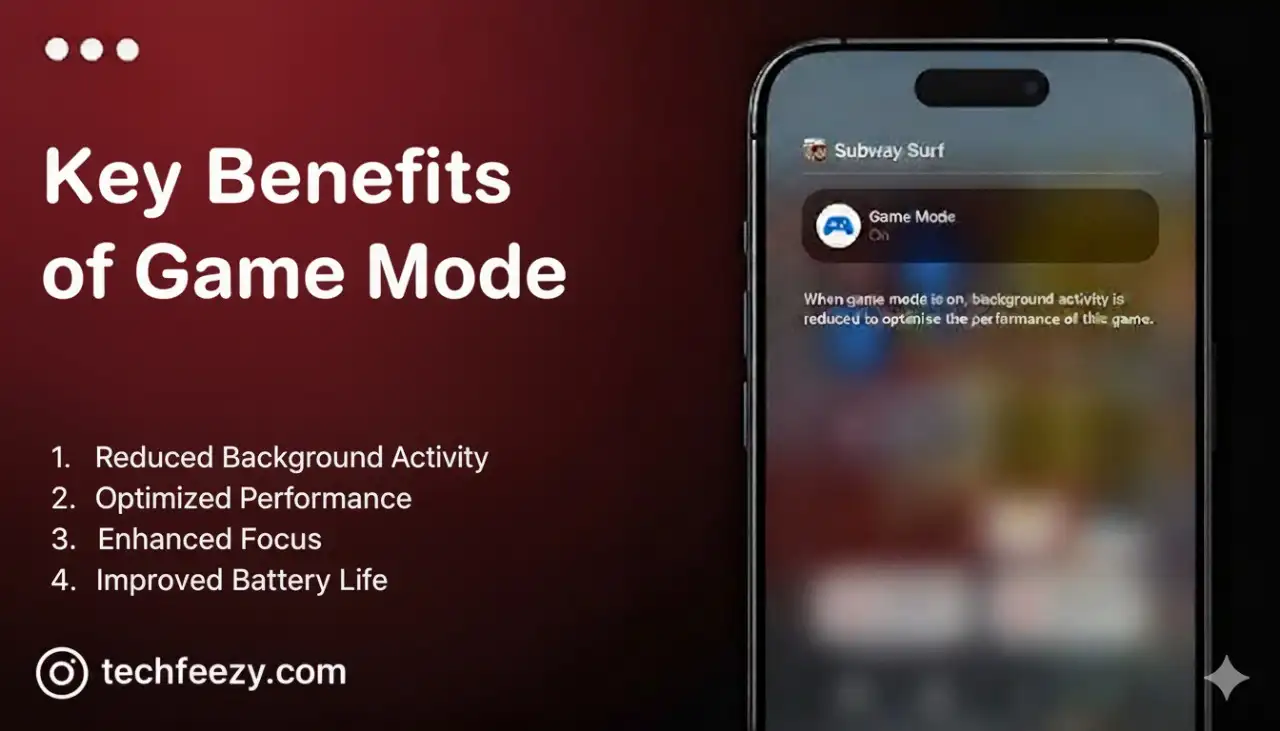
Key Benefits of Game Mode
1. Faster Performance
When Game Mode is on, your iPhone gives priority to the game you’re playing and cuts down on unnecessary background activity. The result is:
- Higher and more stable frame rates
- Reduced lag and stutter
- Better thermal control for longer sessions
This makes a huge difference in graphics-heavy games like Resident Evil Village or Assassin’s Creed Mirage, which demand serious processing power.
2. Lower Latency with Controllers
If you use a wireless controller, Game Mode doubles the Bluetooth polling rate. In plain terms, this means:
- Faster input response
- More accurate controls
- A console-like feel for competitive play
3. Better Audio for AirPods
Paired with AirPods, Game Mode also reduces audio delay so sound effects and voice chat sync perfectly with your gameplay.
- AirPods Pro 2 and AirPods 4 get the lowest latency yet
- Clearer voice quality for in-game chat
- Personalized Spatial Audio support for an immersive experience
iPhone Models That Support Game Mode
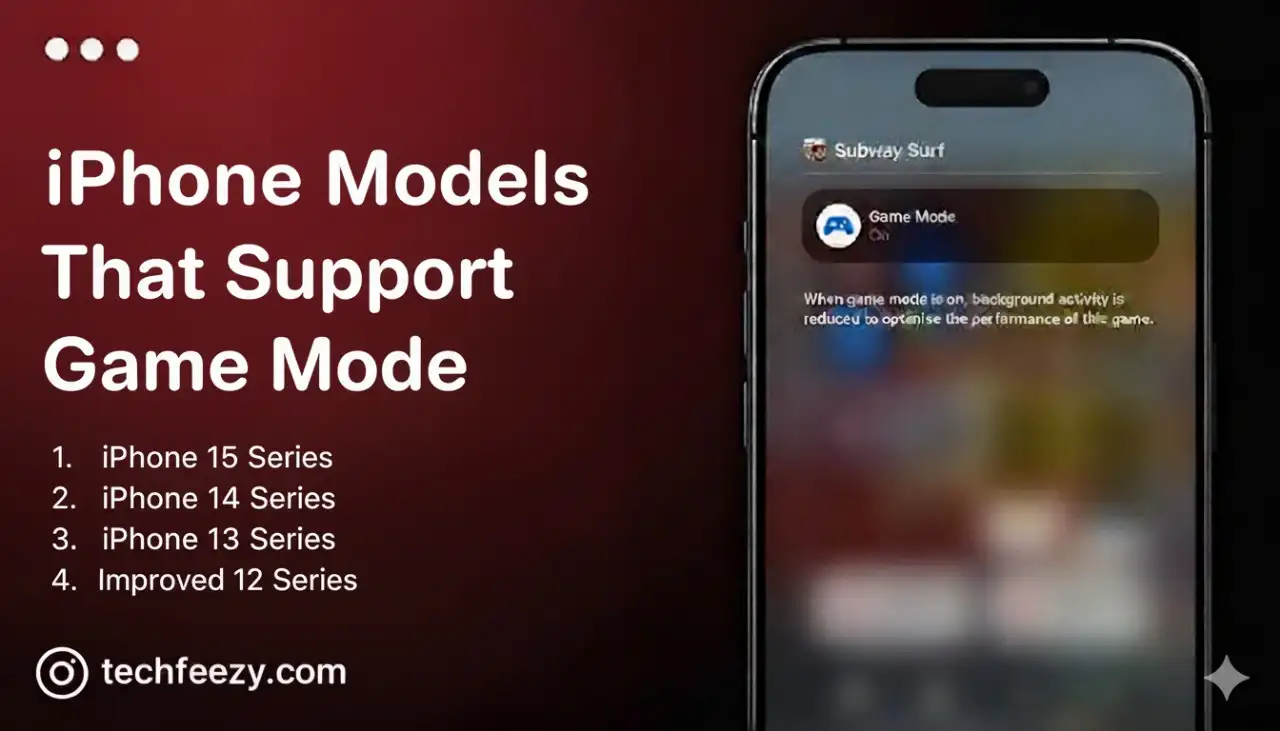
Game Mode comes with iOS 26 and works on all iPhones that support the update. That includes:
- iPhone XR and later
- iPhone 11, 12, 13, 14, 15, 16, and 17 series
So if your device can run iOS 26, you’re good to go.
How to Use Game Mode on iPhone
Automatic Activation
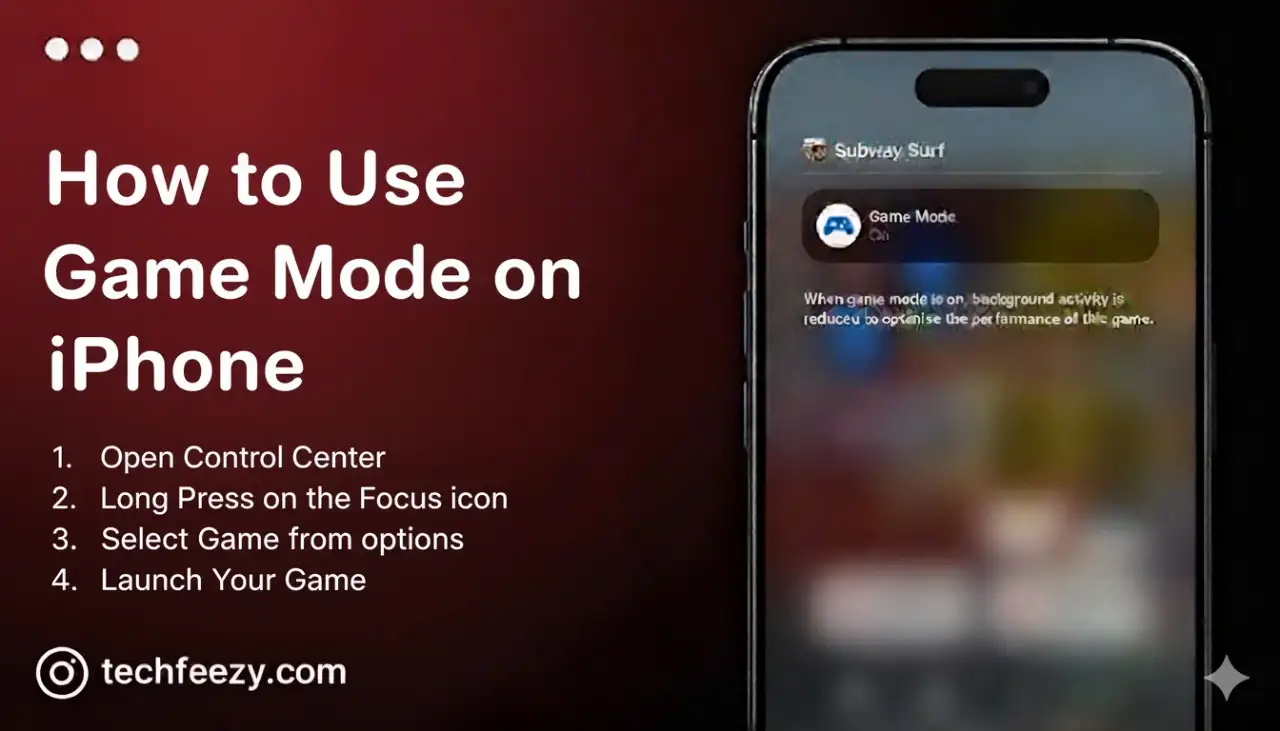
There’s no setup required. Just open a game, and Game Mode turns on by itself. You’ll see a quick notification confirming it’s active.
Manual Control
If you want more control, you can toggle Game Mode in Control Center:
- Launch a game
- Swipe down (Face ID models) or swipe up (Home button models) to open Control Center
- Tap the game name at the top
- Turn Game Mode on or off
👉 Pro Tip: If you turn it off for a specific game, it will stay off until you re-enable it.
Advanced Features for Gamers
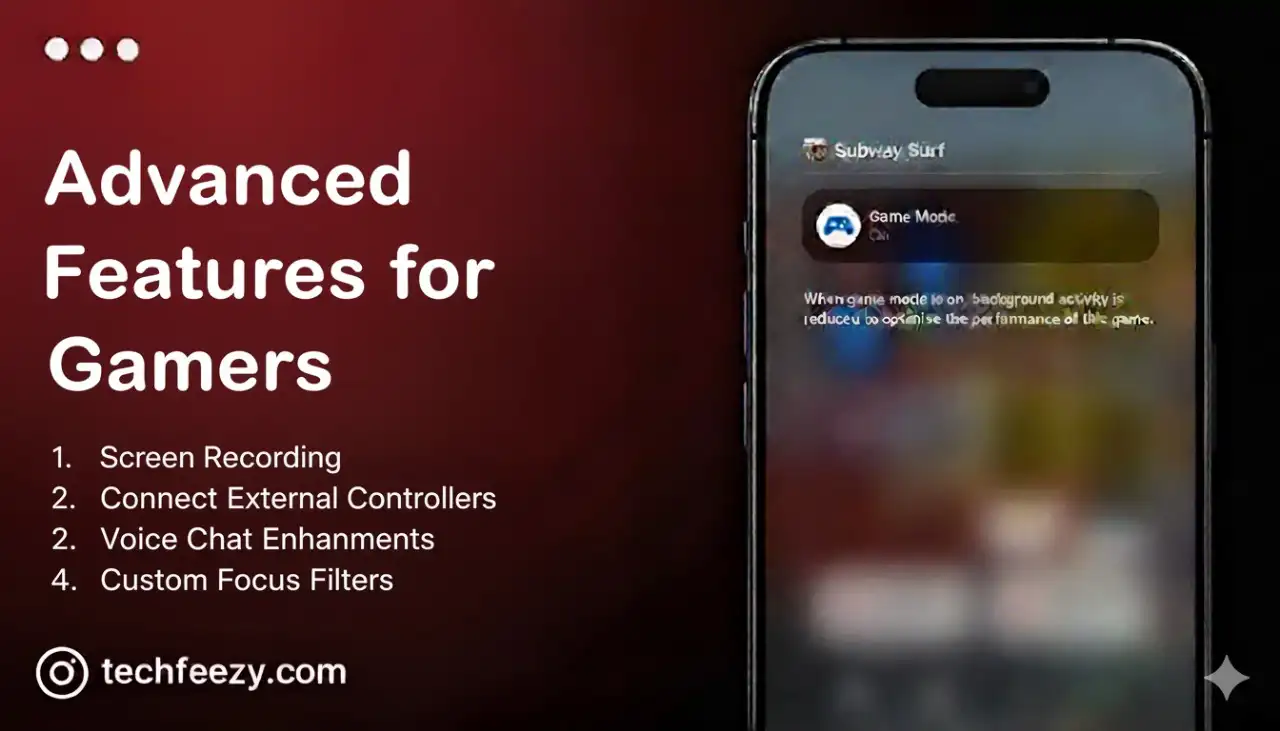
- Ray Tracing on iPhone 15 Pro – Game Mode unlocks console-level graphics with hardware-accelerated ray tracing.
- Focus Mode Integration – Set up a gaming Focus Mode to block notifications while you play.
- Developer Tools – Apple now offers APIs that let developers build games optimized for Game Mode’s performance boost, as detailed in Apple’s Developer Documentation.
Does Game Mode Affect Battery Life?
Surprisingly, battery performance stays efficient. Since Game Mode suspends non-essential background activity, your iPhone actually uses its power more effectively. However, keep in mind that graphically demanding games will still drain your battery faster—Game Mode just makes sure every drop of power goes toward gaming.
Troubleshooting Game Mode
- If Game Mode doesn’t activate, check if your app is recognized as a game. Some titles may need manual activation.
- On older iPhones, improvements will be more noticeable compared to newer models that already have powerful chips.
- The “Game Mode On” banner can’t be disabled—it’s simply confirmation that the feature is working.
Game Mode Across Apple Devices
Apple has extended Game Mode beyond the iPhone:
- Mac (macOS Sonoma and later) – Boosts gaming performance on desktop.
- iPad (iPadOS 26) – Works just like on iPhone.
- Cross-device play – Seamless gaming across iPhone, iPad, and Mac.
Final Thoughts
Apple’s Game Mode in iOS 26 is more than just a small update—it’s a big move toward turning the iPhone into a serious gaming platform. With smoother performance, lower latency, and smarter resource management, it ensures that whether you’re playing a quick mobile game or a full-blown console title, your iPhone can handle it like a pro.
If you’re running iOS 26, Game Mode is already built into your device. Just fire up your favorite game and let your iPhone do the rest.
⚡ SEO Tip for Readers: Searching for “What is Game Mode on iPhone”, “iOS 26 gaming features”, or “best gaming settings for iPhone” will bring you back to this guide whenever you need a refresher.
FAQs
1. What does Game Mode do on iPhone?
Game Mode boosts gaming performance by prioritizing system resources, reducing lag, lowering latency for controllers, and minimizing distractions.
2. How do I turn on Game Mode on iPhone?
Game Mode activates automatically when you launch a game. You can also manually toggle it in Control Center while playing.
3. Does Game Mode drain iPhone battery faster?
Not necessarily. Game Mode suspends background processes, which can actually improve efficiency. However, demanding games still use more battery.
4. Which iPhones support Game Mode?
Any iPhone running iOS 26 supports Game Mode, including iPhone XR and newer models.
5. Can I turn off Game Mode?
Yes. You can disable Game Mode for a specific game in Control Center. It will remain off for that title until you manually re-enable it.