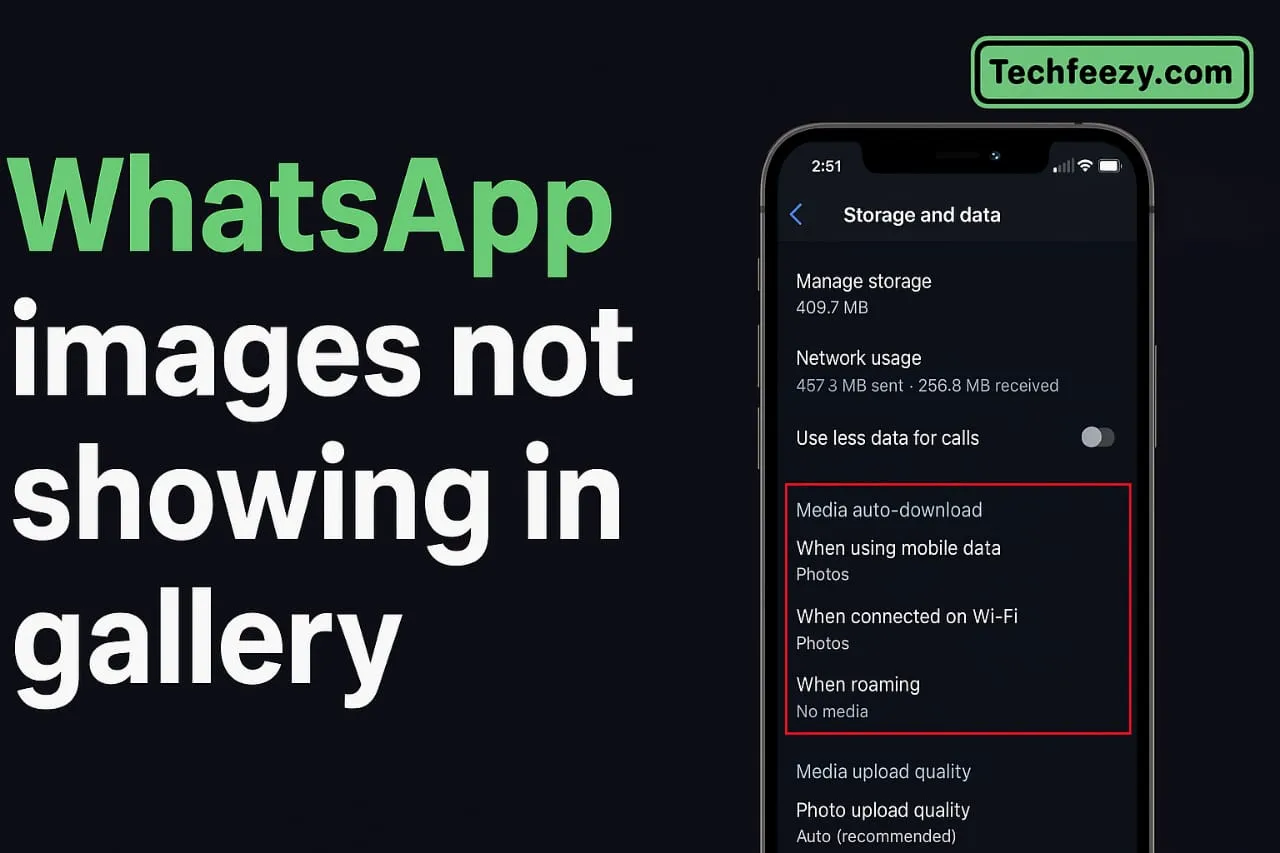
If your WhatsApp pictures have suddenly vanished from your phone's gallery, don't worry—you're not alone. I've faced this issue myself, and luckily, there are a few simple fixes that actually work. In this guide, I'll show you how to fix WhatsApp images not showing in gallery, step by step.
We'll go over:
- Media visibility settings
- Fixes for Android and iPhone
- Clearing cache and hidden files
- Permission and storage issues
- FAQs with common user problems
Let's get your photos back where they belong.
Why WhatsApp Images Sometimes Disappear
Your WhatsApp media is saved in a separate folder, and your Gallery app only displays what it's allowed to scan. If certain settings are off or files get hidden, your pictures won't appear.
Common reasons:
- "Media Visibility" is turned off
- Hidden .nomedia file blocking folder access
- Storage permission is denied
- Gallery or SD card errors
- Phone storage is full
When I turned off Media Visibility once, all my WhatsApp photos disappeared instantly—even though they were still inside the WhatsApp folder.
Step-by-Step Fixes
1. Turn On Media Visibility / Save to Camera Roll
This is the most common and easiest fix.
For Android:
- Open WhatsApp → Settings → Chats.
- Turn Media Visibility ON.
- For specific chats, open the chat → tap the name → Media Visibility → Yes.
For iPhone:
- Go to WhatsApp → Settings → Chats.
- Turn on Save to Camera Roll.
Now, send or receive a new image to check if it appears in your gallery.
2. Check App Permissions
If WhatsApp doesn't have permission to save files, photos won't appear in your gallery.
For Android:
Go to Settings → Apps → WhatsApp → Permissions → Storage → choose Allow.
For iPhone:
Go to Settings → Privacy & Security → Photos → WhatsApp → set to Full Access.
Restart WhatsApp afterward and check your gallery again.
3. Clear WhatsApp Cache (Android Only)
Cache issues can prevent new media from appearing properly.
Steps:
- Open Settings → Apps → WhatsApp → Storage & Cache.
- Tap Clear Cache.
- Restart your phone.
Don't worry—this won't delete your chats or photos.
4. Delete the .nomedia File
A hidden .nomedia file tells your phone to skip scanning that folder. Deleting it can fix the issue instantly.
Steps:
- Open a File Manager (like Files by Google).
- Go to Internal Storage → WhatsApp → Media → WhatsApp Images.
- Enable Show Hidden Files.
- If you see a file named .nomedia, delete it.
- Restart your phone.
Your Gallery app should now re-scan and show your WhatsApp photos.
5. Free Up Storage Space
Low storage can block WhatsApp from saving new photos.
To check:
Go to Settings → Storage and see how much free space is left.
If it's below 500MB, delete unused apps, videos, or files.
After freeing up some space, reopen WhatsApp and check your gallery.
6. Restart or Update WhatsApp
Sometimes, it's just a temporary glitch.
Restart your phone.
Update WhatsApp from the Play Store or App Store to the latest version.
I've seen the gallery bug disappear right after an update.
7. Reinstall WhatsApp (Last Resort)
If nothing works:
- Back up your chats (Settings → Chats → Chat Backup).
- Uninstall WhatsApp.
- Reinstall it and restore your backup.
This resets all app settings, including broken media paths.
Android vs. iPhone: Key Differences
| Feature | Android | iPhone |
|---|---|---|
| Media visibility | Manual toggle | "Save to Camera Roll" toggle |
| Cache clearing | Available in settings | Requires reinstall |
| .nomedia file issue | Common cause | Rare on iOS |
| Permissions | Needs Storage access | Needs Photos access |
| SD card issues | Possible | Not applicable |
Android users face more file-related issues, while iPhone users usually deal with permission settings.
Extra Things to Check
If your gallery still doesn't show WhatsApp images:
- Open File Manager → WhatsApp → Media → WhatsApp Images to confirm the files exist.
- Check if your gallery app has hidden the "WhatsApp Images" folder.
- For SD card users, verify it's not corrupted.
- On Samsung phones, open Gallery → Menu → Show/Hide Albums, and make sure "WhatsApp Images" is visible.
FAQs
1. Why are WhatsApp images not showing in my gallery?
Media Visibility might be off, or WhatsApp doesn't have storage permission.
2. How do I show WhatsApp photos in Android gallery?
Enable Media Visibility and delete any .nomedia file in the WhatsApp Images folder.
3. What about iPhone?
Turn on Save to Camera Roll, give WhatsApp full photo access, and check storage.
4. Will clearing cache delete my images?
No, it only removes temporary files.
5. Why do only some images appear?
You might've disabled Media Visibility for certain chats or groups.
Final Thoughts
If your WhatsApp images aren't showing in your gallery, don't stress—it's usually just a quick settings issue. Turning on Media Visibility or Save to Camera Roll, deleting the .nomedia file, or clearing the cache should fix it.
I've fixed this on multiple devices using these same steps. Try them one by one, and your WhatsApp photos should show up again in no time.