How to Check Data Usage on iPhone?
If you're thinking how to check data usage on iPhone, You're not all alone. Many iPhone users are struggling to figure out where Apple hides data statistics in detail. I also faced this problem as my data on mobile abruptly ran out before the billing cycle was over. In this article I'll walk you through simple methods to track your data usage - daily, monthly, per app, or even Wi-Fi data across iPhone 11 to iPhone 16 models.
Why Checking Data Usage on iPhone Matters
The importance of tracking the use of your data is crucial because:
- It will stop you from exceeding the limit of your mobile data.
- You can determine which applications consume more data.
- It saves the cost of data overages.
- You can make your background app more efficient in refresh and update.
iPhones allow you to monitor your mobile and Wi-Fi usage without having to install third-party applications. Let's review all ways step by step.
Check Your Mobile Data Usage in Settings
The easiest and most precise method to track your total data usage comes from your iPhone Settings app.
Here's how:
- Go to the Settings in your iPhone.
- Use Cellular (or Mobile Data depending on your region).
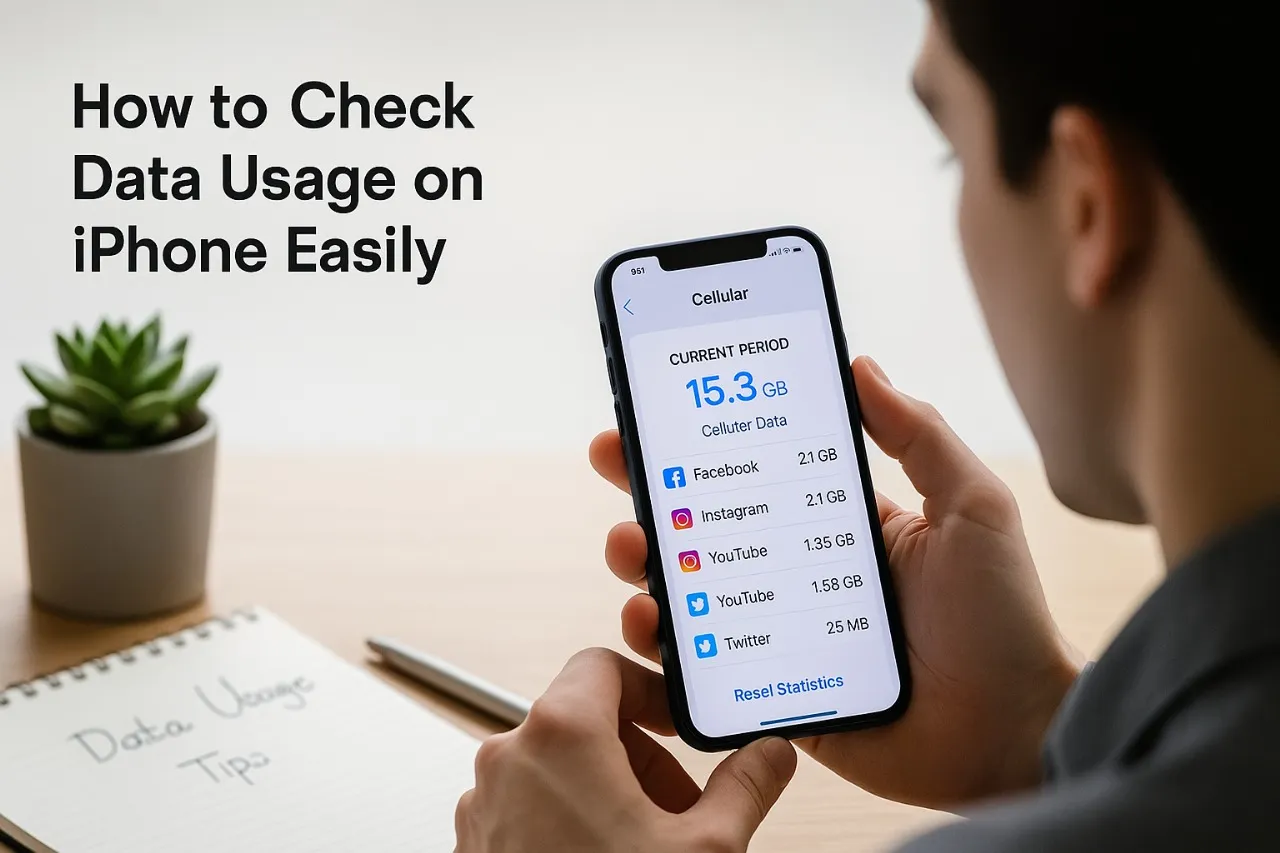
- Scroll down to see Cellular Data Usage.
There are two sections: Current period - Total mobile data used since the last reset. Current Period of Roaming - Data used while on roaming.
I took this test myself to determine the amount of the data that my stream apps were using this week. It's eye-opening how much background data can add up!
How to Check Monthly Data Usage on iPhone
If you're wondering to check monthly usage of data in iPhone, there's a problem, iPhones do not automatically reset the counter for data usage each month. It's necessary to manually do it at the beginning each billing month.
To keep track of monthly usage
- Go to Settings - Cellular.
- Scroll down, then tap Reset Statistics..
This should be done at the beginning of each billing cycle.
After that, your "Current Period" will show the usage of your data for that month only. I do this every month to keep my mobile data plan completely within control.
How to Check Daily Data Usage on iPhone
Unfortunately, Apple doesn't show daily breakdowns natively. But here's what I do:
- Track your data manually every day: Note down the total amount of data you use every morning, and then compare it the next day.
- Use carrier apps: Many network operators (like Verizon, AT&T, or T-Mobile) provide daily data breakdowns on their official applications.
- Third-party apps such as My Data Manager or Data Usage Monitor will keep track of daily and hourly usage.
These apps are fantastic for receiving notifications when you reach certain limits of data.
How to See How Much Data You Have Left
If you’re asking, “How to see how much data I have left?”, the answer depends on your carrier.
- Carrier App or Website: Open your carrier’s app (like T-Mobile, Verizon, or AT&T) → go to “My Plan” → view remaining data.
- Settings → Cellular: You can estimate how much you’ve used so far, and subtract it from your plan limit to know what’s left.
Some carriers even show a live “Data Remaining” widget on your home screen.
Check Wi-Fi Data Usage on iPhone
You can also track Wi-Fi data usage through the built-in system settings or Screen Time.
Method 1: Screen Time (for app-based Wi-Fi data)
- Go to Settings → Screen Time → See All Activity.
- Choose Week or Day view.
- Scroll to see how much data apps used (Wi-Fi + cellular combined).
Method 2: Router or ISP app
If you’re using a home Wi-Fi network, check your router’s app or ISP portal for detailed Wi-Fi data usage. For example, routers from TP-Link or Netgear have their own monitoring dashboards.
How to Check Which App Uses the Most Data
If you want to find which app consumes how much data, here’s the easy way:
- Go to Settings → Cellular.
- Scroll down below “Cellular Data Usage.”
- You’ll see a list of all your apps with their individual data consumption.
You might notice that social media apps like Instagram, YouTube, or Snapchat use far more data than expected. I once found Instagram alone had consumed 12 GB in just two weeks!
To manage this:
- Turn off background data for heavy apps: Settings → Cellular → toggle off data for specific apps.
- Use “Low Data Mode” under Cellular Data Options to reduce background activity.
How to Show Data Usage on iPhone Status Bar
If you’re asking, “How do I show data usage on my iPhone status bar?”, Apple doesn’t provide this natively. However, you can use third-party apps that add widgets or floating monitors.
Try these:
- Data Usage Widget – adds live data tracking to your home screen.
- Smart Data Monitor – shows live usage in the notification center.
They’re available on the App Store and are useful for real-time tracking.
How to Check Data Usage on iPhone 11 to iPhone 16
Good news—these steps are the same across iPhone 11, 12, 13, 14, 15, and even the new iPhone 16 series.
- Go to Settings → Cellular or Mobile Data.
- Check the Current Period for total usage.
- Scroll down for per-app usage.
The layout may slightly differ depending on iOS version, but all these options remain the same. I tried it on both an iPhone 14 Pro and iPhone 16 Pro—it’s identical.
How to Reset Data Usage Statistics
It’s helpful to reset your statistics regularly, especially when your billing cycle renews.
Steps:
- Open Settings → Cellular.
- Scroll to the bottom.
- Tap Reset Statistics → confirm.
This clears the usage log, and tracking starts fresh from zero. I personally reset mine every first of the month to match my plan’s cycle.
Pro Tips to Control & Reduce Data Usage
- Turn on Low Data Mode: Settings → Cellular → Cellular Data Options → enable Low Data Mode.
- Disable Background App Refresh: Settings → General → Background App Refresh → toggle off for data-heavy apps.
- Use Wi-Fi for large updates: Always download apps or iOS updates on Wi-Fi.
- Disable Auto-Play Videos: In apps like Instagram and YouTube, turn off auto-play to save data.
- Keep an eye on iCloud Backup: iCloud can sync large files over cellular if not limited to Wi-Fi.
I applied these changes last month and reduced my data consumption by almost 40%!
FAQ (People Also Ask)
1. How do I check my monthly data usage on my iPhone?
Go to Settings → Cellular → view “Current Period” and reset stats at the start of each month.
2. How do I check my daily data usage on my iPhone?
Use your carrier app or third-party apps like My Data Manager for daily breakdowns.
3. How do I see how much data I have left?
Your carrier app (like Verizon or AT&T) shows your remaining data balance in real time.
4. Can I check Wi-Fi data usage separately?
Yes, using Screen Time or your Wi-Fi router app to view connected device usage.
5. How do I check which app uses the most data?
Go to Settings → Cellular → scroll down to view per-app data usage.
Conclusion
Now you know exactly how to check data usage on iPhone—from total and per-app usage to Wi-Fi tracking and monthly resets. Regularly checking this helps you stay within limits, avoid extra charges, and improve battery life.
I applied these methods myself, and now I never run out of data unexpectedly again. Try it today and keep your data under control effortlessly!