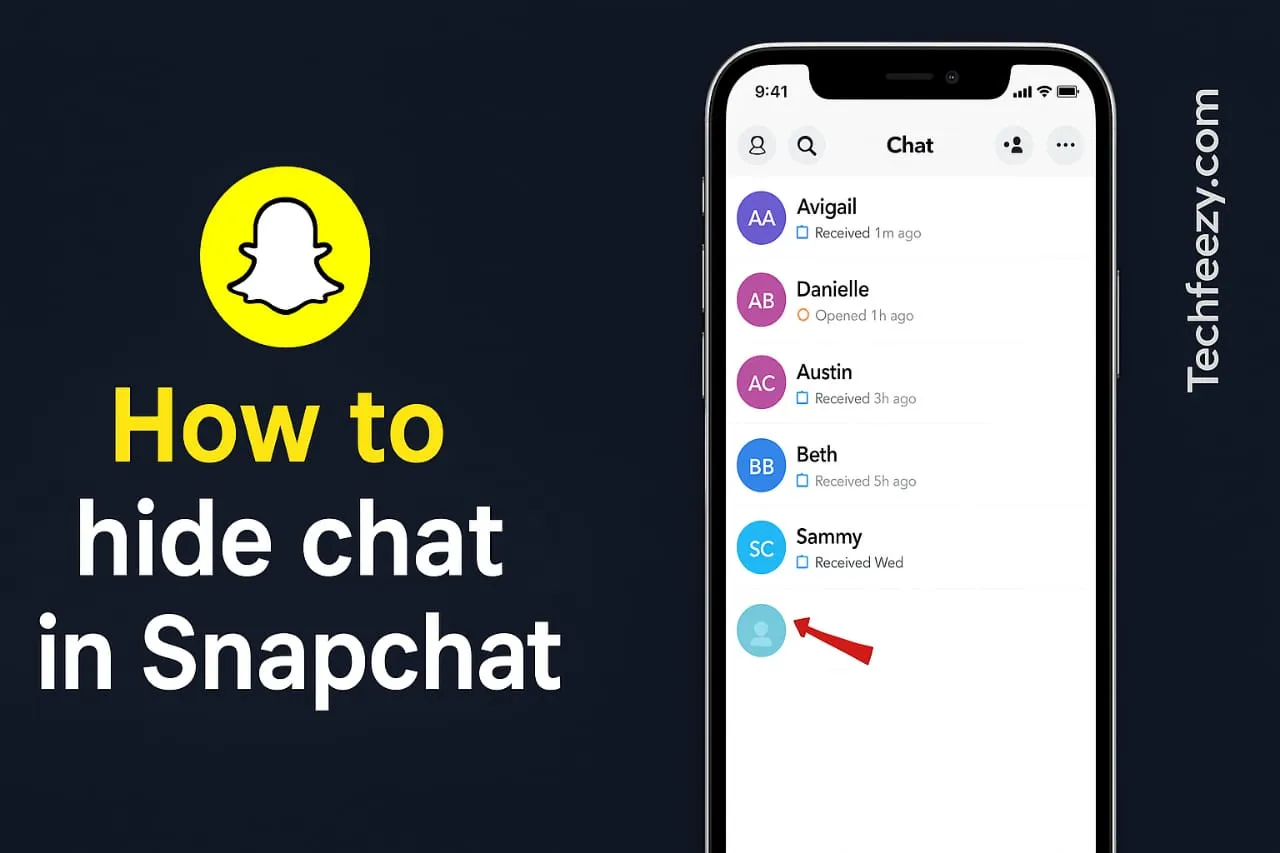
How to Hide Chat on Snapchat Without Deleting It
If you want to keep certain chats out of sight without deleting them, you’re not alone. I tried several ways to hide chats on Snapchat and found the easiest methods that actually work on both Android and iPhone.
Here’s how to do it quickly and safely.
Why You Might Want to Hide a Chat
There are plenty of reasons you might want to hide a chat:
You share your phone and want to keep something private.
Your chat list feels cluttered and you want to tidy it up.
You just don’t want a specific chat popping up every time you open Snapchat.
Hiding a chat doesn’t delete it—it just takes it out of your main feed until you want to see it again.
How to Hide Chat on Snapchat (Android & iPhone)
1. Clear the Chat from Your Feed
This is the simplest and most effective way to hide a conversation while keeping all messages safe.
Steps:
- Open Snapchat → go to the Chat tab.
- Long-press the chat you want to hide.
- Tap Chat & Notification Settings → Clear from Chat Feed → confirm.
That chat will instantly disappear from your feed, but the messages stay stored. You can still find them later using search.
Note: If the person sends you a new message, the chat will reappear in your list.
2. Use the “Archive” Trick (Rename & Pin)
Snapchat doesn’t have an official archive feature, but you can still make chats less visible using a few creative tricks.
Try this:
After clearing from your feed, go to the search bar and type the person’s name if you ever want to reopen it.
You can also rename the contact so it blends in:
On iPhone: Tap their profile → Manage Friendship → Edit Name.
On Android: Change their contact name in your phone’s contacts app.
These small tweaks make it harder for someone to notice that chat, even if they glance at your screen.
3. Mute the Chat Notifications
If you don’t want to hide the chat completely but want fewer distractions, muting works great.
Steps:
- Open the chat.
- Tap the contact’s name → Chat Settings → Message Notifications → turn it off.
No more pop-ups, but your chat stays right where you left it.
4. Adjust Privacy Settings
You can also manage who can message you or see your activity.
Steps:
- Go to your Profile → tap the Settings gear → Privacy Controls.
- Change these options:
Contact Me → “My Friends” or a custom list.
View My Story → choose “Custom” and exclude certain contacts.
See Me in Quick Add → turn it off.
This helps reduce unwanted messages or exposure while keeping your chats safe. Also, learn how to add location on Snapchat to enhance your privacy settings further.
5. Add an App Lock for Snapchat
If your goal is to keep your chats private from anyone using your phone, locking the app helps.
Android: Use an app-lock feature or third-party locker to protect Snapchat.
iPhone: Go to Settings → Screen Time → App Limits or use Face ID to lock apps.
This doesn’t hide chats inside Snapchat, but it keeps others from opening the app at all.
iPhone vs Android Differences
Both versions support Clear from Chat Feed.
Android lets you rename contacts more freely.
iPhone users can quickly access hidden chats using the search bar.
On both platforms, chats will reappear if the person messages you again.
FAQs
1. Can I hide chats without the other person knowing?
Yes. Clearing from the chat feed won’t notify them.
2. Will hidden chats come back if someone messages me?
Yes, a new message makes the chat visible again.
3. Does hiding a chat delete messages?
No, it just removes the thread from your main feed.
4. Can I make a chat completely invisible?
Not entirely. You can hide it, rename it, or mute it—but it’ll show again if they message you.
5. Can I hide chats on Snapchat Business or Team versions?
There’s no special feature for that; the same methods apply.
Tips & Things to Remember
Keep Snapchat updated—features can change.
If you often hide chats for privacy, consider locking the app too.
Hidden chats will return if someone messages again, so repeat the step when needed.
Blocking removes the chat completely, so only use it if you really want to cut contact. If you're unsure, check how to know if someone blocked you on Snapchat.
Final Thoughts
Now you know how to hide chats on Snapchat without deleting anything. I tested these tricks myself, and the “Clear from Chat Feed” method works best—it’s quick and discreet.
Whether you rename, mute, or lock, these steps help you keep your conversations private and your chat list clutter-free.