Main Takeaway
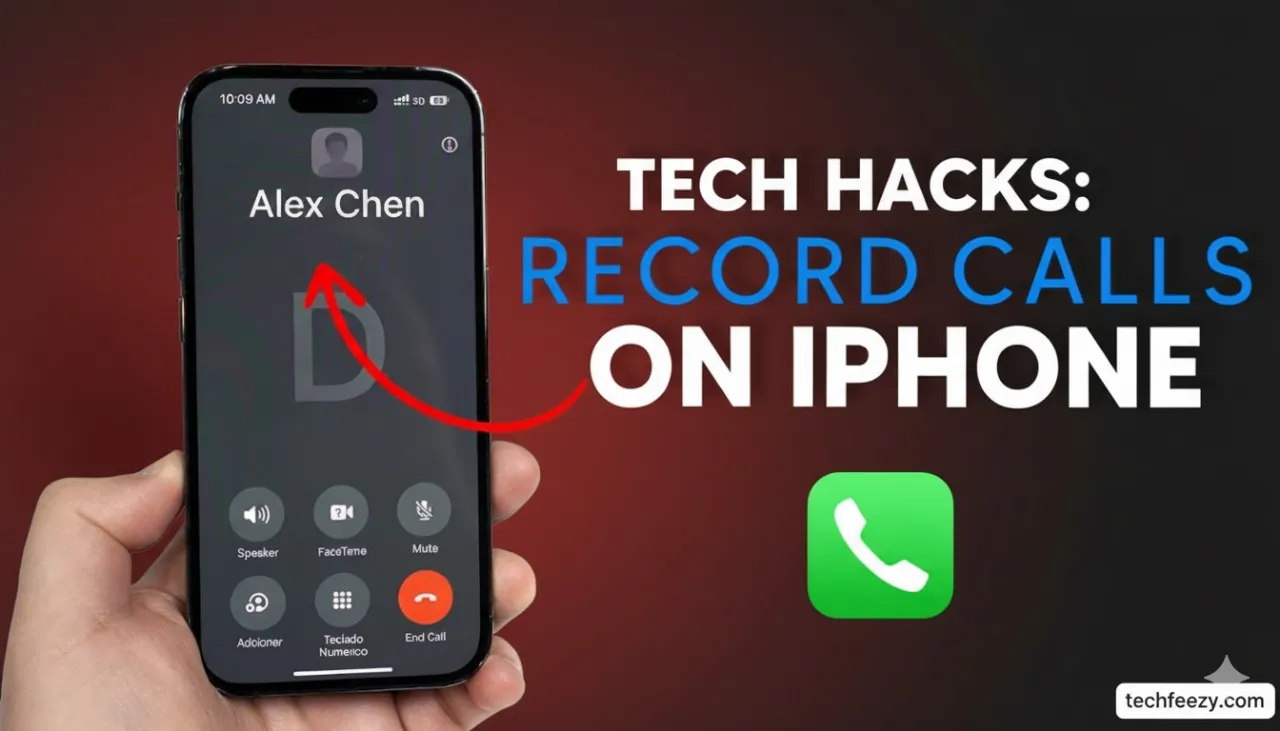
With iOS 18.1, Apple officially introduced native call recording in the iPhone's Phone app. You can now record conversations directly — no third-party apps or workarounds required. The feature is integrated with automatic legal compliance, ensuring both parties are notified when a call is being recorded. However, laws vary by region, so understanding local regulations before recording is essential.
How to Record Phone Calls on iPhone (iOS 18.1 and Later)
Prerequisites
Before you start recording, make sure your iPhone meets the following requirements:
- Runs iOS 18.1 or later
- iPhone models XR, XS, 11, 12, 13, 14, 15, or 16 series
- Some features like AI-generated summaries and transcriptions are only available on iPhone 15 Pro, Pro Max, and iPhone 16 models
- Regional availability varies — check Apple's official feature list to confirm support in your area
Step-by-Step Instructions
- Start or Answer a Call
Open the Phone app and place or receive a call as usual. - Tap the Record Icon
Once the call is connected, you'll see a small Record icon on the upper-left corner of the screen. Tap it to begin recording. - Automatic Consent Notification
When recording begins, both parties will hear:"This call will be recorded."
This cannot be skipped and ensures compliance with privacy regulations. - Stop Recording
You can end the recording anytime by tapping Stop or simply hanging up. - Access Your Recordings
All recorded calls are automatically stored in the Notes app under a dedicated folder titled Call Recordings. - Playback, Transcription & AI Summaries
- Go to Notes → Call Recordings
- Select your file to listen or read a transcript (available in English, Spanish, Korean, Mandarin, and Cantonese)
- AI-compatible iPhones can even generate automatic call summaries, helping you quickly review key discussion points
Best Third-Party Call Recording Apps (for Unsupported Devices or Regions)
If iOS 18.1's native recording isn't available in your region or on your device, these trusted apps are great alternatives:
| App Name | Recording Method | Free/Paid | Key Features | App Store Rating |
|---|---|---|---|---|
| REKK Call Recorder | 3-way merge | Freemium | Unlimited recordings, AI transcripts | ⭐ 4.56/5 |
| TapeACall | Merge via service | Paid | Unlimited call duration, easy to use | ⭐ 4.5/5 |
| Rev Call Recorder | Direct | Freemium | Simple setup, clear audio | ⭐ 4.4/5 |
| Call Recorder Lite | Merge/3-way | Free + Upgrade | Basic tools, upgrade unlocks unlimited | ⭐ 4.3/5 |
| Cube ACR | Merge/VoIP | Paid | Excellent for VoIP calls | ⭐ 4.4/5 |
Tip: Most third-party recorders rely on conference-line merging to capture audio since Apple restricts direct microphone access for phone calls. Always check your local call recording laws before using any external app.
Legal Considerations: Know Before You Record
United States
- Federal law: Allows one-party consent — you can record if you're part of the conversation.
- Some states (like California, Florida, and Pennsylvania) require all-party consent — everyone on the call must agree.
India
- Recording calls you're part of is usually legal for personal use.
- Misuse, such as sharing recordings without consent, is illegal.
- Call recordings can be used as legal evidence if they're properly authenticated.
European Union & Other Regions
- EU, Saudi Arabia, and South Africa currently do not support built-in iOS call recording due to strict data privacy laws.
- In these regions, even if you record using third-party apps, explicit consent from all parties is required.
⚖️ Always notify the other person before recording. Apple enforces this via automatic voice notification, but you're still responsible for ensuring legal compliance in your region.
Troubleshooting & Expert Tips
- Can't find the record button?
Update to iOS 18.1 and confirm that your country supports call recording. - Recording missing or won't play?
Check the Notes → Call Recordings folder or refresh your iCloud sync. - Want to share or export a recording?
Use the Share icon in Notes to export audio, duplicate it in Voice Memos, or upload it to iCloud Drive. - Using an older iPhone?
External recorders or speakerphone recording apps can help, but they don't include Apple's built-in consent notification. - For business or customer calls:
Always get written or verbal consent before recording, especially for interviews or client conversations.
Conclusion
Recording phone calls on iPhone in 2025 is smoother and safer than ever. With iOS 18.1, Apple has finally integrated call recording natively, complete with transcripts, summaries, and automatic consent notifications.
If the feature isn't available in your region, reliable third-party apps like REKK, TapeACall, or Rev Recorder remain strong options — just remember to follow your local privacy and consent laws.
Whether for business, personal notes, or legal reference, iPhone call recording is now a practical, compliant, and user-friendly tool.