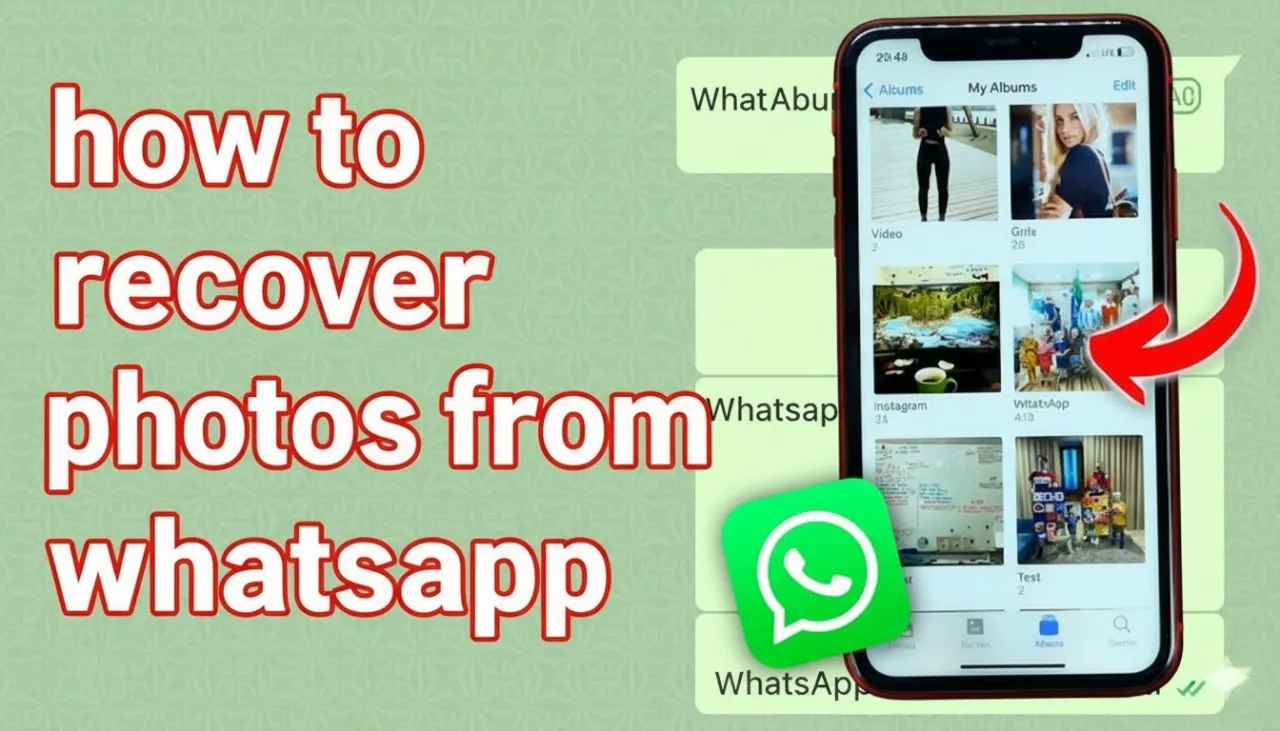
Accidentally deleted an important WhatsApp photo? Don't panic. Whether it's a family memory or a work-related file, you can often recover deleted photos from WhatsApp using several proven methods.
In this detailed guide, you'll learn every working way to restore deleted WhatsApp photos — from simple gallery checks to advanced recovery tools — for both Android and iPhone users.
📸 Understanding How WhatsApp Stores Photos
Before starting recovery, it's crucial to know where WhatsApp saves your media.
- Android: WhatsApp stores images in
Android/media/com.whatsapp/WhatsApp/Media/WhatsApp Images - iPhone: Photos are saved directly to the Photos app if Save to Camera Roll is enabled.
This default saving system often means your photos might still exist on your phone — even after deletion from the chat.
🔍 Method 1: Check Your Phone's Gallery and File Manager
.webp)
For Android Users
- Open your Gallery or Google Photos app.
- Look for a folder named WhatsApp Images.
- If not visible, open File Manager → Internal Storage → WhatsApp → Media → WhatsApp Images.
- Check the Recently Deleted or Trash folder (photos stay there for up to 30 days).
Tip: Even if deleted from chat, WhatsApp usually keeps a local copy.
For iPhone Users
- Open the Photos app → Albums → WhatsApp folder.
- Check Recently Deleted (stores deleted items for 30 days).
- Tap Recover to restore any found images.
☁️ Method 2: Restore Deleted WhatsApp Photos from Backup
.webp)
WhatsApp's backup system (Google Drive or iCloud) is the safest recovery method.
For Android (Google Drive Backup)
- Go to WhatsApp → Settings → Chats → Chat Backup to see last backup date.
- Uninstall and reinstall WhatsApp.
- Verify your number and tap Restore when prompted.
- Once complete, your chats and photos will reappear.
Note: Only photos backed up before deletion will be restored.
For iPhone (iCloud Backup)
- Open WhatsApp → Settings → Chats → Chat Backup.
- Delete and reinstall WhatsApp.
- Verify your number → Tap Restore Chat History when asked.
Your photos will reappear once the backup syncs with iCloud.
☁️ Method 3: Recover from Google Photos or iCloud Photos
.webp)
Using Google Photos
- Open the Google Photos app.
- Use the search bar (date, person, or keyword).
- Check Trash → Restore if found.
Using iCloud Photos
- Open Photos → Albums → Recently Deleted.
- Or go to iCloud.com → Photos to see synced images.
These cloud services act as secondary backups independent of WhatsApp.
📩 Method 4: Ask the Sender to Resend Photos
If all else fails, this is often the quickest fix.
- Find the original chat.
- Politely ask the sender or group member to resend the photo.
- They may still have it in their gallery, even if it's gone from their chat.
This works well in group chats, where others may still have the same image.
💻 Method 5: Use Third-Party WhatsApp Photo Recovery Software

When no backup is available, use professional recovery software that scans your device storage.
Top WhatsApp Photo Recovery Tools (2025)
- EaseUS MobiSaver – Fast, safe, supports Android & iPhone
- Dr.Fone - Data Recovery – Reliable and user-friendly
- Recuva – Free and simple for Android
- AnyRecover – Allows selective recovery
- Gbyte Recovery – Preview before restore
General Steps
- Install the recovery tool on your PC or Mac.
- Connect your phone via USB.
- Choose WhatsApp Recovery Mode.
- Scan → Preview → Recover photos to PC or phone.
Caution: Some tools require root access on Android; always use trusted apps.
📲 Method 6: Use WAMR App (Android Only)
WAMR tracks notifications to back up and recover deleted messages and media automatically.
How to Use WAMR
- Download WAMR from Google Play.
- Allow all notification and storage permissions.
- When someone sends (and deletes) a photo, WAMR saves a copy automatically.
- Access recovered files directly from the WAMR app.
Limitations: Works only after installation and for media downloaded before deletion.
💬 Method 7: Recheck the Original Chat
Sometimes the deleted photo is still cached in WhatsApp's chat thread.
- Open the chat → Scroll to where the photo was.
- If you see a blurred thumbnail with a "Tap to download" icon — tap to restore it.
This method works only if the sender hasn't used "Delete for Everyone."
🛡️ Prevent Losing WhatsApp Photos Again
1. Enable Automatic Backups
- Android: WhatsApp → Settings → Chats → Chat Backup → Google Drive → Set frequency (Daily/Weekly)
- iPhone: WhatsApp → Settings → Chats → Chat Backup → Enable iCloud Backup
2. Auto-Save Photos
- Android: Enable Media Visibility and auto-download media.
- iPhone: Turn on Save to Camera Roll.
3. Use Cloud Sync
Enable Google Photos or iCloud Photos to back up images automatically.
4. Manage Storage Regularly
Free up space and periodically move important WhatsApp photos to your computer or external drive.
⚠️ Why Recovery Sometimes Fails
- Deleted data may be overwritten by new files.
- Backups made after deletion don't contain lost images.
- WhatsApp's encryption prevents direct access to deleted data.
Always attempt recovery as soon as possible for the best results.
❓ Frequently Asked Questions (FAQs)
1. Can I recover WhatsApp photos without backup?
Yes. Use recovery software like EaseUS MobiSaver or Dr.Fone to scan your phone's internal storage and restore deleted photos.
2. How long are deleted photos recoverable on Android?
If not overwritten, photos can be recovered for several days to weeks. However, deleted images stay in your Gallery's Trash for 30 days.
3. Will reinstalling WhatsApp delete my photos?
If no backup exists, reinstalling will remove all previous chats and media. Always verify your backup date before reinstalling.
4. Can I recover photos deleted by the sender?
Only if the photo was already downloaded to your device. "Delete for Everyone" removes it from WhatsApp servers, but not from your local gallery.
5. Is it safe to use third-party recovery tools?
Yes, if you choose trusted software. Avoid unknown apps requesting unnecessary permissions.
6. How can I prevent losing WhatsApp media again?
Enable daily backups, automatic media saving, and sync your photos with Google Photos or iCloud.
✅ Final Thoughts
Recovering deleted WhatsApp photos is easier than most people think — especially if you act quickly. Start with basic methods like checking your Gallery, Recently Deleted, or WhatsApp backup, and only then move to recovery tools if necessary.
To avoid future losses, turn on automatic backups, auto-save photos, and cloud sync today. Prevention is always better than recovery.