Here’s what we’ll cover:
- What blue ticks mean and why people remove them
- Step-by-step guide to turn off blue ticks
- Tricks to read messages secretly
- What happens in group chats and with voice messages
- FAQs about privacy and read receipts
Let’s jump in.
What Are Blue Ticks and Why People Disable Them
When you send or receive a message on WhatsApp, here’s what each tick means:
- ✅ Single grey tick: Message sent
- ✅✅ Double grey ticks: Message delivered
- ✅✅ Double blue ticks: Message read
Those blue ticks are “read receipts.” Many users turn them off to read messages privately—especially when they’re too busy to reply right away or just don’t want the pressure of instant responses.
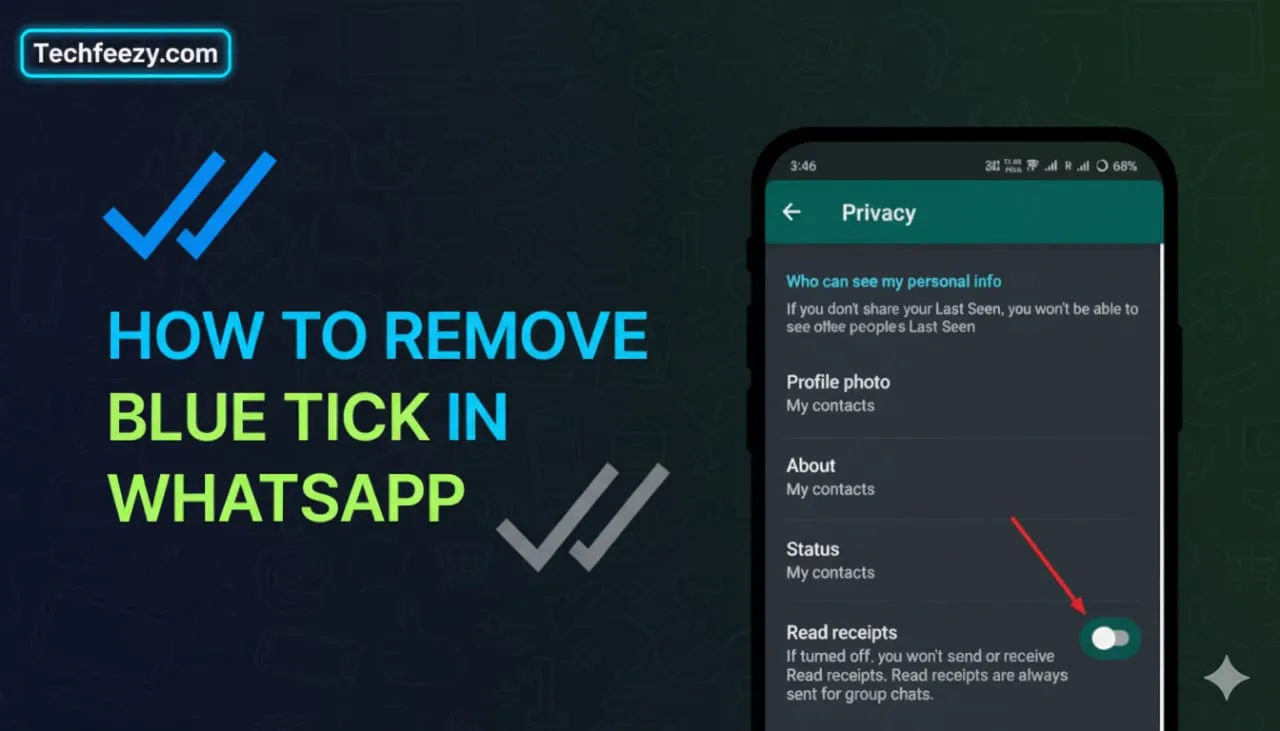
Method 1: Turn Off Read Receipts (Permanent Fix)
This is the official and most reliable way to remove blue ticks on WhatsApp.
For Android:
- Open WhatsApp.
- Tap the three dots (top right) → Settings → Account → Privacy.
- Scroll to Read receipts and toggle it off.
For iPhone:
- Open WhatsApp.
- Go to Settings → Account → Privacy.
- Turn Read Receipts off.
Once this is off, messages you read won’t show blue ticks to the sender.
📌 Note:
- This only works for one-on-one chats. Group chats will still show blue ticks when you’ve read messages.
- You’ll also stop seeing blue ticks for messages you send—it’s a two-way trade-off.
Method 2: Read Messages Without Triggering Blue Ticks
If you don’t want to fully disable read receipts, here are quick workarounds.
🔹 Airplane Mode Trick
- Wait for the message to arrive.
- Turn on Airplane mode.
- Open WhatsApp and read the message.
- Close the app completely.
- Turn off Airplane mode.
The message will appear as unread (double grey ticks only) on the sender’s end.
🔹 Notification Preview / Widget Trick
On Android, you can read incoming messages via the notification bar or home-screen widget.
On iPhone, enable Lock Screen previews under Settings → Notifications → WhatsApp.
This lets you see messages without opening the chat—and no blue ticks appear.
Group Chats & Voice Messages
Even with read receipts off, WhatsApp behaves differently in these cases:
- Group Chats: Blue ticks will still appear when all members read a message.
- Voice Messages: Listening to a voice note will show a blue tick—even if read receipts are disabled.
- Status Updates: Disabling read receipts also hides who viewed your own status, and vice versa.
I found this confusing at first—turning off blue ticks doesn’t apply everywhere, especially in groups or for voice messages.
What Happens After Turning Off Blue Ticks
Once you disable read receipts:
- Others won’t see blue ticks when you read their messages.
- You won’t see blue ticks for your sent messages either.
- It applies only to private chats (not groups).
Essentially, you trade off visibility for privacy.
Extra Privacy Tips
For extra privacy, adjust these:
- Last Seen & Online: Set to “My Contacts” or “Nobody.”
- Profile Photo / Status: Restrict visibility if needed.
If you use WhatsApp Business, check under Business Settings → Messaging Tools for read receipt controls.
Keep your app updated—WhatsApp tweaks privacy behavior across versions.
To re-enable blue ticks anytime, just toggle Read Receipts back on.
FAQ: People Also Ask
1. How do I remove blue tick in WhatsApp on Android?
Go to Settings → Account → Privacy → Read Receipts and turn it off.
2. Does removing blue ticks hide double grey ticks?
No. Double grey ticks still show that the message was delivered.
3. Do voice messages still show blue ticks?
Yes. Listening to a voice note sends a blue tick even if read receipts are off.
4. Can I hide blue ticks for one contact only?
No. The setting applies to all chats equally.
5. Can I still see others’ blue ticks if I turn mine off?
No. When you disable read receipts, it’s mutual—you won’t see theirs either.
Final Thoughts
Turning off blue ticks is one of the best ways to reduce pressure and reclaim your privacy on WhatsApp. Whether you use the official Read Receipts toggle or sneaky methods like Airplane Mode, you’ll be able to read messages quietly and respond when you’re ready.
I use these settings myself, and it’s been a relief—not every message needs an instant reply. Try these methods and enjoy WhatsApp on your terms.