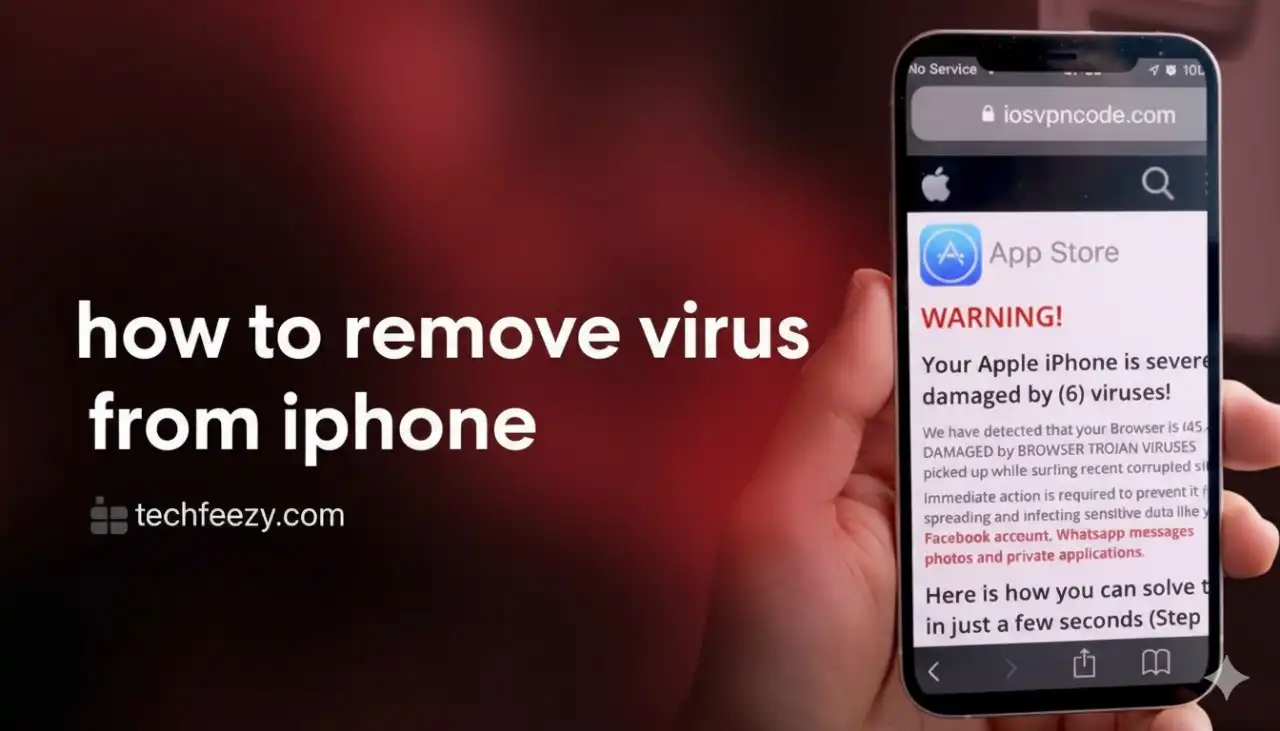
Can iPhones Really Get Viruses?
While true viruses are rare on iPhones due to Apple's secure ecosystem, various types of malware can still infect your device :cite[2]:cite[3]. The closed nature of iOS, with its sandboxing technology that prevents apps from accessing each other's data, makes it difficult for traditional viruses to spread :cite[2]. However, iPhones can still be vulnerable to:
- Fake virus pop-ups and scam alerts while browsing
- Malicious apps that slip through App Store review
- Spyware targeting specific users (like Pegasus) :cite[3]
- Phishing scams through emails, texts, or malicious websites :cite[5]
Important Security Note
Jailbreaking your iPhone removes Apple's built-in security protections and makes it significantly more vulnerable to malware and hackers :cite[2]:cite[6]. Apple strongly advises against jailbreaking for security reasons.
Signs Your iPhone May Have Malware
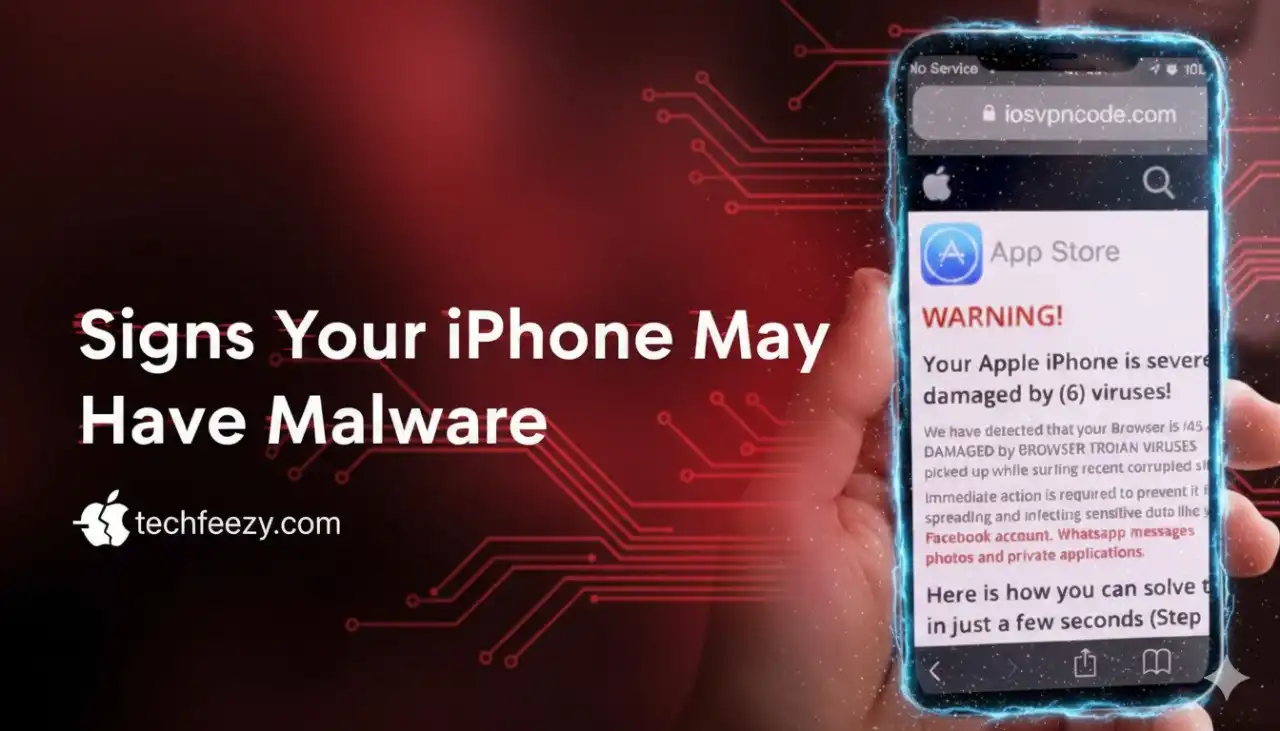
If you notice any of these warning signs, your iPhone might be compromised :cite[2]:cite[3]:cite[6]:
- Unexpected battery drain: Malware often runs background processes that consume significant power
- Overheating: Your device feels unusually hot even when idle
- Increased data usage: Mysterious spikes in cellular data consumption
- Constant pop-ups: Excessive advertisements or alerts, especially in Safari
- Unfamiliar apps: Applications appearing on your home screen that you didn't install
- Sluggish performance: Apps crashing frequently or overall system slowdown
- Strange messages: Contacts receiving spam messages from your accounts
How to Remove Malware from Your iPhone
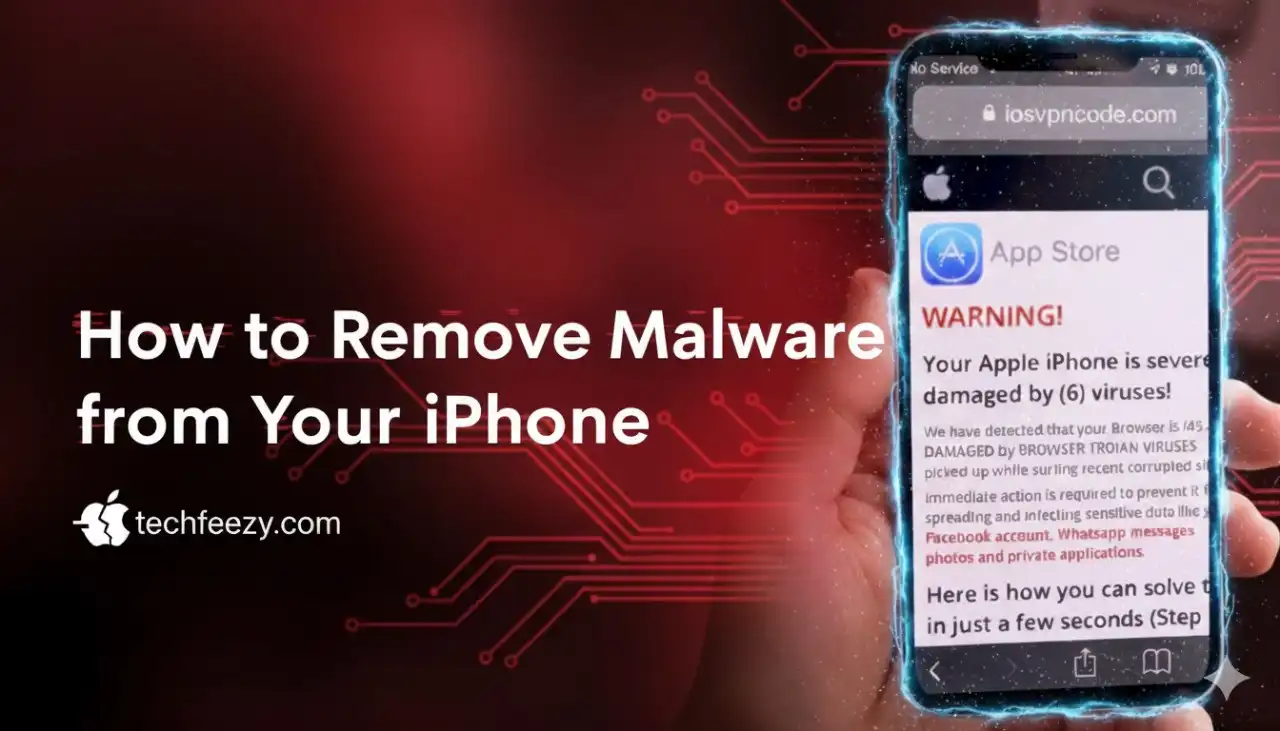
Follow these steps systematically to clean your iPhone and restore security:
1. Update Your iOS
Apple regularly releases security updates to patch vulnerabilities :cite[2]:cite[3]. To update:
- Go to Settings > General > Software Update
- Install any available updates
- Restart your iPhone after updating
2. Restart Your Device
A simple restart can terminate malicious background processes :cite[2]:cite[3]:
- For iPhone X and newer: Press volume up, then volume down, then hold side button until power off slider appears
- For older models: Hold power + home button until slider appears
3. Clear Safari History and Website Data
This removes harmful cookies, cache, and website data that might be causing pop-ups or redirects :cite[2]:cite[3]:
- Go to Settings > Safari
- Tap Clear History and Website Data
- Confirm by tapping Clear History and Data
4. Delete Suspicious Apps
Remove any apps you don't recognize or remember installing :cite[2]:cite[3]:
- Review all apps on your home screens and App Library
- Long-press any suspicious app icon
- Select Remove App > Delete App
- Confirm deletion
5. Remove Unknown Configuration Profiles
Malicious profiles can give attackers control over your device :cite[2]:cite[6]:
- Go to Settings > General > VPN & Device Management
- Review all installed profiles
- Delete any profiles you don't recognize or trust
6. Check for Unusual Activity
Monitor these settings for suspicious behavior :cite[2]:
- Settings > Battery: Check for unfamiliar apps consuming significant power
- Settings > Cellular: Review data usage by app for unexpected spikes
- Settings > Privacy & Security > App Privacy Report: Check for unusual sensor or network activity
Advanced Malware Removal
If basic steps don't resolve the issue, try these more comprehensive solutions:
Restore from a Clean Backup
This returns your device to a state before the infection :cite[2]:cite[3]:
- Go to Settings > General > Transfer or Reset iPhone
- Select Erase All Content and Settings
- Choose Restore from iCloud Backup during setup
- Select a backup from before you noticed the infection
Factory Reset (Last Resort)
This completely wipes your device and removes all malware :cite[2]:cite[3]:
- Back up important data first
- Go to Settings > General > Transfer or Reset iPhone
- Select Erase All Content and Settings
- Choose Set Up as New iPhone for maximum security
Pro Tip
When restoring from backup, choose a backup version from before you noticed the malware symptoms to avoid reintroducing the infection :cite[2].
Security Apps for iPhone Protection
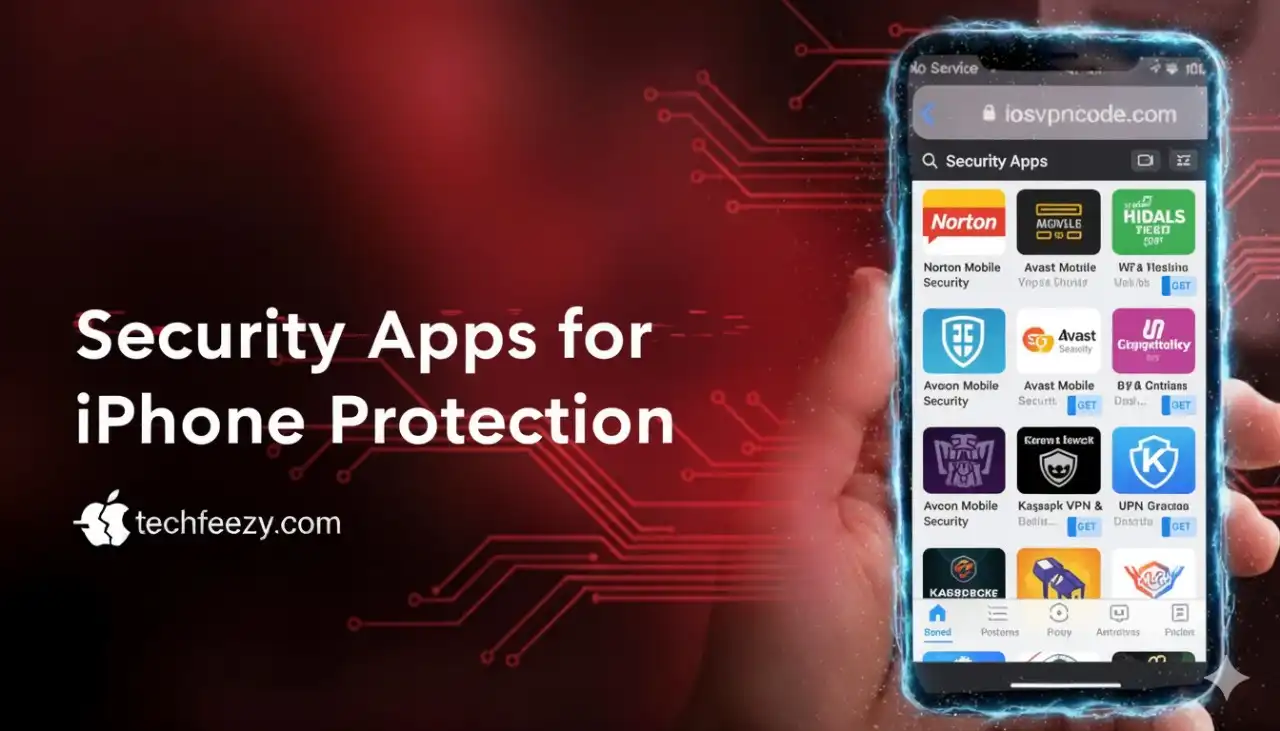
While iOS has strong built-in security, these apps add extra protection layers :cite[2]:cite[6]:cite[10]:
- McAfee Mobile Security: Offers comprehensive scanning, Wi-Fi protection, and identity monitoring
- Avast Mobile Security: Provides web protection, data leak monitoring, and network security
- Malwarebytes: Specializes in detecting and removing malware and unwanted software
Real vs. Fake iPhone Virus Warnings
Understanding the difference can prevent panic and bad decisions:
Fake Virus Warnings
These are scams designed to trick you :cite[1]:cite[2]:
- Pop-ups in Safari claiming your iPhone is infected
- Alerts urging you to download "security" apps
- Messages pretending to be from Apple about viruses
Response: Close the tab/browser immediately. Never call provided numbers or download suggested apps.
Real Security Threats
These require action but are less common :cite[2]:cite[3]:
- Advanced spyware like Pegasus
- Malicious apps from untrusted sources
- Phishing attacks compromising your accounts
Response: Follow the removal steps outlined in this guide.
How to Prevent Future Infections
Proactive security measures significantly reduce your risk :cite[2]:cite[6]:cite[10]:
Essential Security Practices
- Keep iOS updated: Enable automatic updates in Settings > General > Software Update
- Use official App Store: Avoid third-party app sources and sideloading
- Don't jailbreak: Maintain Apple's built-in security protections
- Enable two-factor authentication: Protect your Apple ID and important accounts
- Use strong authentication: Enable Face ID/Touch ID and complex passcodes
Safe Browsing Habits
- Avoid suspicious links: Don't click unexpected links in emails, texts, or social media
- Use Safari security features: Enable Fraudulent Website Warning in Settings > Safari
- Be cautious on public Wi-Fi: Use a VPN when connecting to unsecured networks
- Review app permissions: Only grant necessary access to apps
Frequently Asked Questions
Can an iPhone get a virus?
While traditional viruses are rare, iPhones can be affected by malware, spyware, adware, and scam pop-ups :cite[2]:cite[3]. Most "virus alerts" seen in browsers are fake scams, but real threats do exist, especially on jailbroken devices.
How do I remove a virus from my iPhone?
Start by updating iOS, deleting suspicious apps, clearing Safari data, and restarting your device :cite[2]:cite[3]. If problems persist, restore from a clean backup or perform a factory reset as a last resort.
How can I tell if my iPhone has malware?
Signs include sudden battery drain, overheating, excessive pop-ups in Safari, unknown apps installed on your device, unusual data usage spikes, and sluggish performance :cite[2]:cite[3]:cite[6].
Do I need antivirus for my iPhone?
While iOS is secure by default, security apps like McAfee, Norton, or Avira add extra protection against phishing, spyware, and unsafe networks :cite[2]:cite[6]:cite[10]. They're particularly valuable if you frequently use public Wi-Fi or click links in emails.
What should I do if I get a virus warning on iPhone?
Ignore it and close the browser tab immediately :cite[1]:cite[2]. Apple does not send virus alerts through Safari pop-ups. Never download apps from links in these warnings or call provided phone numbers.
Final Thoughts
While true iPhone viruses are rare, malware and scams are genuine risks that can compromise your privacy and security. By staying updated, avoiding suspicious apps and links, and practicing safe browsing habits, you can significantly reduce your vulnerability. Remember that most alarming virus pop-ups are scams designed to create panic. Stick to Apple's built-in security features or trusted security apps, and follow the systematic removal steps in this guide if you suspect an infection.