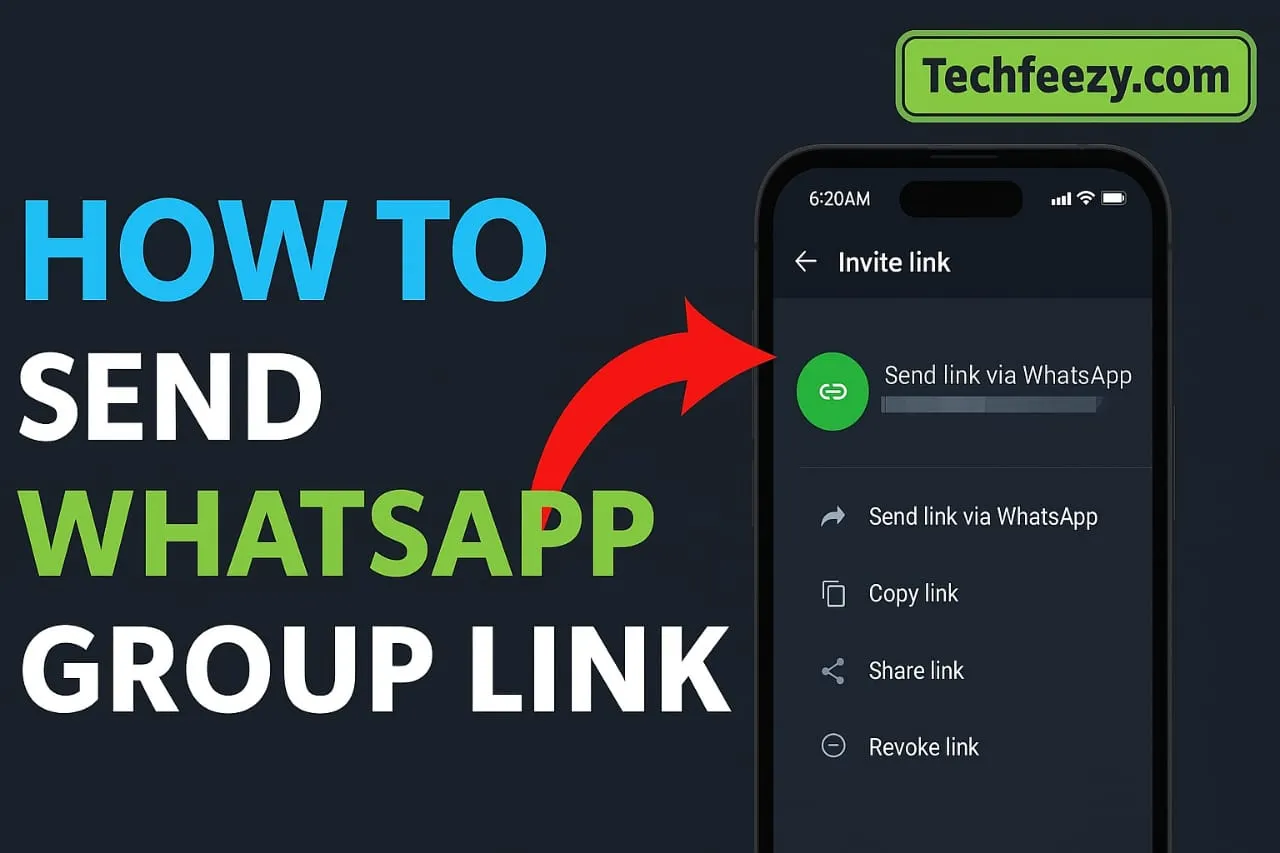
Want to Share a Group? Here’s How to Send a WhatsApp Group Link
If you’re trying to figure out how to send a WhatsApp group link, you’re in the right spot. It’s quick and works across Android, iPhone, and WhatsApp Web. I tested a few ways myself and found the smoothest methods to share links safely while keeping your group under control.
Here’s what we’ll go through:
- What a group link is and when you might need it
- Step-by-step guides for Android, iPhone, and WhatsApp Web
- How to copy, share, or use a QR code
- Tips to keep your group link secure
- Answers to the most common questions
Let’s get started.
What Is a WhatsApp Group Link and Why Use It?
A WhatsApp group link is a special invite link that lets others join your group with one tap—no need to manually add them.
It’s perfect for:
- Inviting lots of people at once (for events, teams, or clubs)
- Sharing on social media, email, or websites
- Letting people join easily without saving everyone’s number
I used it for a community chat and added over 50 members in minutes—no manual invites needed.
How to Send a WhatsApp Group Link on Android
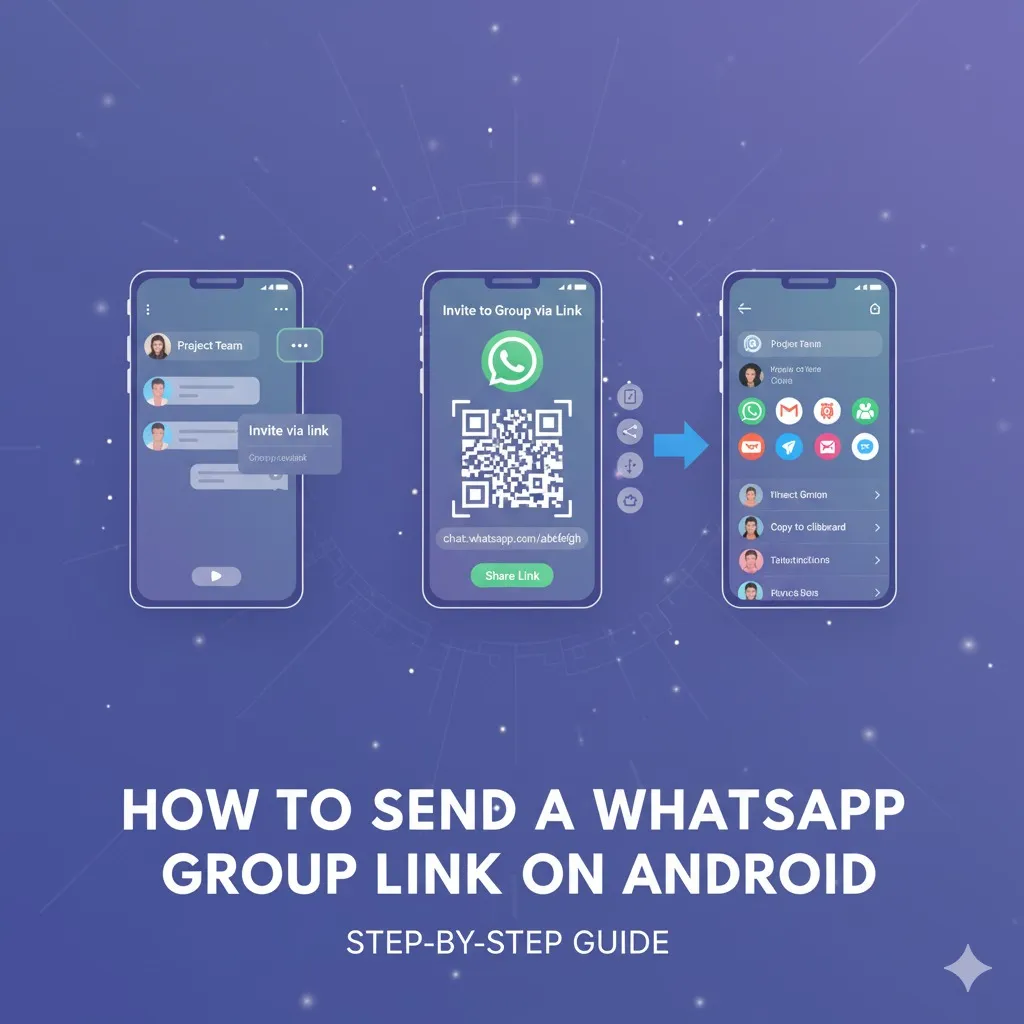
- Open WhatsApp and go to the group you manage.
- Tap the group name at the top.
- Scroll down and tap Invite to Group via Link.
- Choose one of these options:
- Send link via WhatsApp
- Copy link
- Share link
- QR code
- Copy the link to share elsewhere or tap “Send via WhatsApp” to share directly.
I did this on a friend’s phone and shared the group in seconds—super easy.
How to Send a WhatsApp Group Link on iPhone
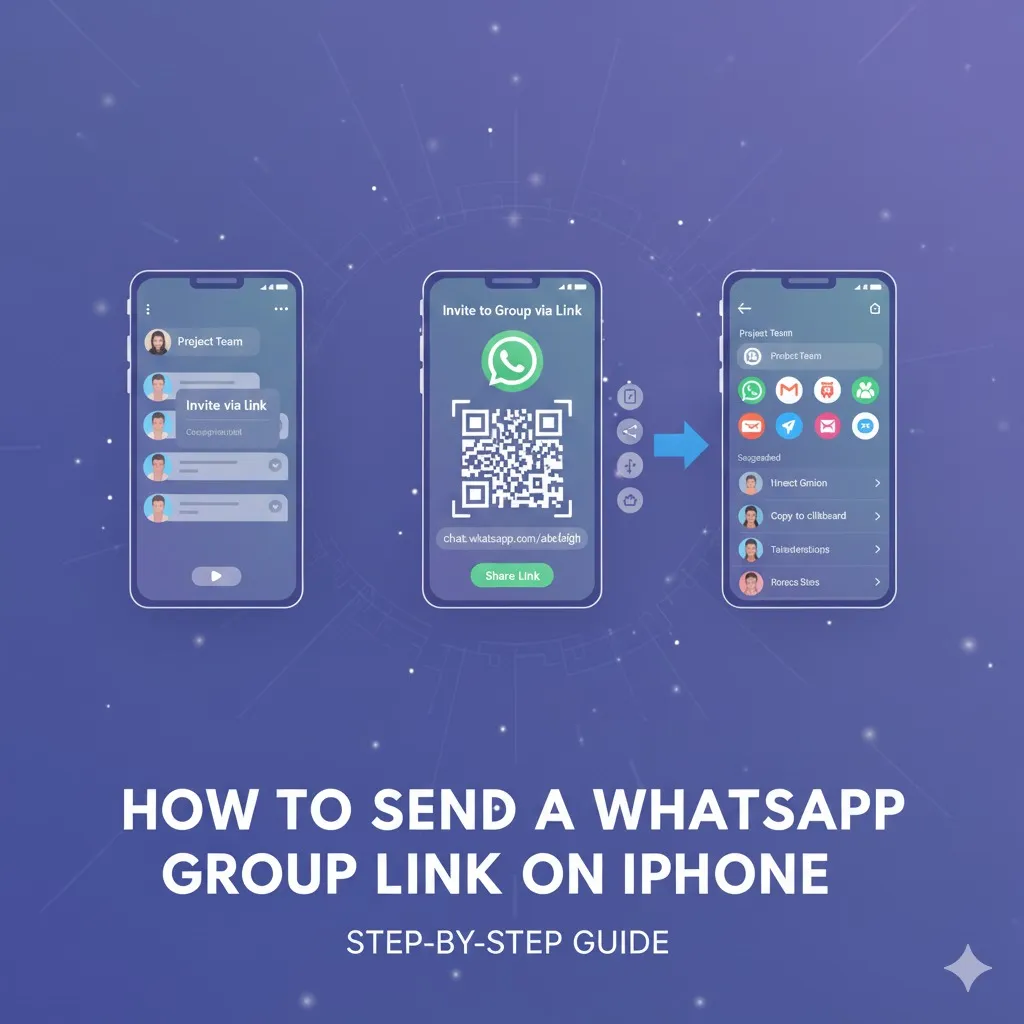
The process is almost the same:
- Open the group chat.
- Tap the group name.
- Tap Invite to Group via Link.
- Pick your preferred option — Send, Share, Copy, or QR Code.
I used this to share a club group link in a newsletter, and it worked perfectly.
How to Send a WhatsApp Group Link on WhatsApp Web or Desktop
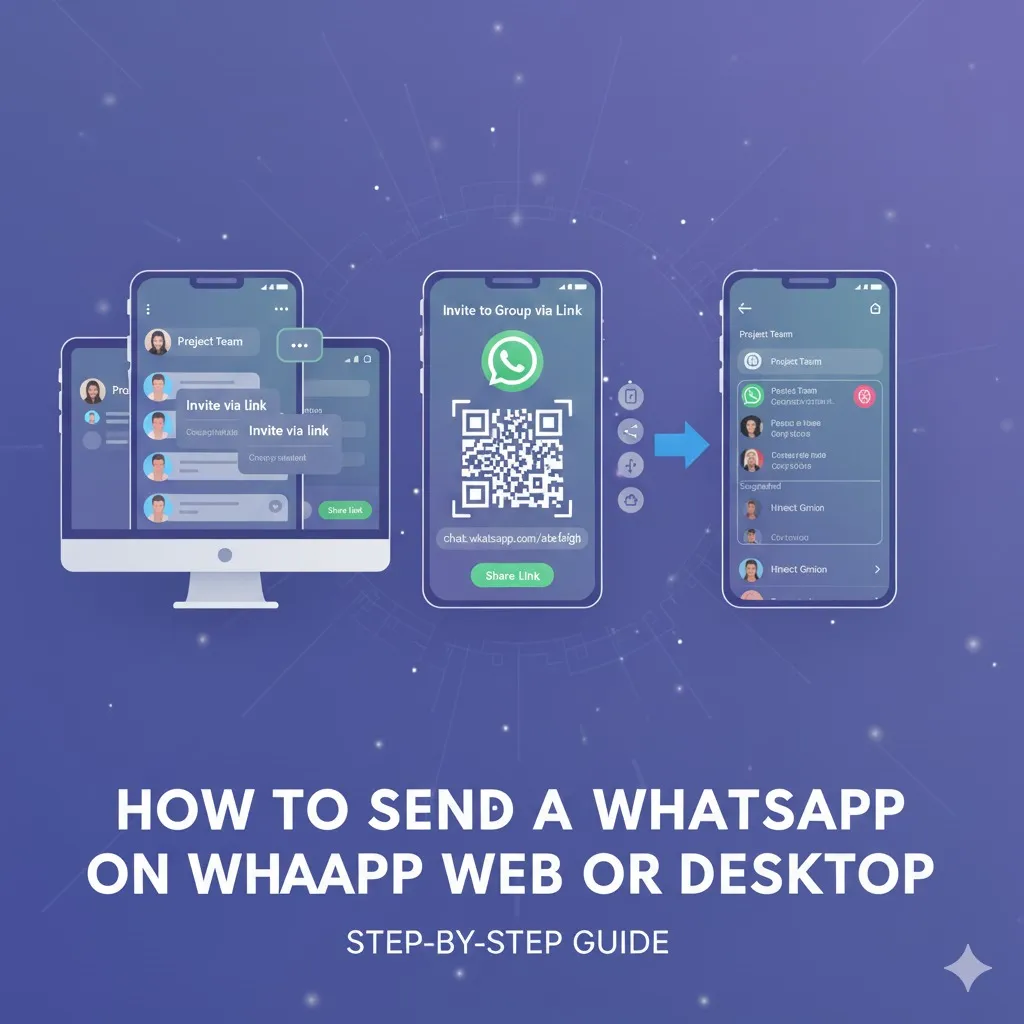
- Log into WhatsApp Web or open the desktop app.
- Open the group chat.
- Click the group name on the right.
- Select Invite to Group via Link.
- Copy or share the link directly from your computer.
I shared my team’s WhatsApp group link straight from my laptop—it was fast and convenient.
Extra Options: QR Code and Reset Link
Share with a QR Code
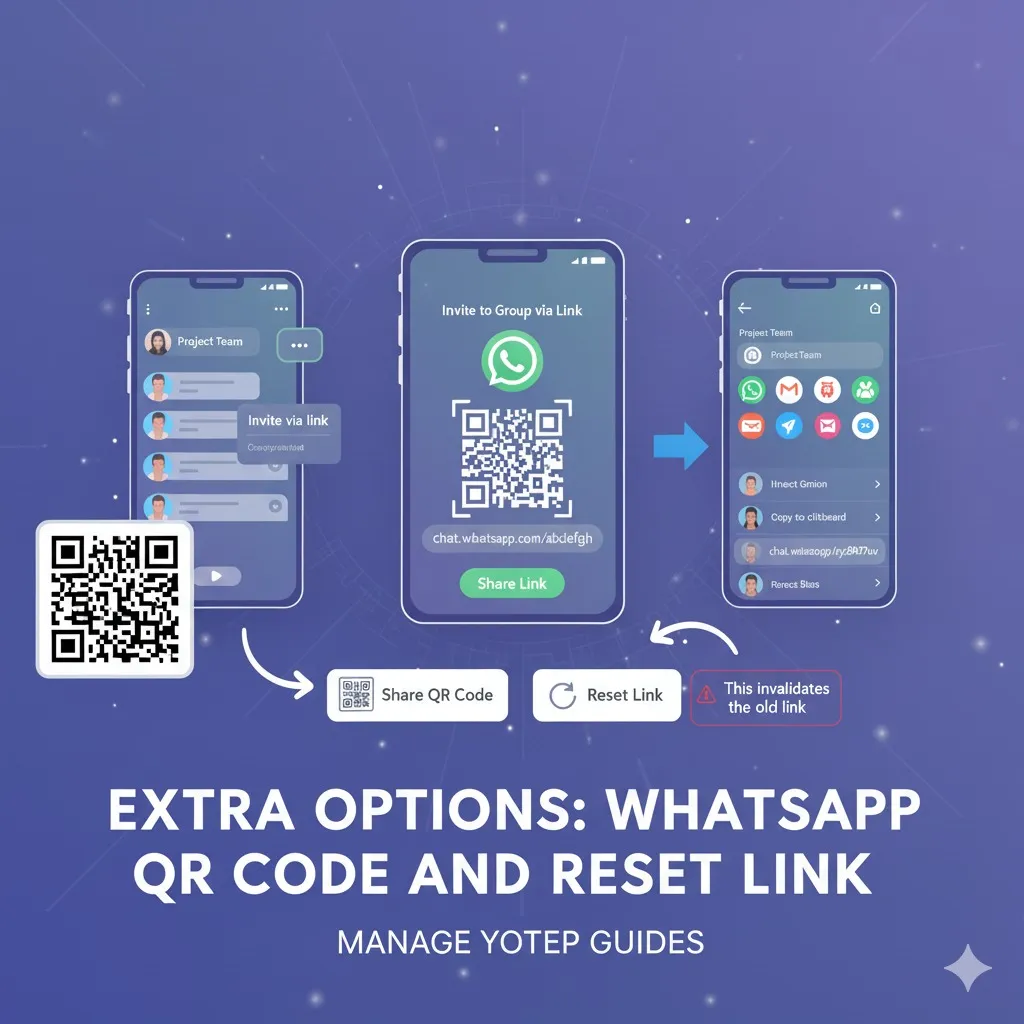
When you tap “Invite via Link,” you’ll see an option to show a QR code. Others can scan it to join instantly. I printed mine for an event, and people joined right away.
Reset Link
If the link was shared publicly or you suspect unwanted joiners, tap Reset Link. This disables the old one and generates a new link. I did this once after posting publicly to keep things secure.
Safe Sharing Tips
- Share the link only with trusted people.
- Go to Group Settings → Edit Group Info / Send Messages to limit who can post.
- Watch for unknown members—reset the link if it spreads too far.
- Add group rules or a short description for clarity.
I used these tips for my own group and avoided random spam joiners completely.
Troubleshooting
- Can’t find the link option? You must be an admin to create or reset the link.
- Old link not working? It might’ve been reset by another admin.
- Group full? WhatsApp limits group size to around 1,024 members.
- People can’t join? They might have privacy settings that block group invites.
- Link leaked publicly? Reset it immediately to stop new entries.
FAQs
1. Can I send a group link if I’m not an admin?
No, only admins can create or reset the invite link.
2. How many people can join via a link?
Currently, up to around 1,024 members can join.
3. Can I stop others from sharing the link?
Not directly, but you can reset it anytime to make the old one invalid.
4. Can I share the link on social media or email?
Yes—copy it and paste it anywhere, but be cautious about public sharing.
5. How do I remove someone who joined via link?
Go to Group Info → Members → Tap Name → Remove Participant.
Final Thoughts
And that’s it! Sending a WhatsApp group link is simple whether you’re on Android, iPhone, or the web. Just generate, copy, and share it—then manage who joins to keep things organized and safe. I’ve done this for several groups, and it’s easily the fastest way to grow and manage a community without the hassle of adding contacts manually.