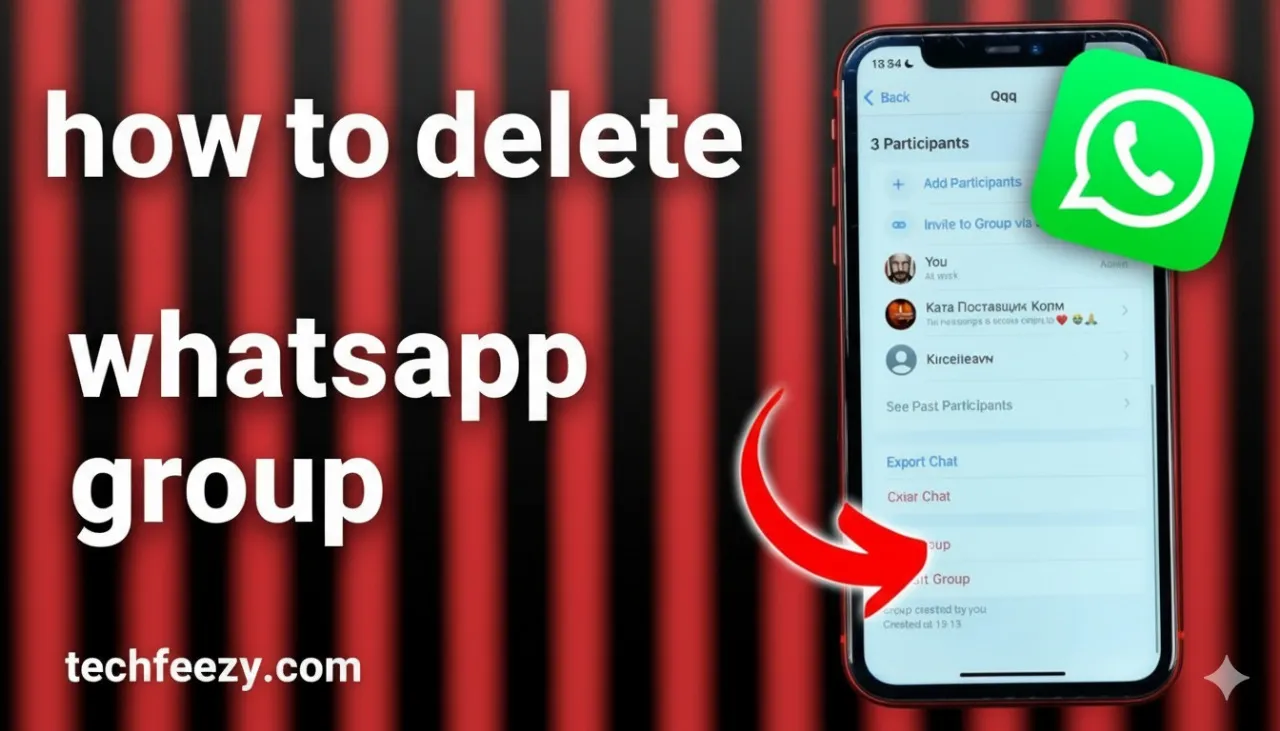
Understanding What Happens When You Delete a WhatsApp Group
Before jumping into the steps, it’s important to understand how group deletion actually works.
- Deleting a group removes it only from your own WhatsApp account.
- If you’re the group admin and want to delete it for everyone, you must first remove all members, then exit and delete the group yourself.
- Exiting a group means you leave the conversation, but it still exists for others.
- Archiving hides the group temporarily without removing you as a member.
So, in short—only admins can truly make a group disappear completely.
How to Delete a WhatsApp Group as an Admin
.webp)
If you’re the group admin, you have the power to delete the group permanently. However, WhatsApp doesn’t allow one-click deletion—you’ll need to follow three main steps.
Step 1: Remove All Group Members
- Open the WhatsApp group you want to delete.
- Tap the group name or group icon at the top.
- Scroll down to the Participants list.
- Tap each member’s name → select “Remove from group.”
- Repeat this process for every participant.
Tip: If your group has many members, it’s often faster to do this on WhatsApp Web via your computer.
Step 2: Exit the Group
- Scroll to the bottom of the Group Info page.
- Tap “Exit Group.”
- Confirm your decision.
You can’t delete a group while you’re still part of it—this step is mandatory.
Step 3: Delete the Group Permanently
- Go back to your chat list.
- Find the group you just exited.
- Tap and hold (Android) or swipe left (iPhone).
- Select “Delete Group” and confirm.
Important: Deleting a group is permanent. There’s no undo button, so save important messages or files beforehand.
How to Delete a WhatsApp Group as a Member
.webp)
If you’re not an admin, you can only remove the group from your own chat list—it will still exist for others.
Step 1: Leave the Group
- Open the group chat.
- Tap the group name at the top.
- Scroll down and select “Exit Group.”
- Confirm when prompted.
After leaving, you’ll no longer receive notifications or messages from that group.
Step 2: Delete the Group from Your Chat List
- On Android: Tap and hold the group chat → choose “Delete Chat.”
- On iPhone: Swipe left on the group → tap “Delete.”
That’s it—the group will disappear from your WhatsApp.
How to Delete WhatsApp Groups on Different Platforms

On Android
- Open the group and tap the name at the top.
- Remove members (if admin).
- Tap “Exit Group.”
- Long-press the chat → tap the trash icon → confirm deletion.
On iPhone
- Open the group → tap the name.
- Remove members (if admin).
- Tap “Exit Group.”
- Swipe left on the group chat → tap “Delete.”
On WhatsApp Web or Desktop
You can remove participants and exit a group, but final deletion must be done on your mobile device.
Things to Check Before Deleting a Group
1. Backup Your Data
If you want to keep important messages or media, back up your WhatsApp data first. Backups are stored on Google Drive (Android) or iCloud (iPhone)—but only if done before you delete the group.
2. Manage Media Storage
Deleting the group doesn’t remove shared media from your phone. You’ll need to manually delete photos, videos, or documents under: Settings → Storage and Data → Manage Storage → Select Group → Delete Media.
3. Admin Handover (if needed)
If you leave without deleting all members, WhatsApp will automatically assign a new admin. To fully close the group, remove all participants first.
Alternatives to Deleting a Group
If you’re not sure about deleting the group permanently, you have a few less drastic options:
- Mute Notifications: Stop alerts without leaving the group.
- Archive Chat: Hide the group from your chat list but keep it active.
- Clear Chat History: Delete messages while staying in the group.
These options help you declutter while keeping the group accessible later.
FAQs: WhatsApp Group Deletion
1. Can I delete a WhatsApp group for everyone?
Only admins can delete a group for everyone—by removing all members first, then exiting and deleting the group.
2. Can deleted WhatsApp groups be restored?
Not directly. You can only restore them if you have a backup created before deletion.
3. How long does it take to delete a group?
For small groups, just a few minutes. Large groups with many members can take longer since removal is manual.
4. Will other members know when I leave?
Yes. WhatsApp shows a small system message: “You left the group.”
5. Can I delete a group on WhatsApp Web?
You can remove members and exit on the web, but final deletion must be done on mobile.
Final Thoughts
Deleting a WhatsApp group is straightforward once you understand the steps—and the difference between leaving, archiving, and deleting. Whether you’re an admin wrapping up a project or a member cleaning your chat list, follow the process carefully and back up important data first.
Doing so ensures a smooth, permanent cleanup of your WhatsApp without losing anything important.