Introduction
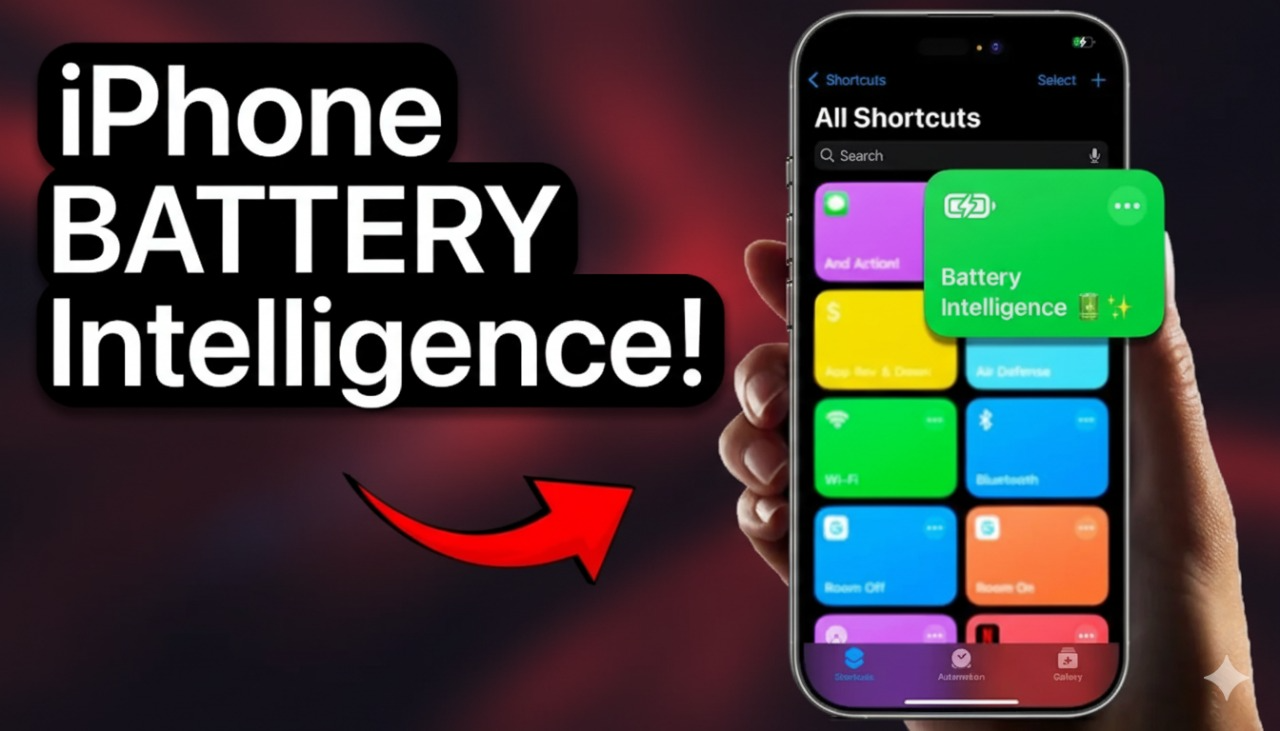
The iPhone battery shortcut is a handy feature that lets you keep track of your battery, set up alerts, and even automate power-saving actions—all through Apple’s Shortcuts app. With just a little setup, you can create a shortcut that helps manage your iPhone’s energy use and gives you peace of mind about your battery health. For more on managing battery life, check out our guide on why your iPhone battery is yellow.
In this guide, you’ll learn exactly what the iPhone battery shortcut does, why it’s useful, and how to make your own in just a few steps.
How to Make an iPhone Battery Shortcut in the Shortcuts App
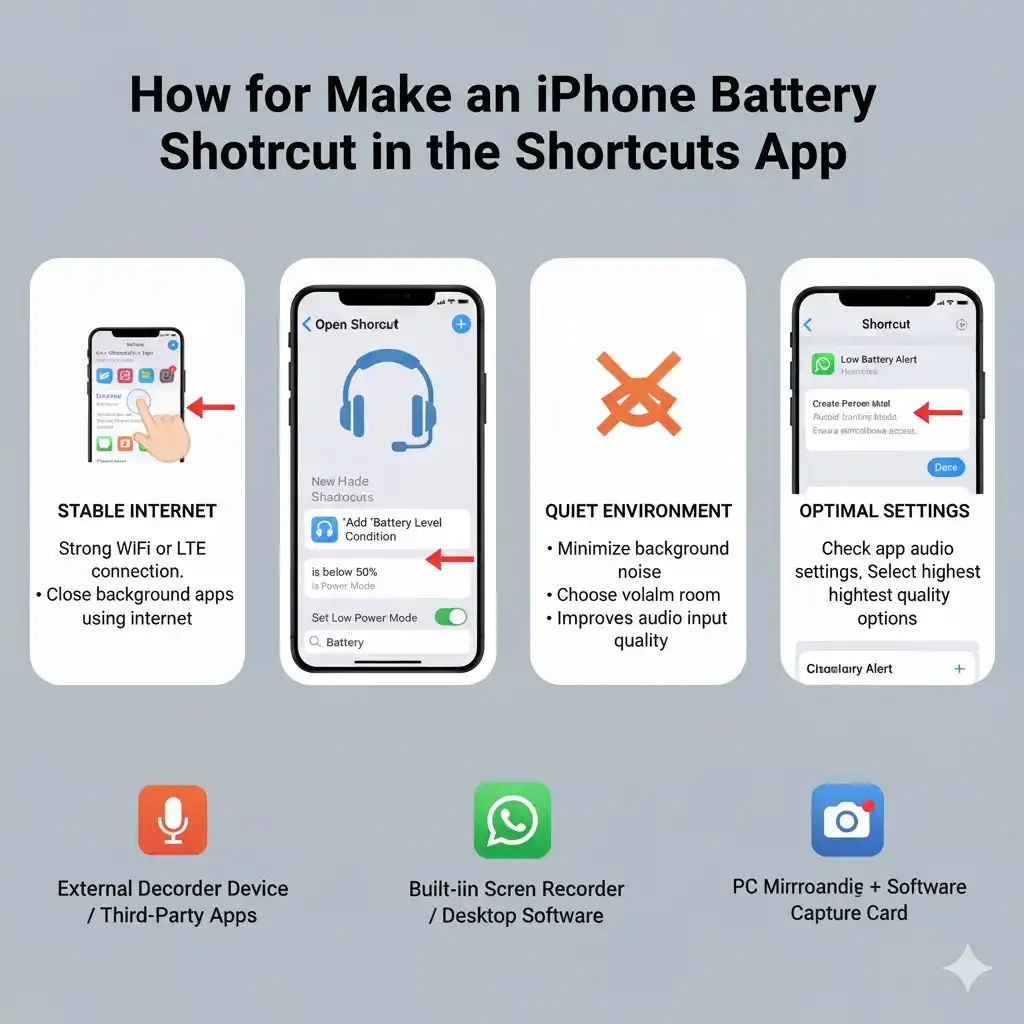
Setting up an iPhone battery shortcut only takes a few minutes. Here’s how to do it:
- Open the Shortcuts app on your iPhone.
- Tap the “+” button in the top right corner to start a new shortcut.
- Select “Add Action.”
- In the search bar, type “Battery” and choose “Get Battery Level.”
- Tap the plus sign to add another action. From Scripting, choose “If.”
- Set your condition. For example: If Battery Level is less than 20.
- Add what should happen. Tap “Add Action” and pick “Show Notification” (you could also set it to play a sound, send a text, or turn on Low Power Mode).
- Type your notification message, like: “Battery low—time to charge!”
- Tap “Done.” Your shortcut is now saved.
You can run it manually or set up an automation so it triggers automatically when your battery hits that percentage.
What an iPhone Battery Shortcut Can Do
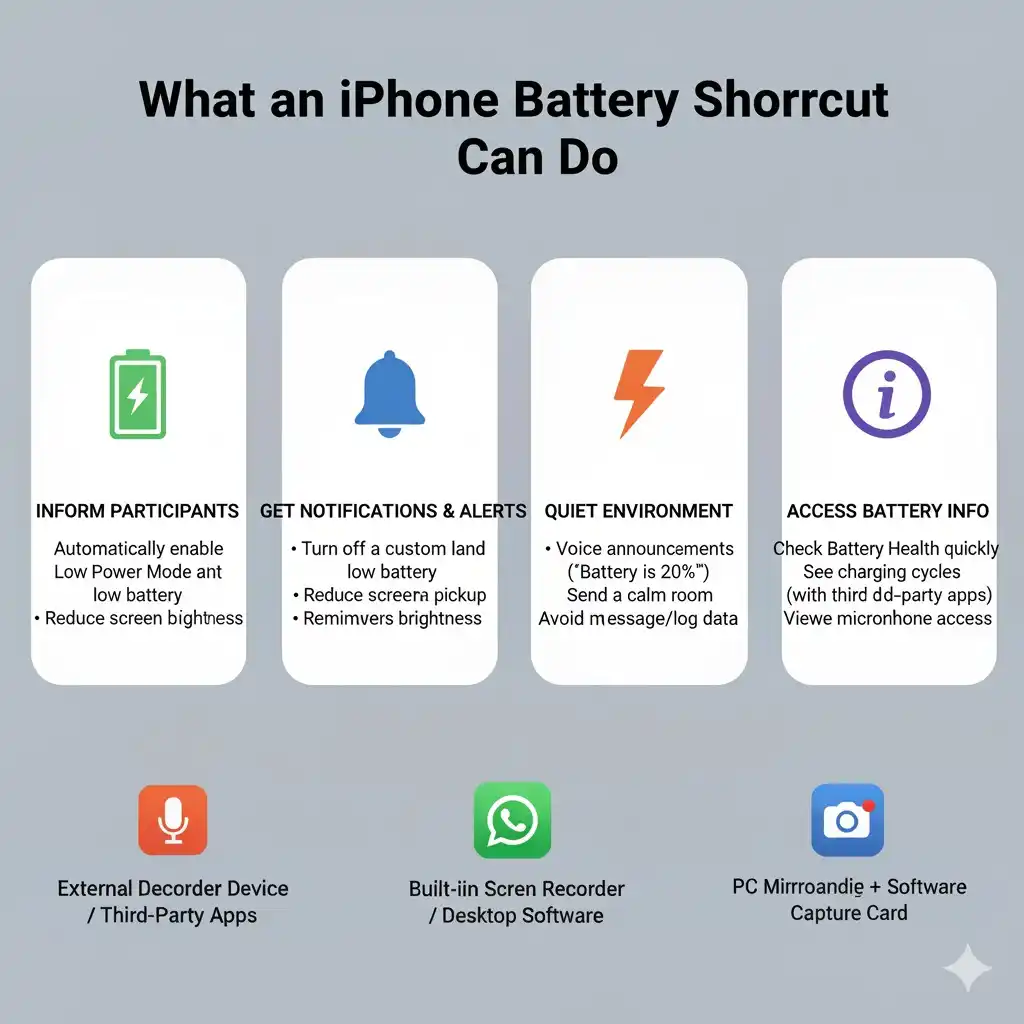
The iPhone battery shortcut is all about automation. Here are a few common uses:
- Send a notification when the battery hits a certain percentage
- Turn on Low Power Mode automatically
- Disable things like Bluetooth or Wi-Fi when the battery is low
- Log your battery levels for tracking and analysis
- Send updates to family or coworkers about your battery status
Instead of checking your battery all the time, these shortcuts do the work for you. Learn more about Low Power Mode in our article on why your iPhone battery turns yellow.
Advanced Ways to Customize Battery Shortcuts
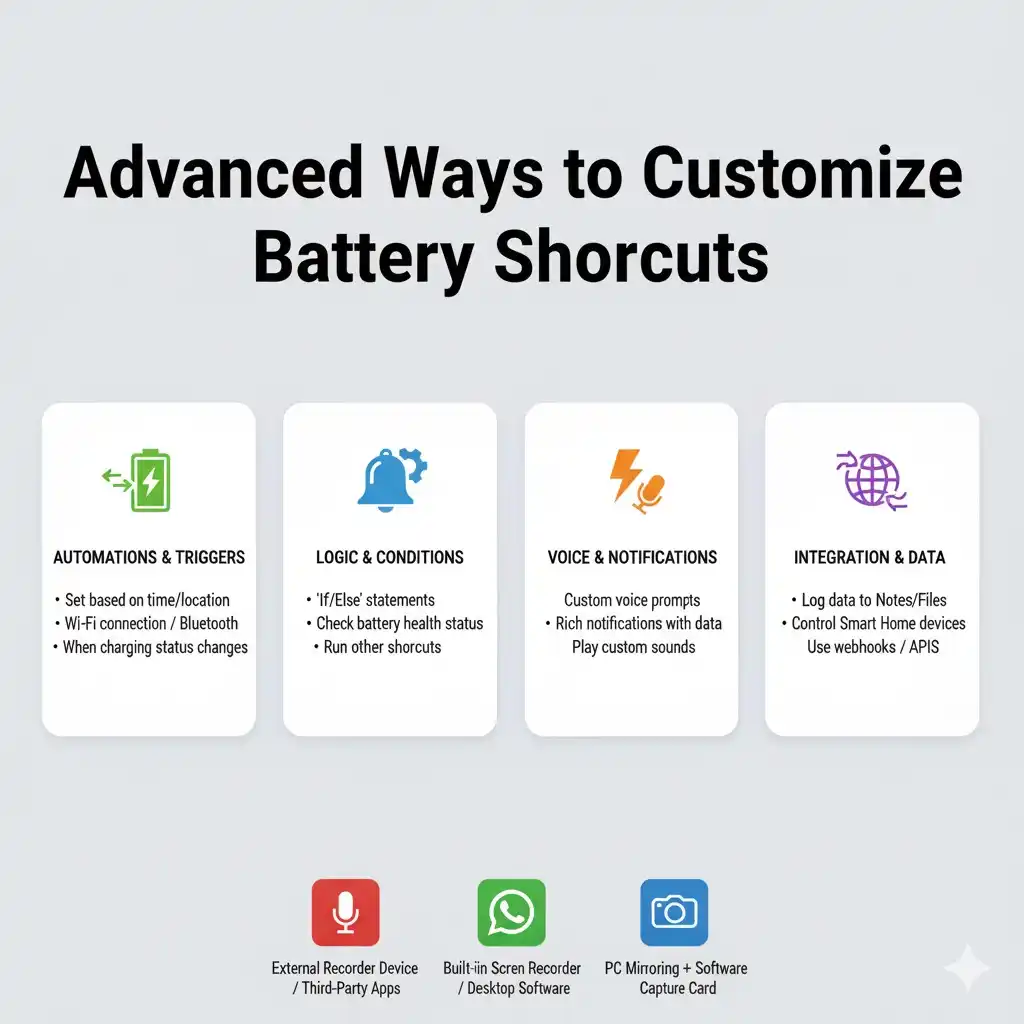
Once you’re comfortable with the basics, you can make your iPhone battery shortcut even smarter:
- Combine battery level checks with location, time, or Wi-Fi connection
- Create routines like turning off Wi-Fi or dimming the screen at night when the battery is low
- Link it with smart home devices (for example, dimming lights when your phone is almost out of battery)
- Schedule regular battery checks throughout the day
These tweaks let you design shortcuts that actually fit your lifestyle.
Tips for Getting the Most Out of Battery Shortcuts
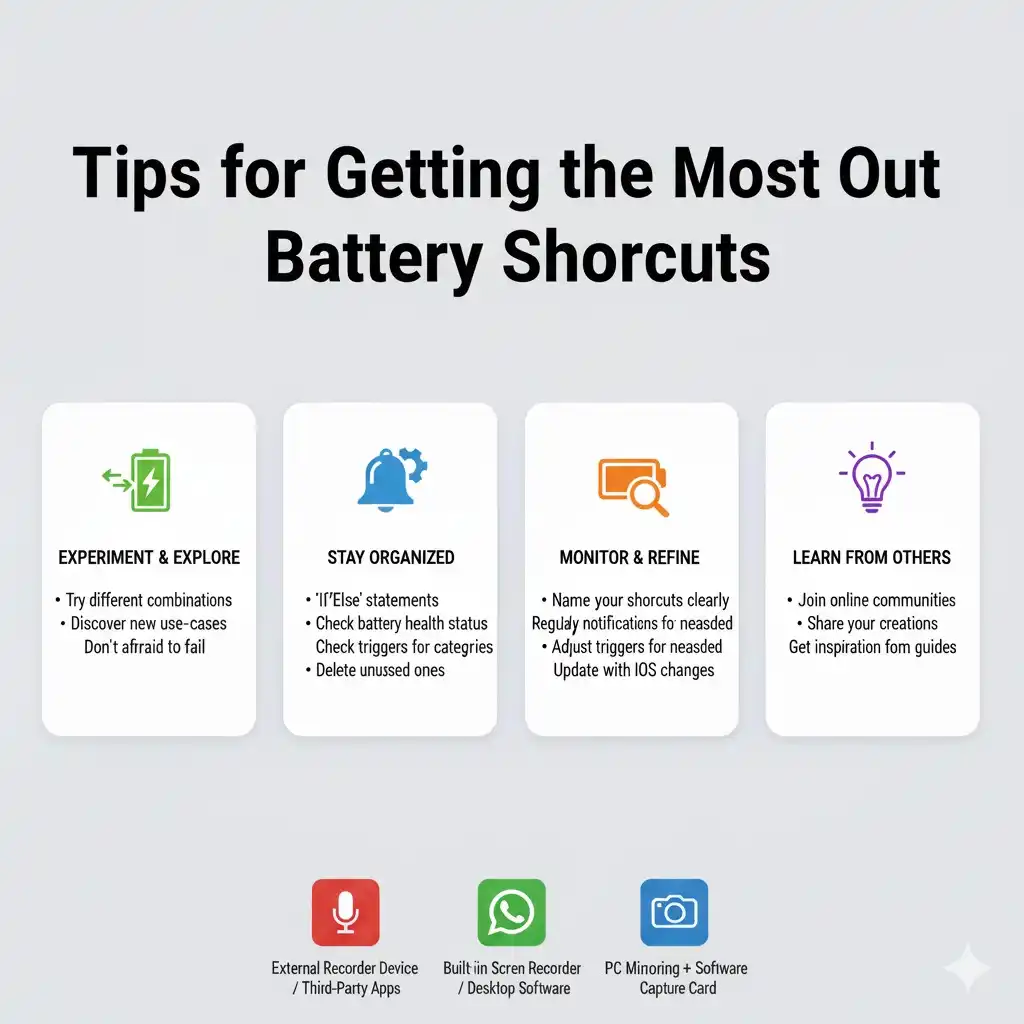
- Don’t overdo it: Too many notifications can get annoying. Stick to what’s really useful.
- Use widgets: Add your shortcut to the Home Screen so you can run it with one tap.
- Track battery health: Create a shortcut that logs your battery health stats to keep an eye on long-term performance.
- Pair with Siri: Launch your battery shortcuts hands-free with a quick Siri command.
Fixing Common Issues
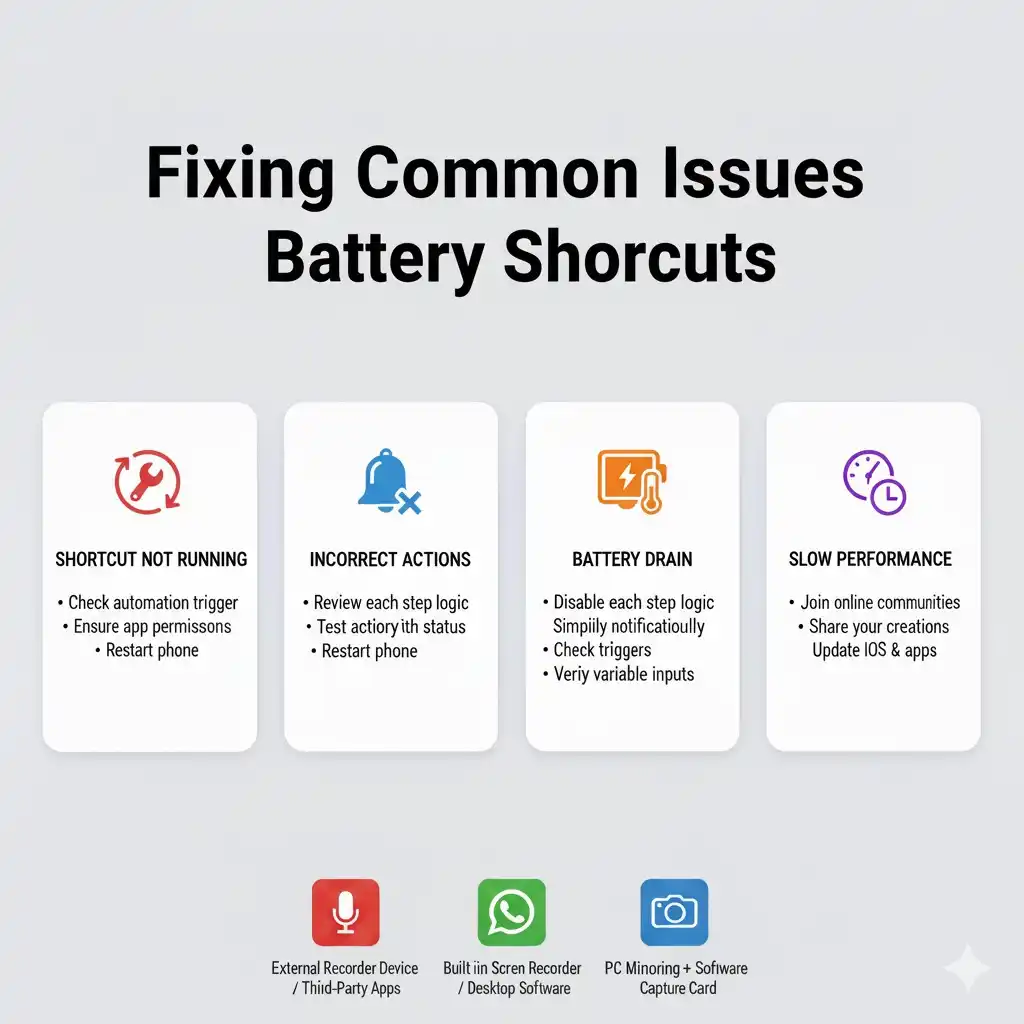
- Not getting notifications? Check that notifications are turned on for the Shortcuts app in Settings.
- Shortcut won’t run automatically? Revisit your automation settings to make sure everything is set correctly.
- Shortcut fails? Some battery triggers have restrictions. Try running it manually to spot any errors.
Final Thoughts
The iPhone battery shortcut is a simple but powerful way to stay on top of your device’s energy use. Whether you want a low-battery reminder, an automatic Low Power Mode trigger, or more advanced automations, the Shortcuts app gives you the tools to make it happen.
By setting up these custom shortcuts, you’ll save time, extend your battery life, and make your iPhone work smarter for you. For additional battery-saving tips, see our guide on understanding the yellow battery icon.
Frequently Asked Questions About iPhone Battery Shortcuts
Q1: What is an iPhone battery shortcut?
An iPhone battery shortcut is a custom automation built in the Shortcuts app that lets you monitor battery percentage, set alerts, and perform actions like turning on Low Power Mode when your battery drops to a certain level.
Q2: How do I make my iPhone alert me when the battery is low?
You can create a shortcut in the Shortcuts app by selecting Get Battery Level and using an If condition (e.g., battery below 20%). Then add an action like Show Notification or Play Sound so you’ll get an alert when your battery is low.
Q3: Can an iPhone shortcut automatically turn on Low Power Mode?
Yes. When creating a shortcut, add the action Set Low Power Mode and set the condition to trigger when your battery percentage is at a specific level. This way, Low Power Mode will activate automatically.
Q4: Why isn’t my battery shortcut running automatically?
This usually happens if automation permissions are not enabled in the Shortcuts app. Check your automation settings and make sure notifications and background permissions are turned on.
Q5: Can I use Siri with battery shortcuts?
Absolutely. Once you’ve created a shortcut, you can name it and ask Siri to run it by saying something like “Hey Siri, run battery check.”