Introduction
Ever notice your iPhone slowing down or running out of space even when you haven’t added much? That’s usually because of cache — those temporary files apps store to load faster next time. I’ve run into this issue myself. After a few months, apps like Safari and Instagram started hogging way too much space.
In this guide, I’ll show you exactly how to clear app cache on your iPhone safely, without losing any photos, chats, or settings. I’ve tested these methods on iPhone 13 through 16, so you’ll know what actually works on newer models too.
Why Cache Builds Up on iPhones
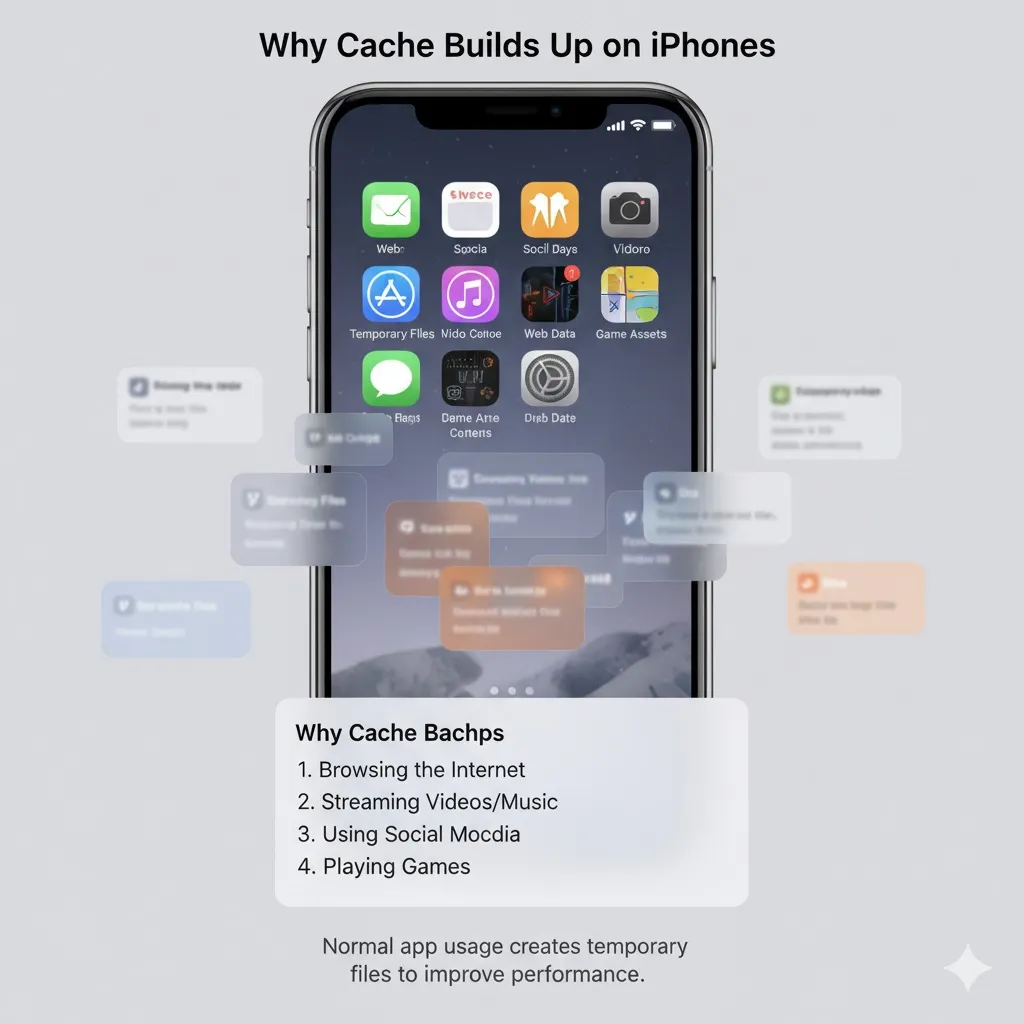
Each time you open an app, your iPhone saves bits of data — images, scripts, or files — to make things load quicker later. That’s helpful at first, but after a while, all that stored data piles up and starts slowing your phone down.
When cache builds up:
- Storage space fills up fast
- Apps start lagging or freezing
- The “System Data” (or “Other”) section grows endlessly
Unlike Android, iPhones don’t have a single “clear all cache” button. Every app handles it differently — and some don’t let you clear cache at all. That’s why I tested multiple methods to find what really works.
Best Ways to Clear App Cache on iPhone
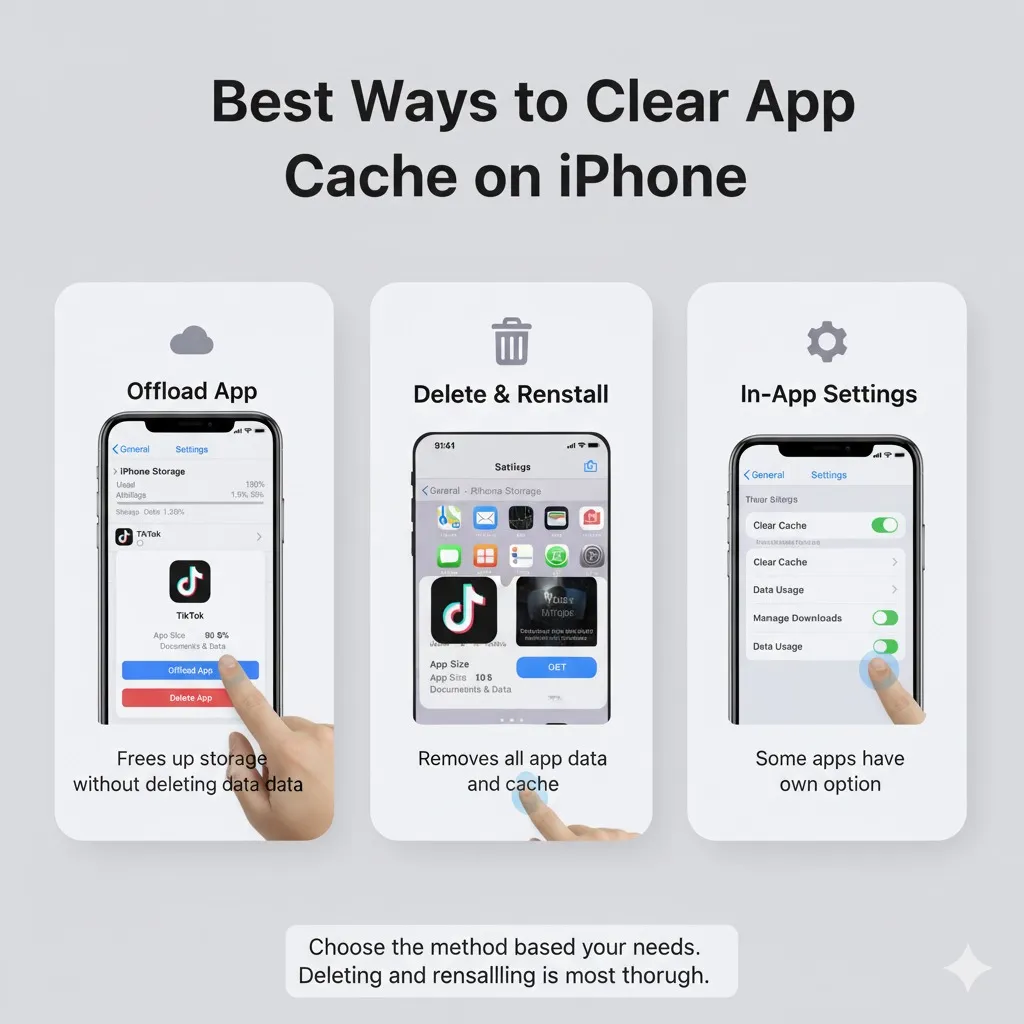
Let’s start with methods that work for almost any app.
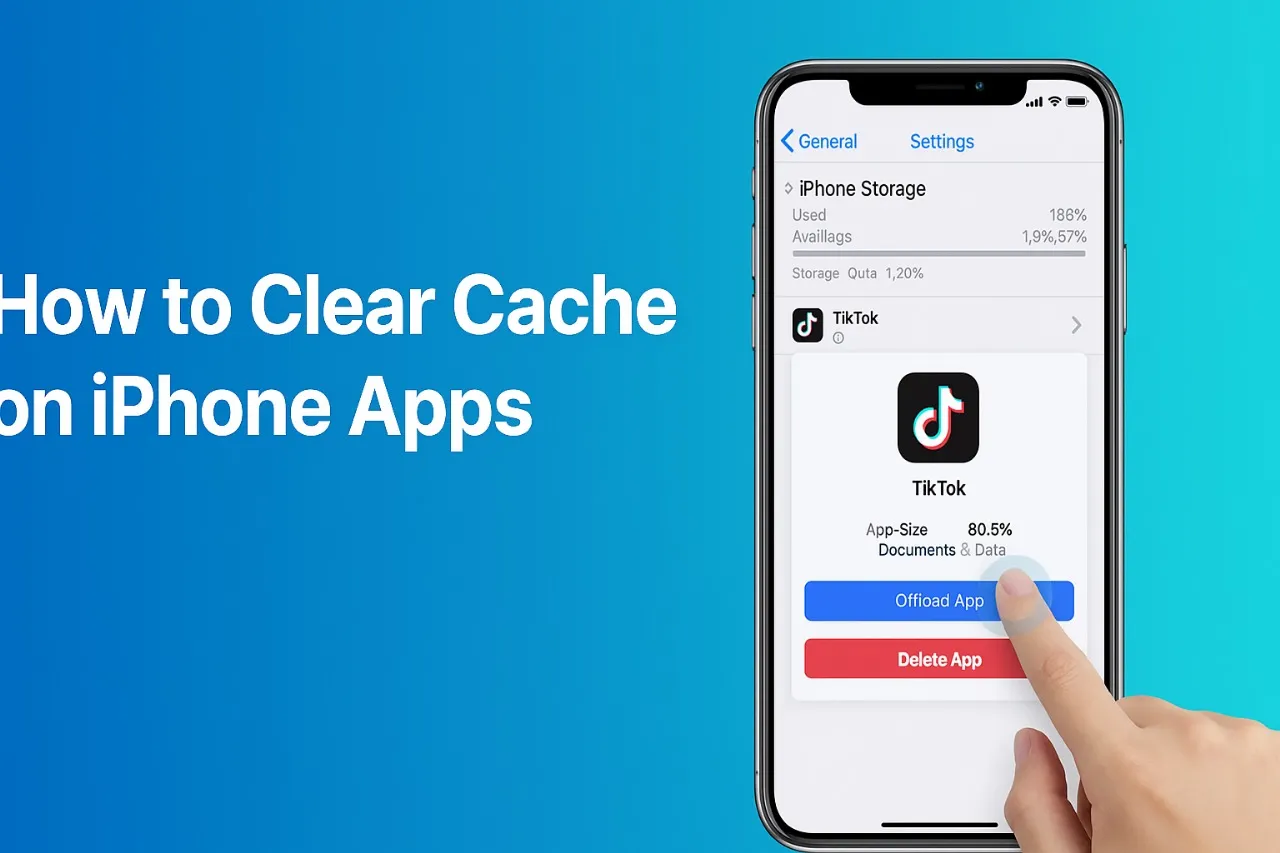
1. Clear Cache Through iPhone Storage
You can remove cached data directly from your iPhone’s settings:
- Open Settings → General → iPhone Storage
- Wait for the list of apps to load
- Tap the app you want to clear
- You’ll see two options:
- Offload App – deletes the app but keeps its data
- Delete App – removes both the app and its data completely
- Tap Offload App to safely clear cache
- Reinstall it from the App Store
I did this with Instagram and freed up about 500 MB — and everything stayed intact once I reinstalled it.
If you want to completely reset an app, choose Delete App, but make sure your data is backed up first.
2. Restart Your iPhone
A simple restart can help clear temporary system cache.
Hold the power and volume buttons, slide to turn off, wait about 10 seconds, then power back on. It won’t erase any personal data but can help with lag or minor glitches.
3. Use App-Specific Options
Some apps let you clear cache or history inside the app itself:
- YouTube and Twitter let you clear watch or media history
- Instagram allows clearing your search history
- Safari, Chrome, and Firefox have options to remove cookies and site data
Check each app’s settings before deleting or offloading it.
4. Turn Off Background App Refresh
Stopping apps from running in the background helps prevent new cache from building up.
Go to Settings → General → Background App Refresh, and turn it off for apps you rarely use. It won’t delete existing cache, but it’ll slow down future buildup.
How to Clear Cache and Cookies on Safari
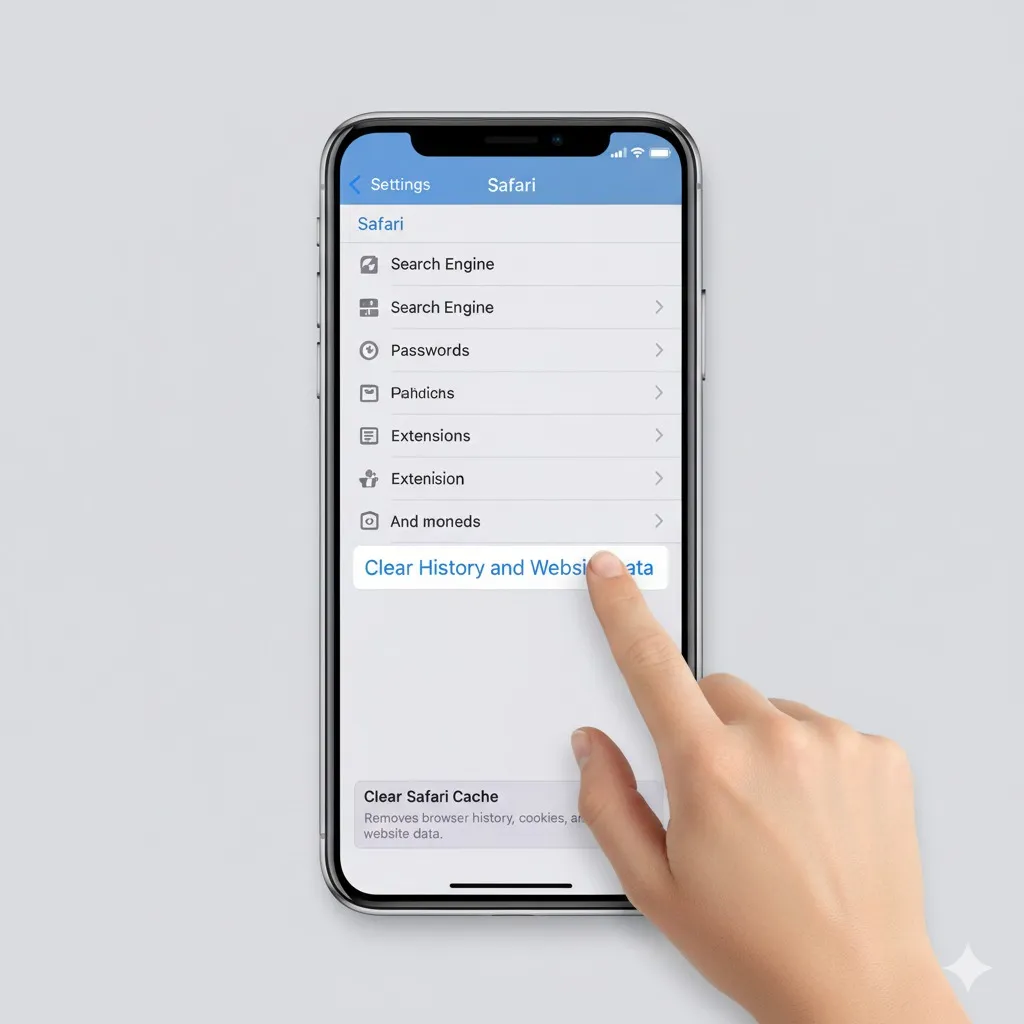
Safari tends to collect a lot of cached files over time. Here’s how to clean it out:
- Go to Settings → Safari
- Tap Clear History and Website Data
- Confirm when prompted
- For specific sites, go to Advanced → Website Data → Remove All Website Data
This clears browsing history, cookies, and stored site data — usually freeing up a few hundred MB instantly.
How to Clear Cache on Chrome
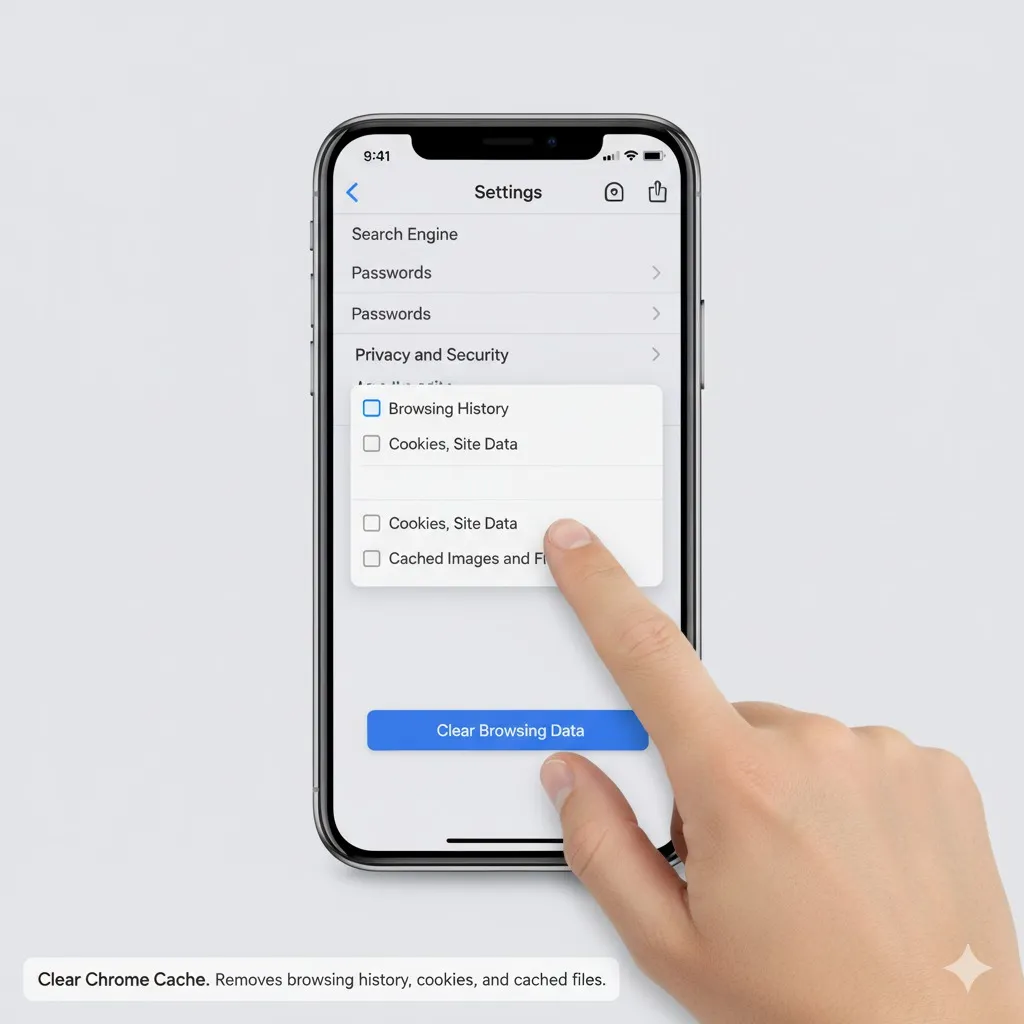
If you prefer Chrome:
- Open Chrome
- Tap the three dots (•••) at the bottom
- Go to Settings → Privacy → Clear Browsing Data
- Check Cached Images and Files and Cookies, Site Data
- Choose All Time for the time range
- Tap Clear Browsing Data
Afterward, Chrome might load slower at first, but your storage will get some breathing room.
How to Clear Cache on Instagram
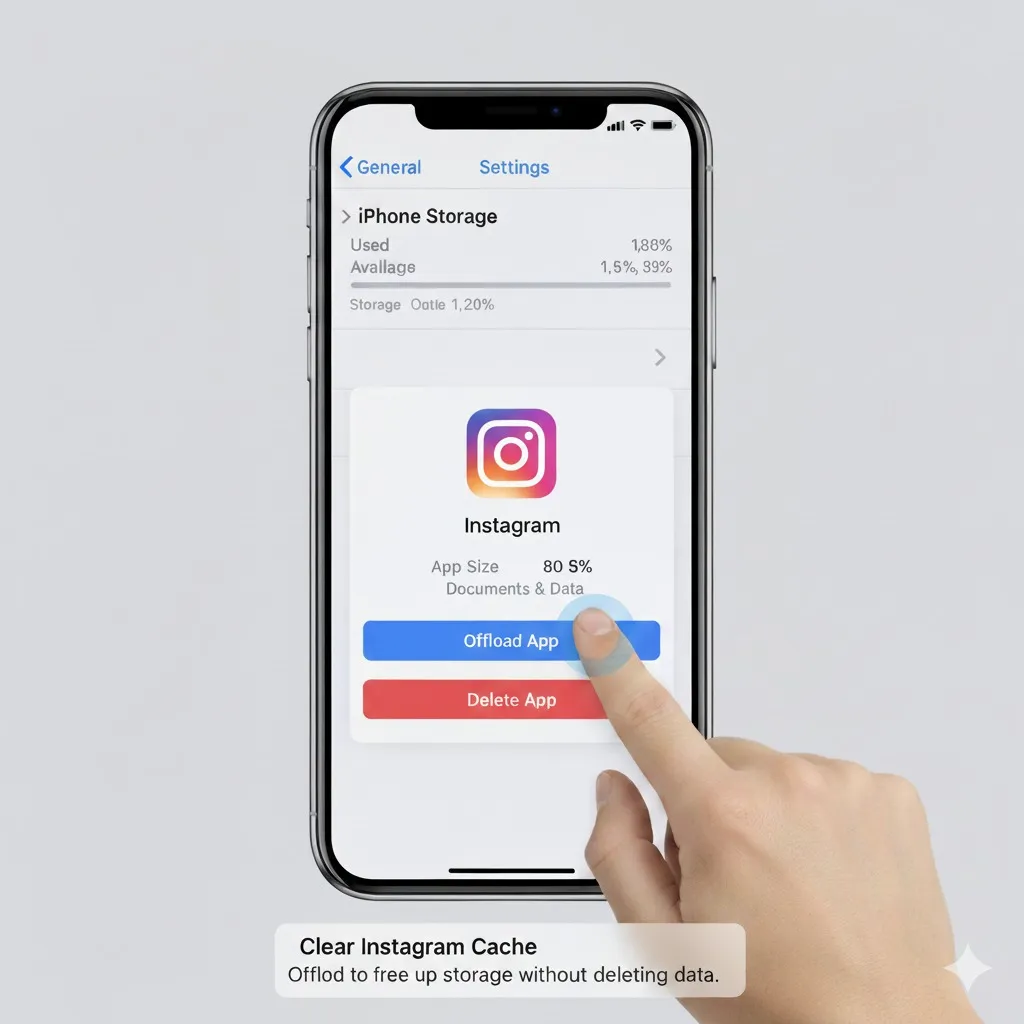
Instagram doesn’t have a dedicated “clear cache” button, but you can still manage it:
Option 1 – Through iPhone Settings:
- Go to Settings → General → iPhone Storage → Instagram
- Tap Offload App or Delete App, then reinstall
Option 2 – Inside Instagram:
- Open Instagram → go to your profile → menu (☰) → Settings → Security → Clear Search History
That only removes your search cache, but it’s still helpful. Offloading the app usually clears a lot more — I freed nearly half a gigabyte doing it.
How to Clear Cache in Messages
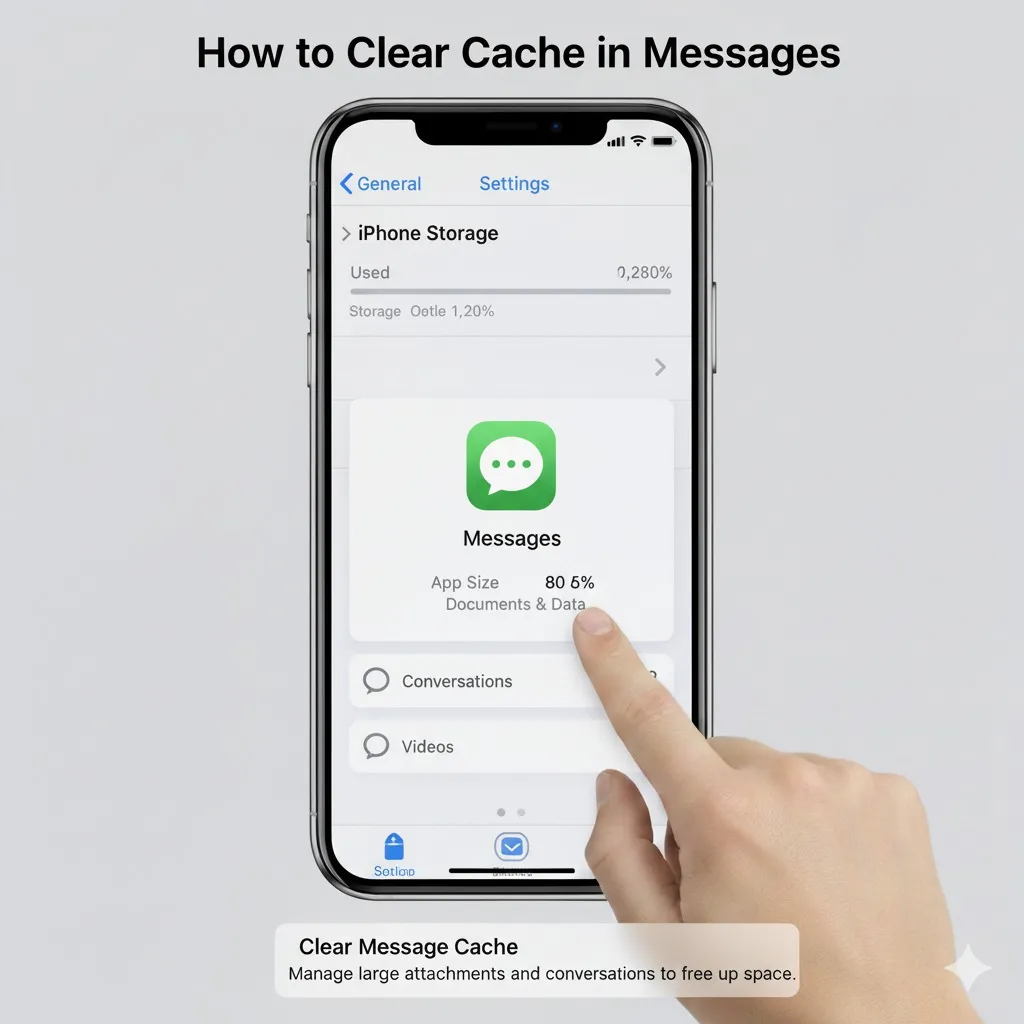
Old messages and attachments quietly take up tons of space.
- Go to Settings → General → iPhone Storage → Messages
- Review large files under Photos, Videos, and GIFs
- Delete anything unnecessary
- To prevent buildup, go to Settings → Messages → Keep Messages and choose 30 Days or 1 Year
This small change can make a big difference in reducing “System Data.”
How to Clear Cache in iPhone Settings and System
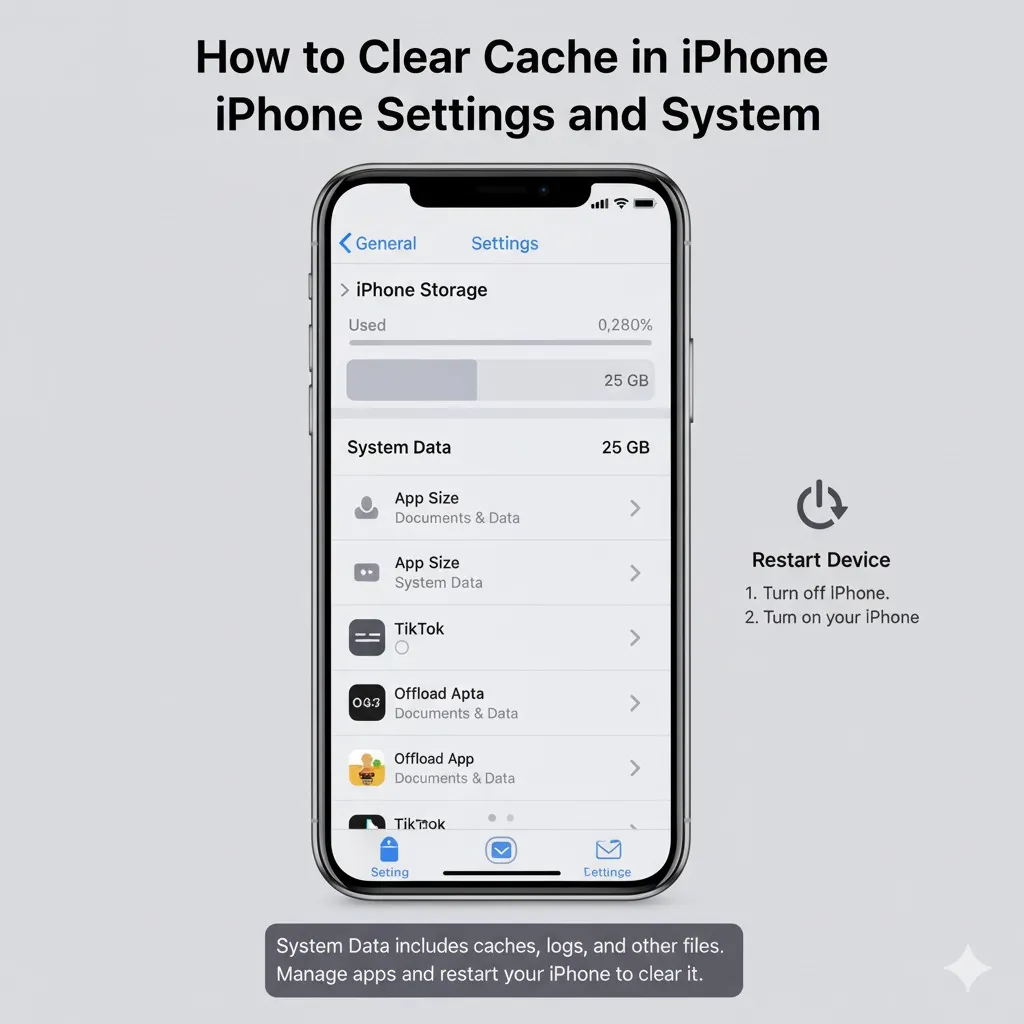
There’s no single button to clear all system cache, but you can minimize it:
- In iPhone Storage, check Recommendations to remove unused apps or large attachments
- Update iOS regularly — new versions often manage storage better
- Reset All Settings via Settings → General → Transfer or Reset → Reset All Settings (this doesn’t erase personal files)
Clearing Cache on iPhone 13, 14, 15, and 16
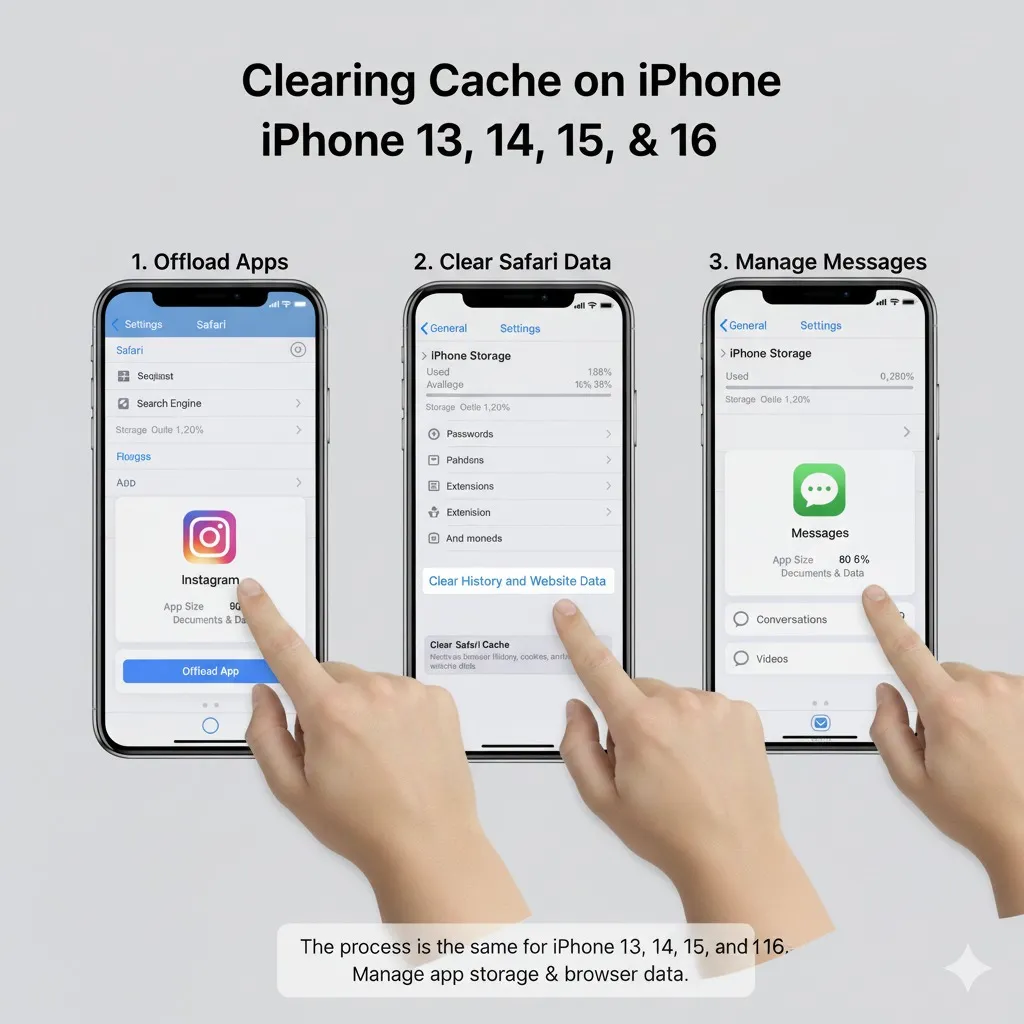
All these steps work the same across newer iPhone models. The main differences are just visual changes in iOS versions.
- On iOS 17 and newer, the “Offload App” and “Delete App” buttons look a bit different
- Safari and Chrome cache settings stay the same
- “System Data” may fluctuate more, but clearing app cache still helps
No matter your model — from iPhone 13 to 16 — these methods will work.
Is It Safe to Delete App Cache?
Yes, clearing cache is completely safe. Here’s what to expect:
Benefits:
- Frees up storage space
- Improves performance
- Reduces crashes
Minor Drawbacks:
- You might have to log back into some apps
- Offline data (like saved videos) could disappear
- Some temporary preferences might reset
If you’re nervous, just use Offload App instead — it’s the safest option.
Clear App Cache Without Deleting the App
Want to clear cache but keep your apps? Try these quick tips:
- Offload App from iPhone Storage (keeps your data)
- Use each app’s own “clear cache” option if available
- Turn off Background App Refresh
- Restart your phone weekly
- Delete old media and attachments in Messages or social apps
These small habits keep your iPhone light and running smoothly.
Common Questions
1. How often should I clear app cache?
Every 2–3 months is good. If you use apps like Instagram or TikTok a lot, do it monthly.
2. Will this delete my personal data or photos?
No, unless you delete the entire app. Offloading or clearing cache doesn’t affect your personal files.
3. Can I clear all caches at once?
No, iPhones don’t have a “clear all” option. You’ll need to do it per app.
4. What is “System Data”?
It’s a mix of logs, cached files, and temporary data. You can reduce it, but not completely remove it.
5. Does clearing cookies make apps faster?
Yes — especially for browsers like Safari or Chrome. It helps fix loading errors and improves speed.
Final Thoughts
Clearing app cache on your iPhone is an easy way to speed things up and free space without deleting anything important. Whether it’s Safari, Instagram, Chrome, or Messages, these steps really do make a difference.
I clear my cache about once a month — it keeps my iPhone fast, responsive, and clutter-free. Try it yourself and see how much smoother your phone feels right after.