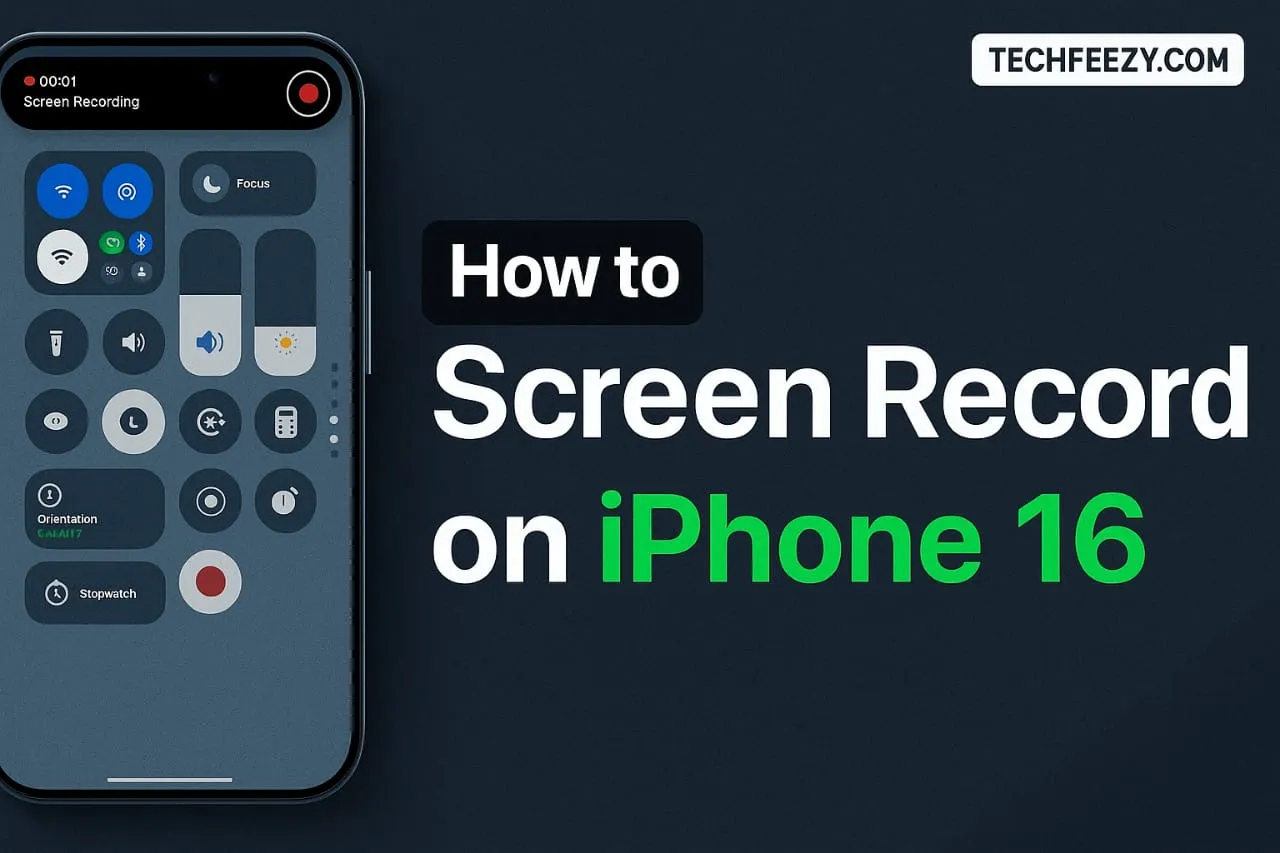
How to Screen Record on iPhone 16?
If you've ever wished to record anything on the iPhone screen, such as games, tutorials, or a bug, then you're in the right spot. In this article, I'll teach you how to screen record on iPhone 16 using the built-in feature that comes with iOS 18.
You'll learn:
- How to enable screen recording from settings
- How to record with or without sound
- What to do if you can't find the option to record your screen
- How it works across different iPhone 16 models
- How to set it up on older iPhones such as 13, 14, and 15
At the end of the day, you'll be able to record your screen effortlessly without using any third-party app.
Getting Started: Turn on Screen Recording
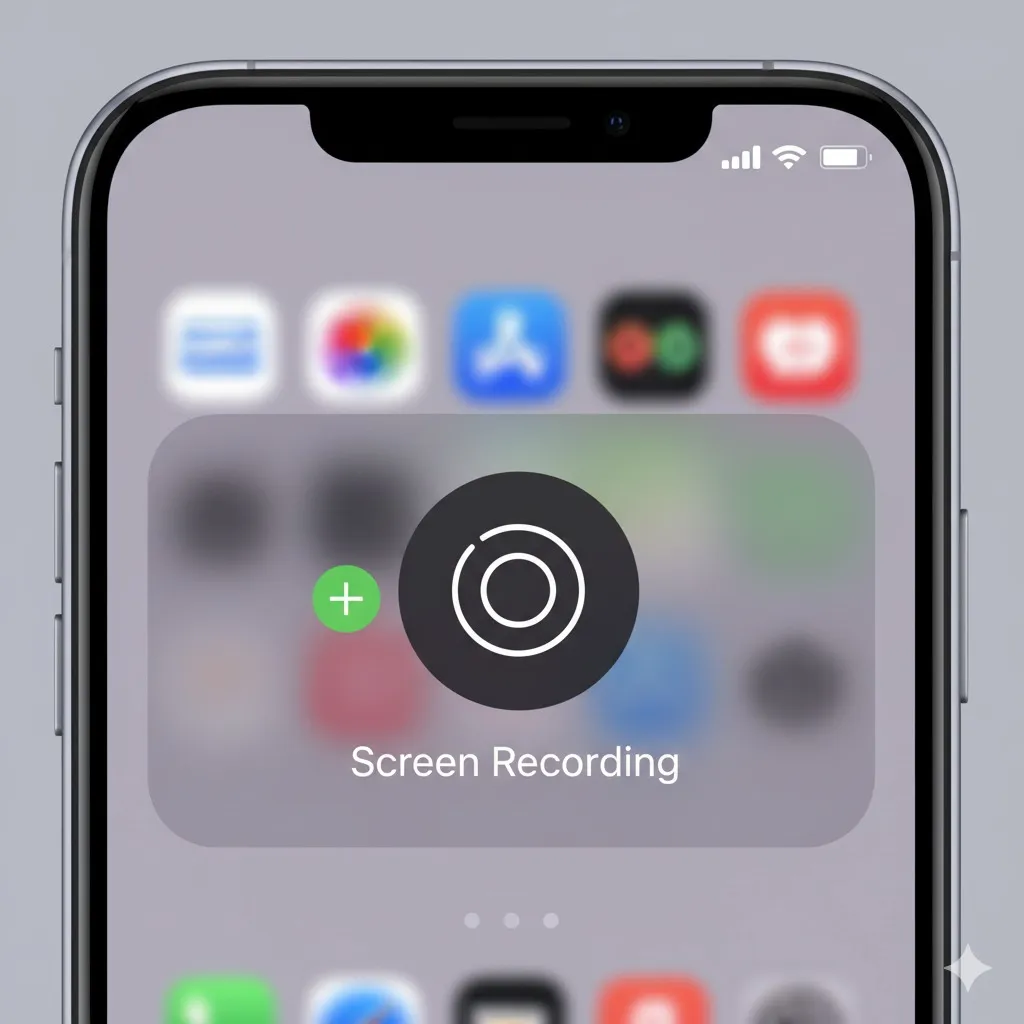
It's the first thing to do, make sure it's visible in the Control Center. A lot of people don't see it since it's normally hidden. I had this issue when I first got my iPhone 16 Pro -- I kept swiping down repeatedly, yet the option to screen record was not there.
Here's how to add it:
- Open Settings
- Scroll down, then click Control Center
- Click Add Controls or Customize Controls (depending on iOS version)
- Find Screen Recording and tap the "+" icon to add it.
- Close Settings, then swipe downwards from the top-right corner.
Now you'll see a small circle-within-a-circle (◎) icon in your Control Center. It's the recording button.
How to Screen Record on iPhone 16
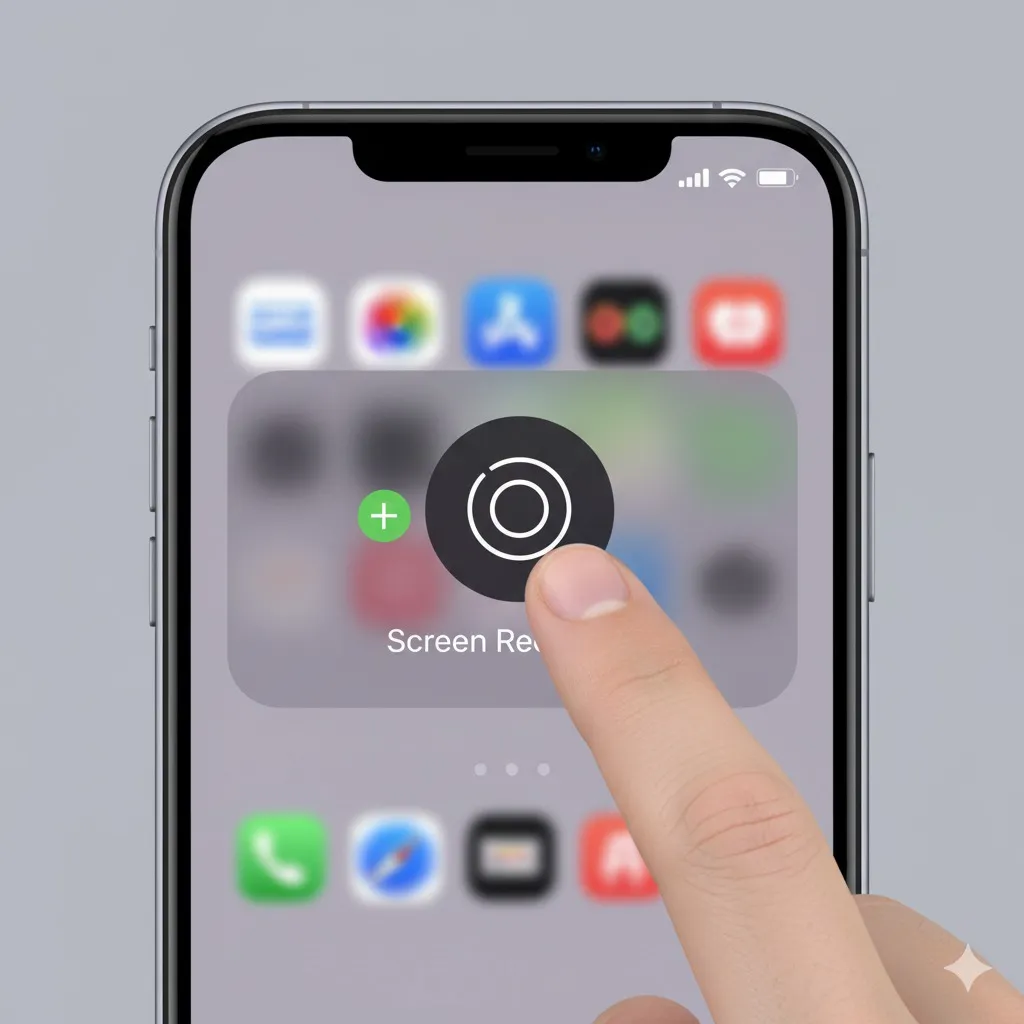
After the control is added, you can begin recording your screen in a matter of minutes:
- Swipe down from the top-right corner of the screen
- Click the screen recording icon
- You'll see a 3-second countdown and recording begins immediately.
- You'll see the red status bar or a red dot on the top right corner of the screen
- To stop recording, tap the red bar or open Control Center again and tap the same icon
Recordings will be automatically saved into your Photos app.
I've tried this numerous times during recording app tutorials and it worked well each time.
How to Screen Record on iPhone 16 with Sound
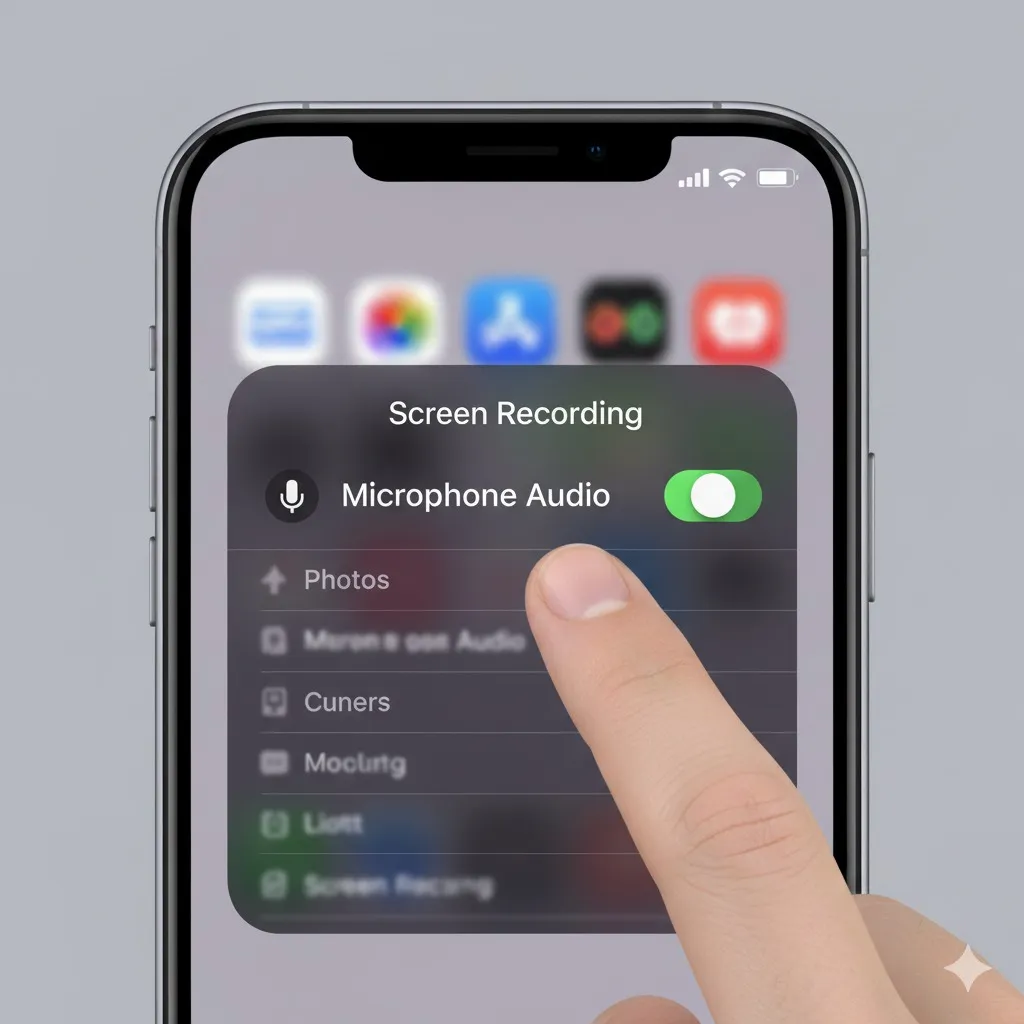
If you'd like to include your voice during recording (for example, to describe the steps or provide comments), here's the steps you'll need to know:
- Swipe down to open the Control Center
- Press & hold the screen recording icon
- Click the Microphone icon on the bottom of the screen to switch it on.
- Tap Start Recording
- You can speak normally. Your iPhone will record both your voice as well as screen actions.
If you do not turn on the microphone, the recording will be silent. Make sure to double-check the mic icon before starting.
This method works with iPhone 16, 16 Pro, 16 Plus, and 16 Pro Max, all models use the same interface.
How to Find Your Screen Recordings
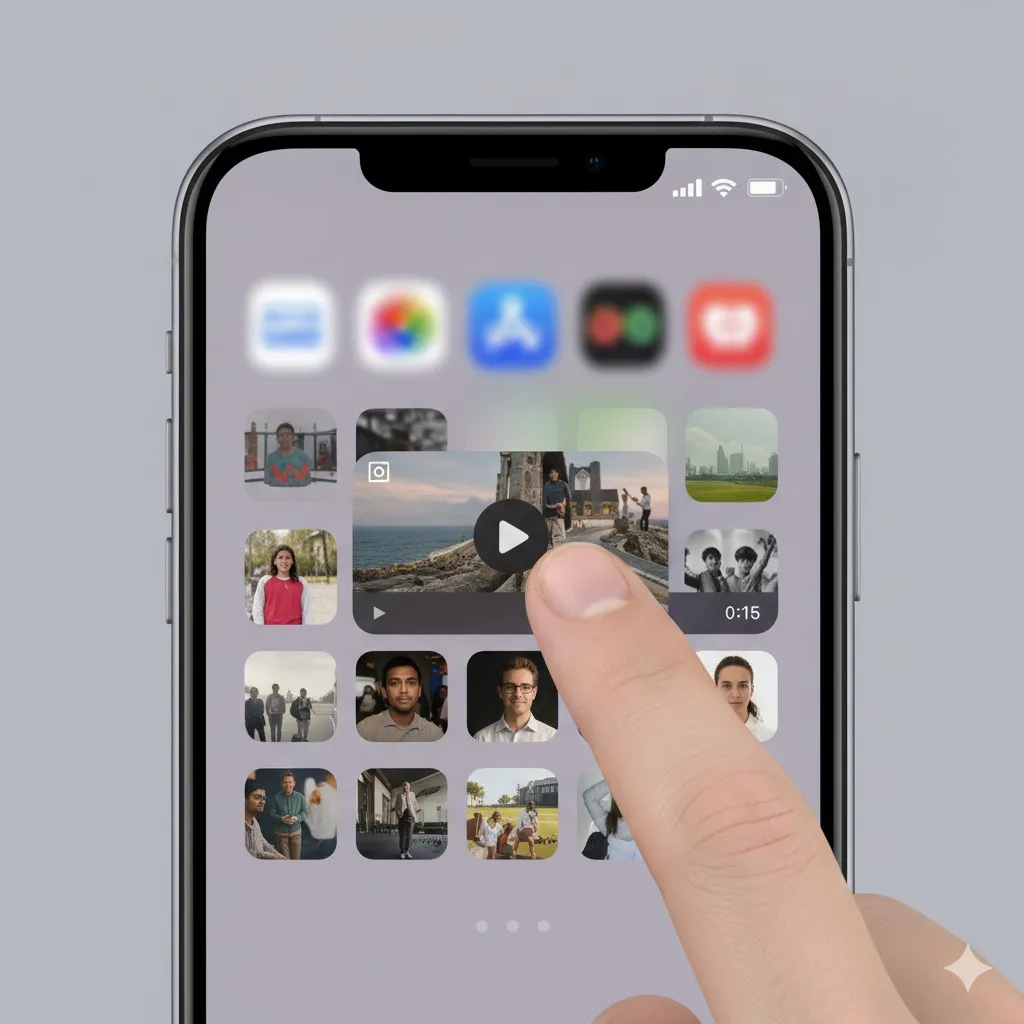
When you've finished recording your video, you can find your videos automatically saved in Photos app.
- Open the Photos app
- Tap Albums, scroll up to Screen Recordings
- From there, you can edit, trim, and share the recording immediately.
If the recording doesn't appear, check that your iPhone has enough space for storage. Once I recorded a video of 10 minutes of gameplay, but it didn't save because my storage was full -- lesson learned!
How to Screen Record on iPhone 16 in Settings
You can also manage other settings for screen recording by going to Settings > Control Center or Settings > Screen Time > Content Restrictions.
If screen recording isn't working, it might be disabled under restrictions. Here's how you can solve the issue:
- Go to Settings > Screen Time
- Tap Content & Privacy Restrictions
- Tap Content Restrictions - scroll down to Screen Recording
- Set it to Allow
Once the feature is enabled, it will show up again in Control Center and work normally.
What to Do If You Can't Find Screen Recording on Your iPhone
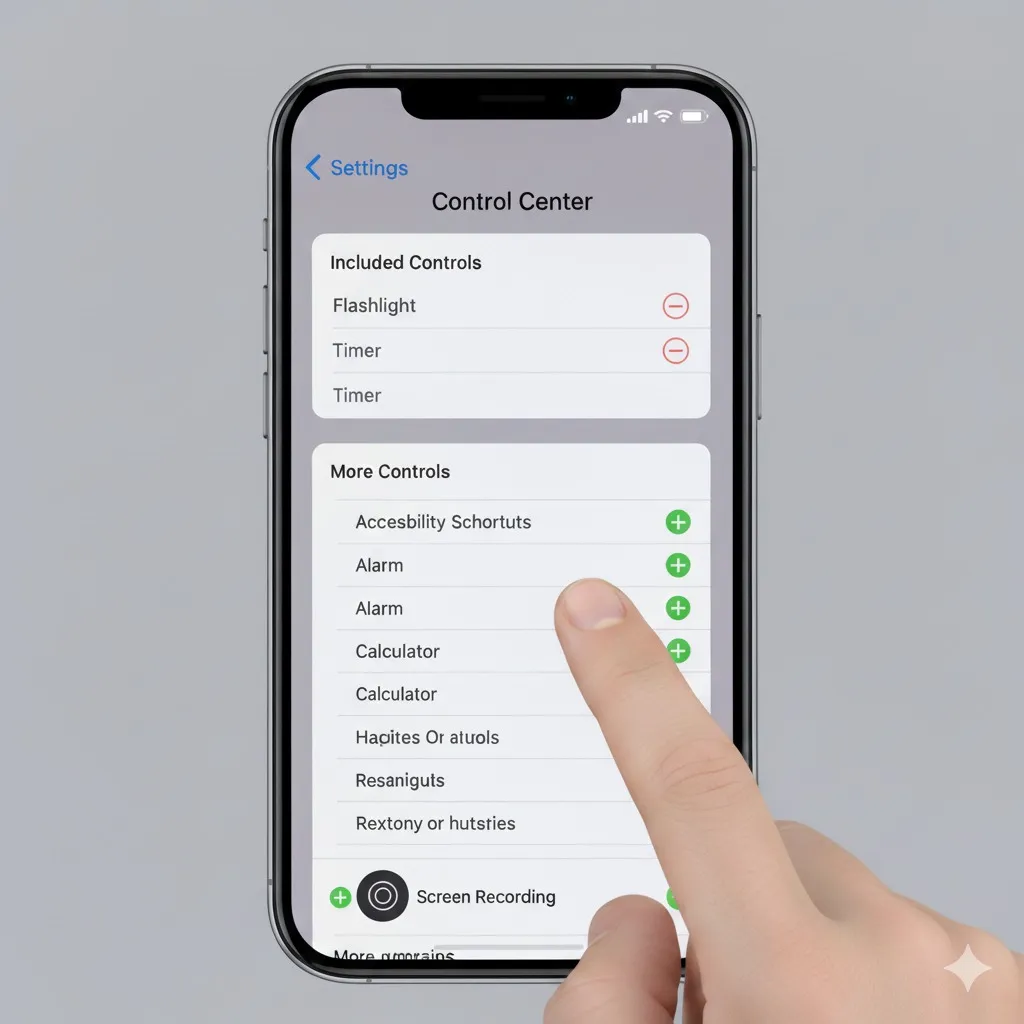
This is among the most frequent issues that users experience. If you don't find the option to record:
- Make sure that you've added it from Control Center settings
- Restart your iPhone after you have added the control
- Check for iOS updates (Settings > General > Software Update)
- Turn off the Low Power Mode if it's enabled
- Free up some space, screen recordings need space for storage.
- Make sure that no parental or privacy restrictions are preventing it.
It is important to note that some applications (like Netflix, Amazon Prime, as well as banking applications) restrict screen recording due to copyright and security reasons. Therefore, if you experience a black screen when recording, it's deliberate.
How to Add Screen Record to Control Panel (Quick Way)
In iOS 18, Apple changed the look of parts in Control Center. You can now rearrange or add icons directly:
- Open Control Center
- Tap the "+" icon in the upper-left corner.
- Select Screen Recording
- Drag it to your desired place
This shortcut is easier to modify without having to go through Settings.
How to Screen Record with Sound on iPhone 16 Pro Max
The process is the same for all models, but if you have a Pro or Pro Max, you may see some enhancements, like improved frame rate management.
Steps:
- Swipe down to open the Control Center
- Long-press the Screen Recording button
- Tap Microphone - ON
- Tap Start Recording
The recording now includes the system audio (if supported) as well as microphone input. You can edit the video using the Photos app, or use third-party editors such as CapCut or VN.
How to Screen Record on iPhone 16 Pro, 16 Plus, and 16 Pro Max
Apple has kept the procedure the same on the entire iPhone 16 models. Therefore, regardless of whether you own the Pro, Plus, or Max variant, this method works flawlessly:
- Make sure to add Screen Recording option from Control Center (if it is not added)
- Swipe down and tap the record icon
- Long-press to activate the microphone (optional)
- Stop recording by using the red bar
- Later, you can view it in Photos.
If you ever switch between these models, you don't need to learn new steps as the interface remains constant.
Why Screen Recording Might Not Work Sometimes
If your iPhone isn't recording or stops midway, it could be because of:
- Storage space is not sufficient
- The battery saver mode is interfering
- Restrictions enabled under Screen Time
- An application that doesn't permit recording
- A temporary software glitch
It is possible to fix many of the issues with a restart of your iPhone or upgrading to the most current iOS version. I've experienced the same issue when the button turned red, but there was no video saved. Updating iOS immediately fixed the issue.
Tips for Better Screen Recordings
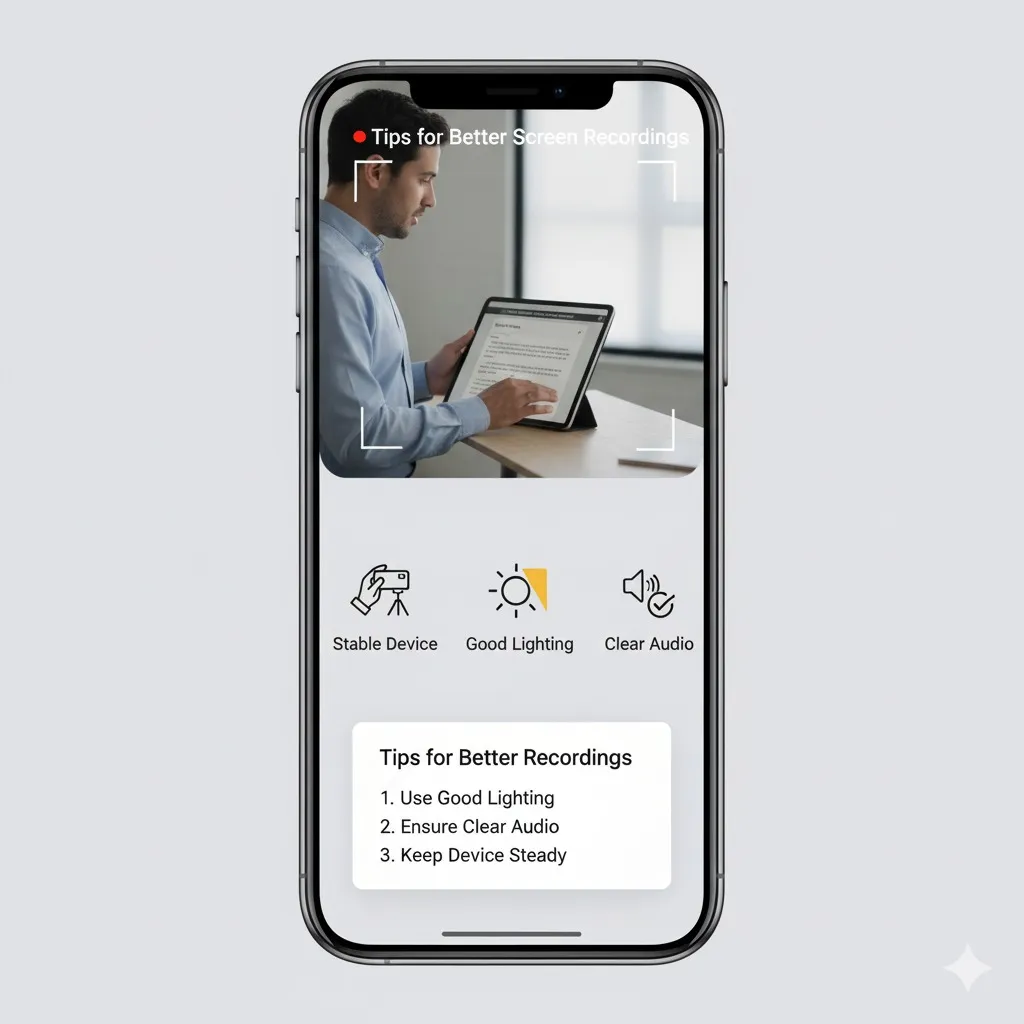
Here are some useful tips I've gathered after trying screen recording many times with my iPhone 16:
- Close any apps that are not needed before recording to avoid lag
- Set Do Not Disturb mode to stop notifications from showing up.
- Make sure to keep your iPhone cool, as long recordings could cause slight heating
- Use landscape mode to play games or YouTube demonstrations
- Trim videos using the Photos app before sharing
- If you want gestures visible, enable AssistiveTouch under Accessibility settings
Screen Recording on iPhone 13, iPhone 14, and iPhone 15
Many people who have slightly older iPhones are still confused about where the screen recording button is. It's not missing; the button is just not added by default.
iPhone 13 / 13 Mini / 13 Pro / 13 Pro Max
- Go to Settings > Control Center
- Scroll down to More Controls
- Click on the "+" next to Screen Recording
- Swipe down from the upper-right corner (or up from the bottom on iPhone 13 Mini)
- Press the record icon to start
- Press it for a long time to turn on the microphone, if required.
- Make sure to tap the red bar in order to stop recording
The video will show up in Photos > Screen Recordings.
If you are unable to find the icon, make sure that you've updated your device to the most recent iOS version.
iPhone 14 / 14 Plus / 14 Pro / 14 Pro Max
- Open Settings > Control Center
- Tap Add Control > Screen Recording
- Open Control Center - tap the Record icon
- Long-press to turn on the microphone for sound
- Stop with the red indicator
If you do not see it, try restarting your phone after adding the control. Some users have reported that it appears only after a reboot or iOS update.
iPhone 15 / 15 Plus / 15 Pro / 15 Pro Max
The process is almost the same, but iOS 17 introduced slight layout changes.
- Go to Settings > Control Center
- Press the "+" next to Screen Recording
- Swipe down and tap the record icon
- Hold the icon and switch on the Microphone
- Tap once more to stop and save the recording
Tip: For those who find that their iPhone 15 doesn't show the recording saved, check storage - Phone Storage, recordings fail if space is full.
If you own an iPhone 13, 14, or 15, the option to record your screen isn't missing, it just needs to be manually added once. Then, it'll remain accessible all the time.
FAQs
1. How can I record my iPhone 16 screen with internal audio only?
iOS doesn't allow recording audio from within the app to protect your privacy. It is only possible to record external sound or microphone sounds.
2. Why is my screen recording option missing?
It's likely not added to Control Center. Go to Settings > Control Center > Add "Screen Recording."
3. Where are my screen recordings saved?
They're automatically saved in Photos > Albums > Screen Recordings.
4. Can I screen record while playing music or YouTube videos?
Yes, but some apps can block or mute audio due to copyright protection.
5. Does screen recording work similarly on the iPhone 16 Pro Max and 16 Plus?
Yes, all iPhone 16 models share the same iOS Interface and record method.
Final Thoughts
Recording the iPhone screen is a remarkably useful feature for teaching, gaming, or troubleshooting.
Remember:
- Add the Screen Recording control
- Tap or long-press to begin
- Turn on the microphone for sound
- You can save and edit directly in the Photos app.
Once you've learned how to screen record on iPhone 16, and even on iPhone 13, 14, and 15, you'll be able to record everything that's happening on your screen in just one or two clicks. Once you've mastered it, it will become automatic -- and trust me when I say this, you'll use it more often than you think.