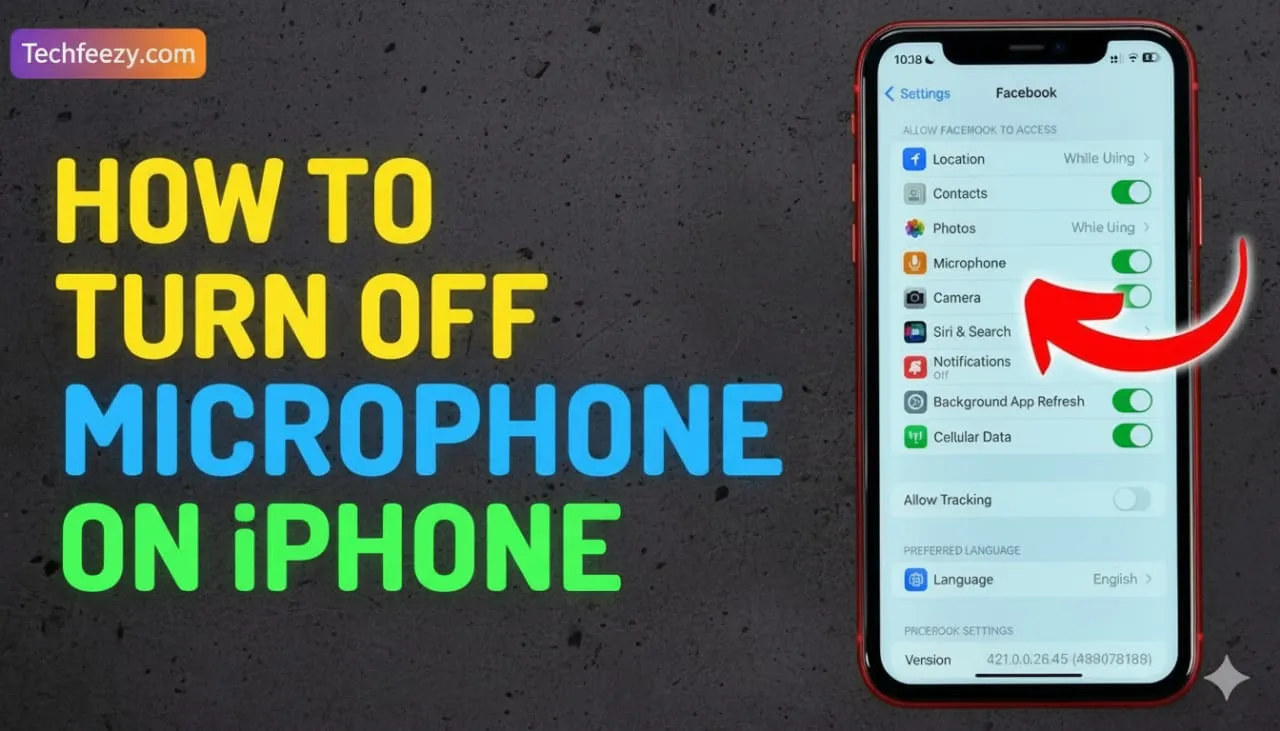
How do I turn off the microphone on iPhone?
Have you ever seen that tiny dot of orange on the iPhone display and thought about what it signifies? It's a signal that your microphone is on. If you've ever wondered, "how to turn off microphone on iPhone," you're certainly not alone.
I tried disabling my mic when I felt some apps might be listening in. The good news is that iPhones allow you to completely turn off the microphone or to limit it to certain applications. This guide will walk you through the best ways to do this step-by-step and without confusion.
Why You Might Want to Turn Off the iPhone Microphone
The reasons people want to turn off the iPhone microphones:
- Privacy issues: Apps such as Instagram, Facebook, or Siri occasionally access your microphone as background.
- Battery saving: Constant microphone use may draw down your battery.
- Beware of accidental audio recordings: During meetings or voice notes, the phone may catch up unwanted sound.
No matter if you are using iPhone 11, 12, 13, 14, 15 or the newest iPhone 16 -- these methods are perfect.
How to Stop the iPhone Microphone from Listening
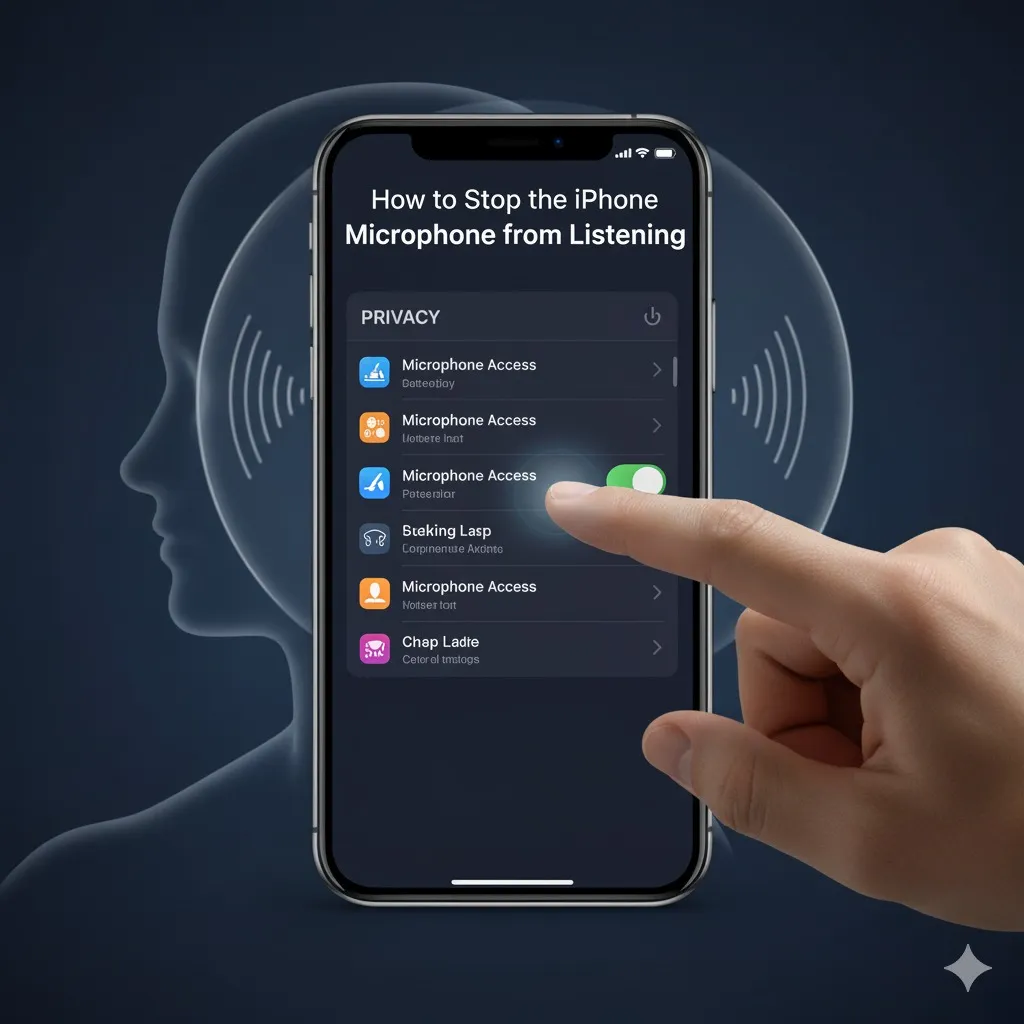
If you're looking to stop an iPhone's listening completely, here's how I did it:
- Go to Settings > Privacy & Security.
- Tap Microphone.
- There's a list of applications which have requested access to microphones.
- Turn off the switch in front of apps that you do not want using your microphone.
These apps are prevented from accessing your mic unless you turn it back on.
I shut off the microphone access to some apps that I do not use and it stopped immediately showing the orange mic dot when I was using them.
How to Turn Off the Microphone Dot on iPhone
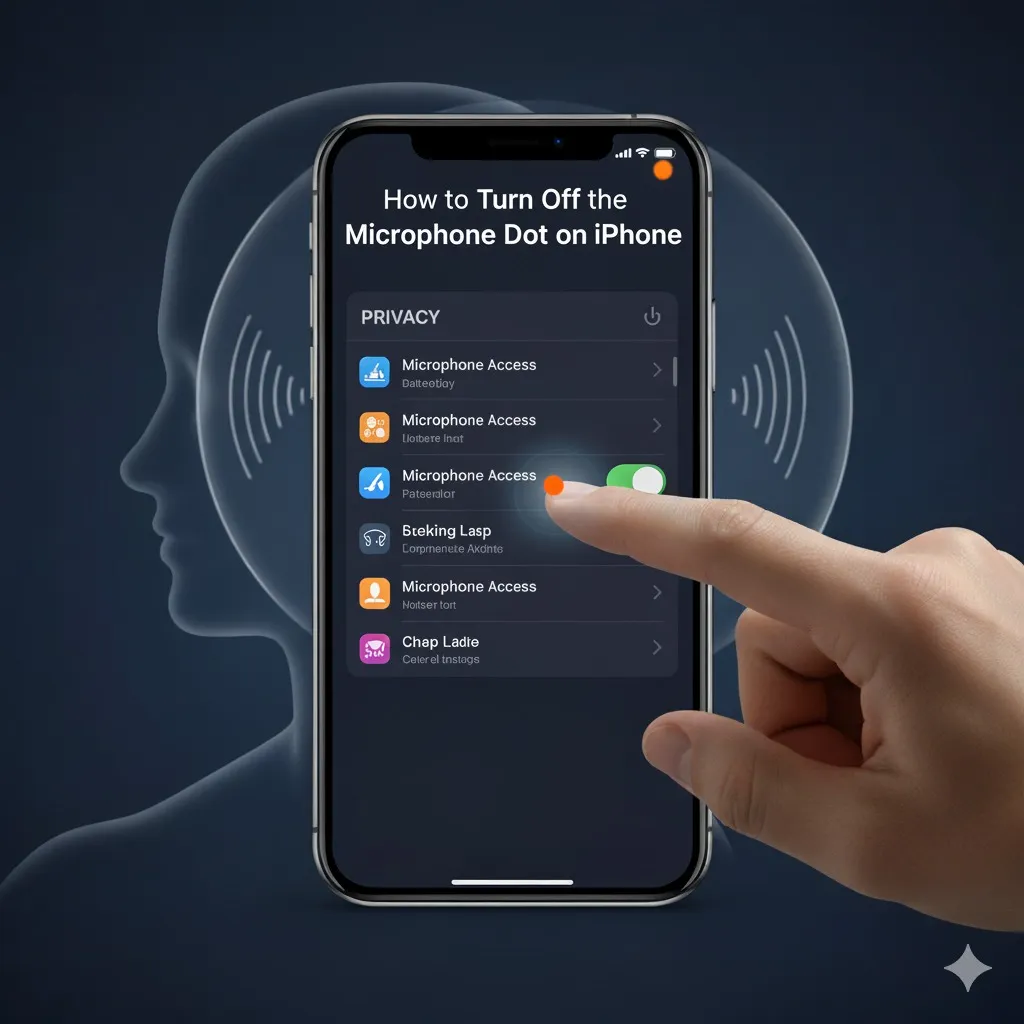
The little orange dot on the top right of the iPhone screen isn't actually a problem, it's a privacy indicator. It's visible whenever your microphone is in use.
But, you aren't able to completely turn off this dot (it's built into iOS to ensure safety). However, if you block applications from using your microphone (as shown above), the dot won't appear.
The only solution to "turn off the orange microphone on iPhone" is to manage permissions properly.
How to Turn Off Microphone on iPhone Text Messages
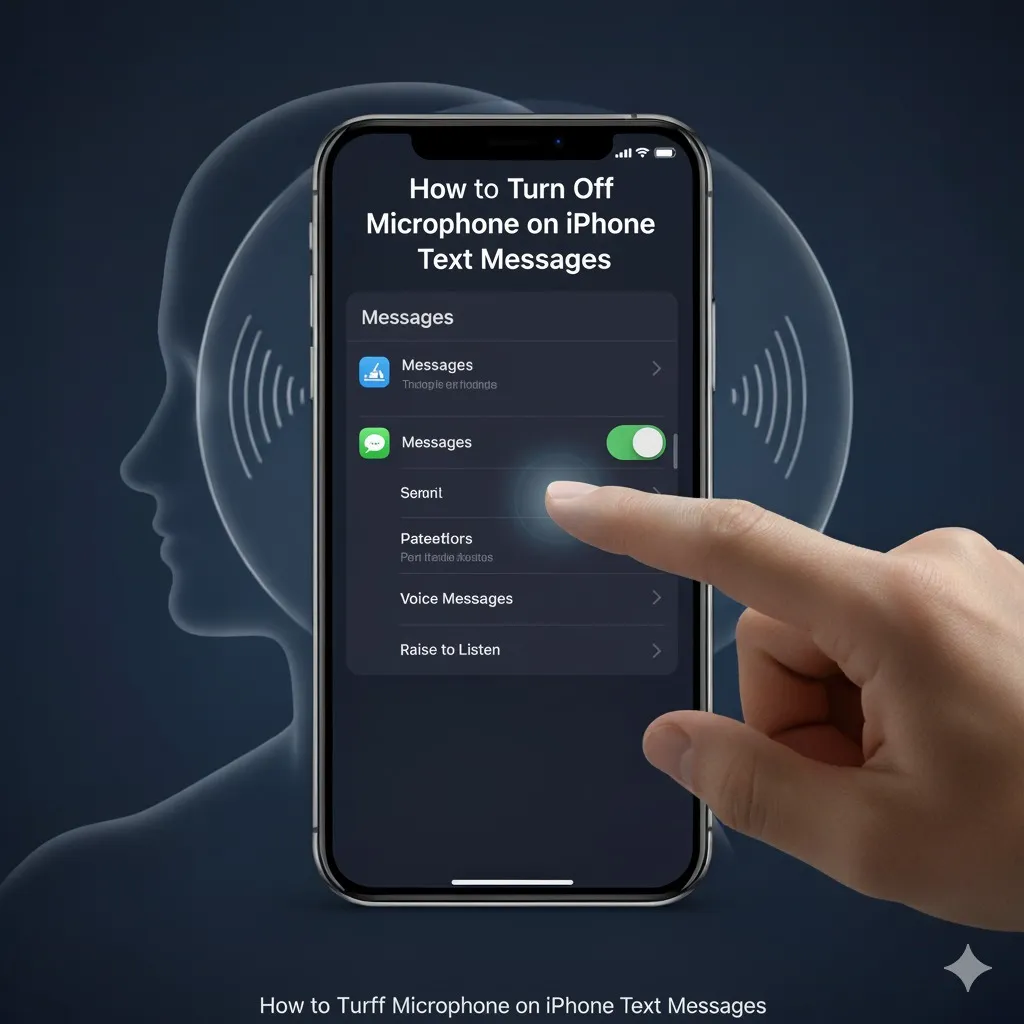
When you send voice messages via SMS or iMessage, the microphone automatically turns on. Here's how to avoid that:
- Open Settings > Messages.
- Scroll to Audio Messages.
- Tap Expire, and then choose "After 2 Minutes" or disable audio messages completely.
- Or, you can turn off the Dictation feature (covered in the next section).
If you accidentally tap the microphone icon in the Messages section, it will not record your voice.
How to Turn Off Microphone on iPhone Keyboard
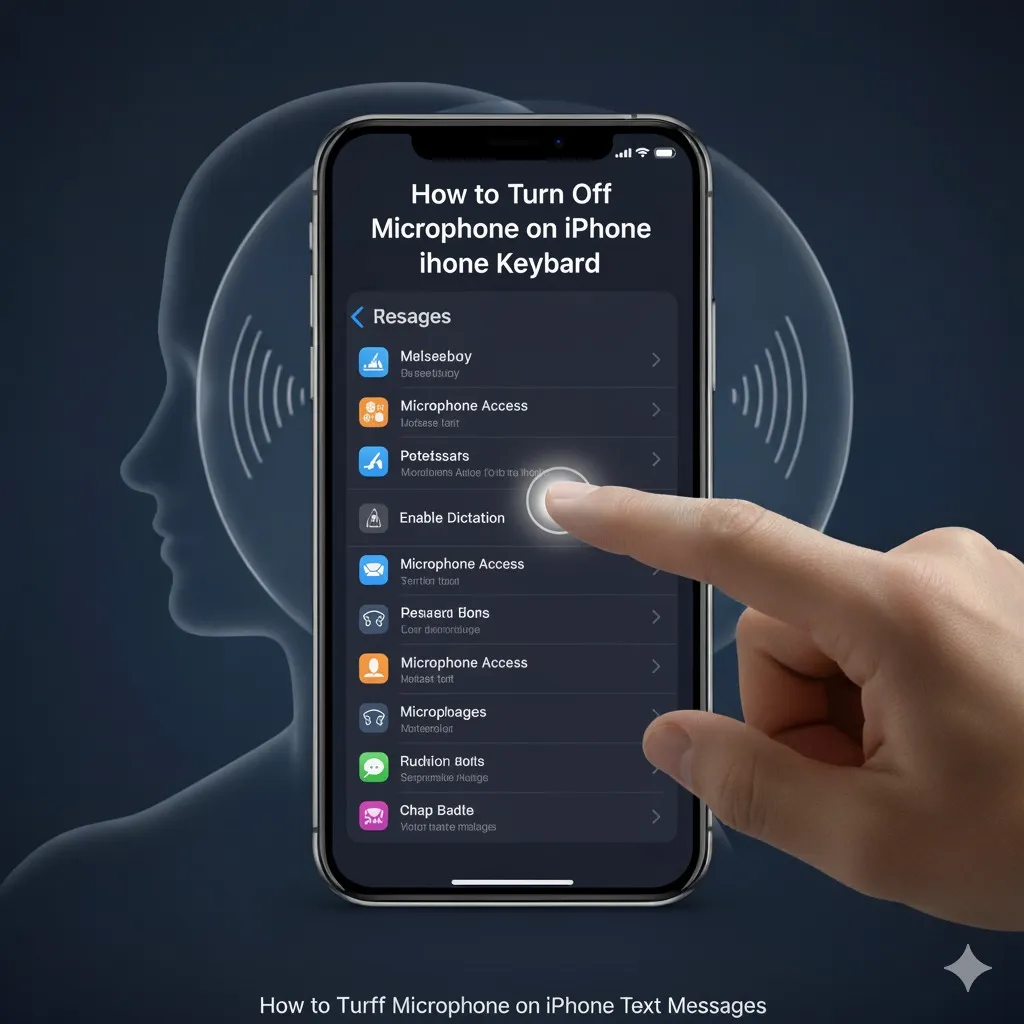
The microphone button on your keyboard lets you type text using your voice. If you don't intend to use this feature, then you can disable it:
- Open Settings > General > Keyboard.
- Scroll down to the bottom, and then switch off Enable Dictation.
- Confirm by tapping Turn Off Dictation.
After you've done this, you will see the mic icon disappear from your keyboard completely. Personally, I turned off this feature since I do not type with my voice and felt annoyed whenever I accidentally hit it.
How to Switch Off the Mic Button During Calls
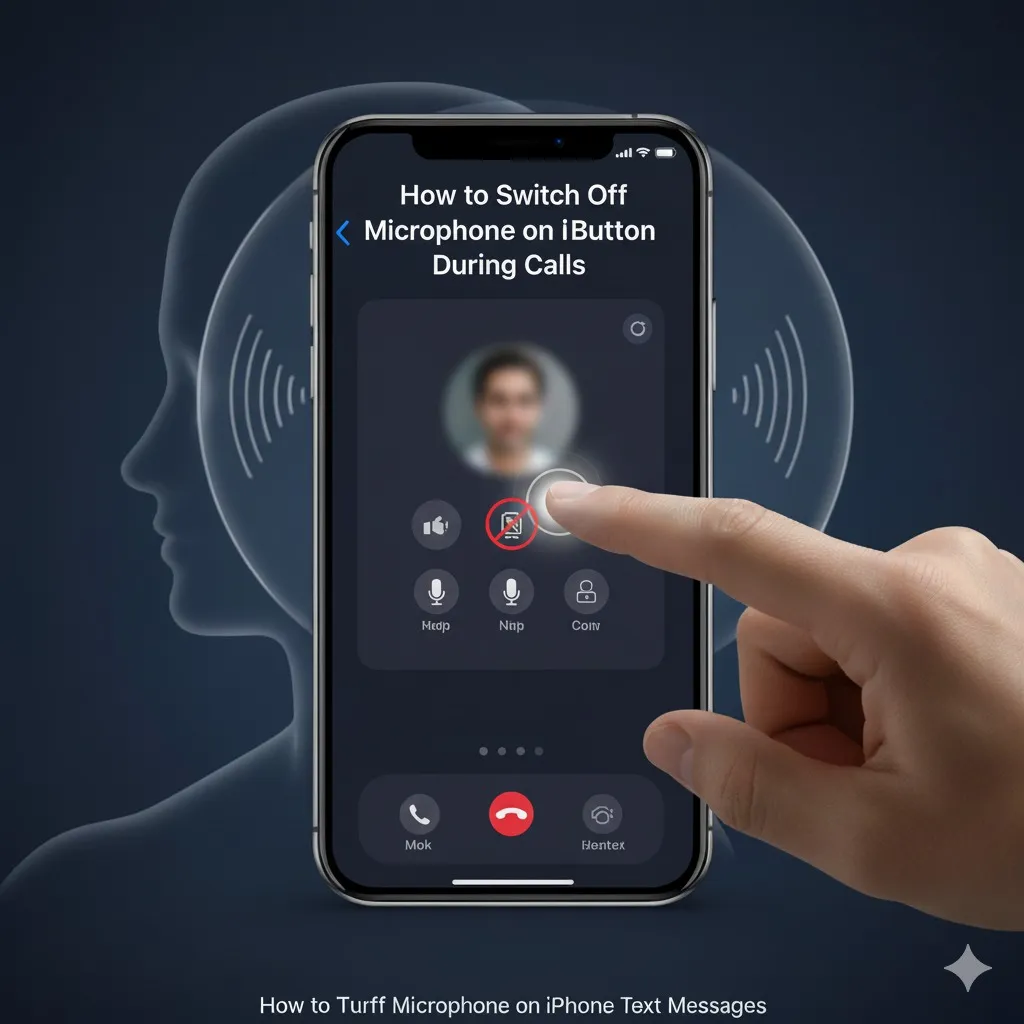
If you're on a call and need to mute your microphone for a short period, press your Mute button on the phone screen.
There's the microphone icon. Tap it to stop the sound input immediately.
Tap it again to unmute when you are ready.
The mic won't be turned off completely, but can help when you're in meetings or for private moments.
Turn Off Microphone Access for Siri
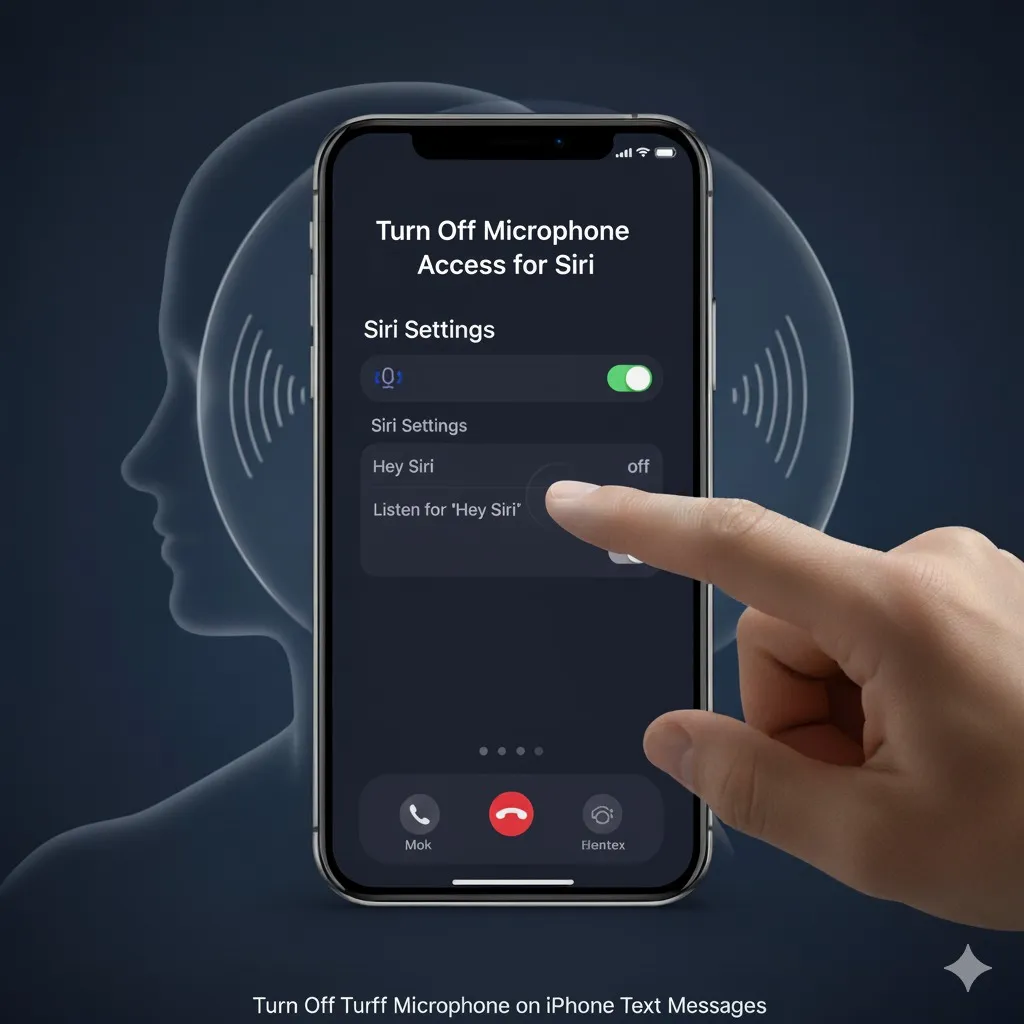
If you rarely use Siri or don't want it listening for "Hey Siri," you can also disable it:
- Go to Settings > Siri & Search.
- Switch off these options:
- Listen for "Hey Siri"
- Press Side Button for Siri
- Allow Siri When Locked
- Make sure you confirm the pop-up that appears.
This blocks Siri from utilizing your microphone in the background.
I attempted this after I noticed that my phone was responding to random sounds, and then it stopped.
How to Turn Off Microphone on iPhone for Specific Apps
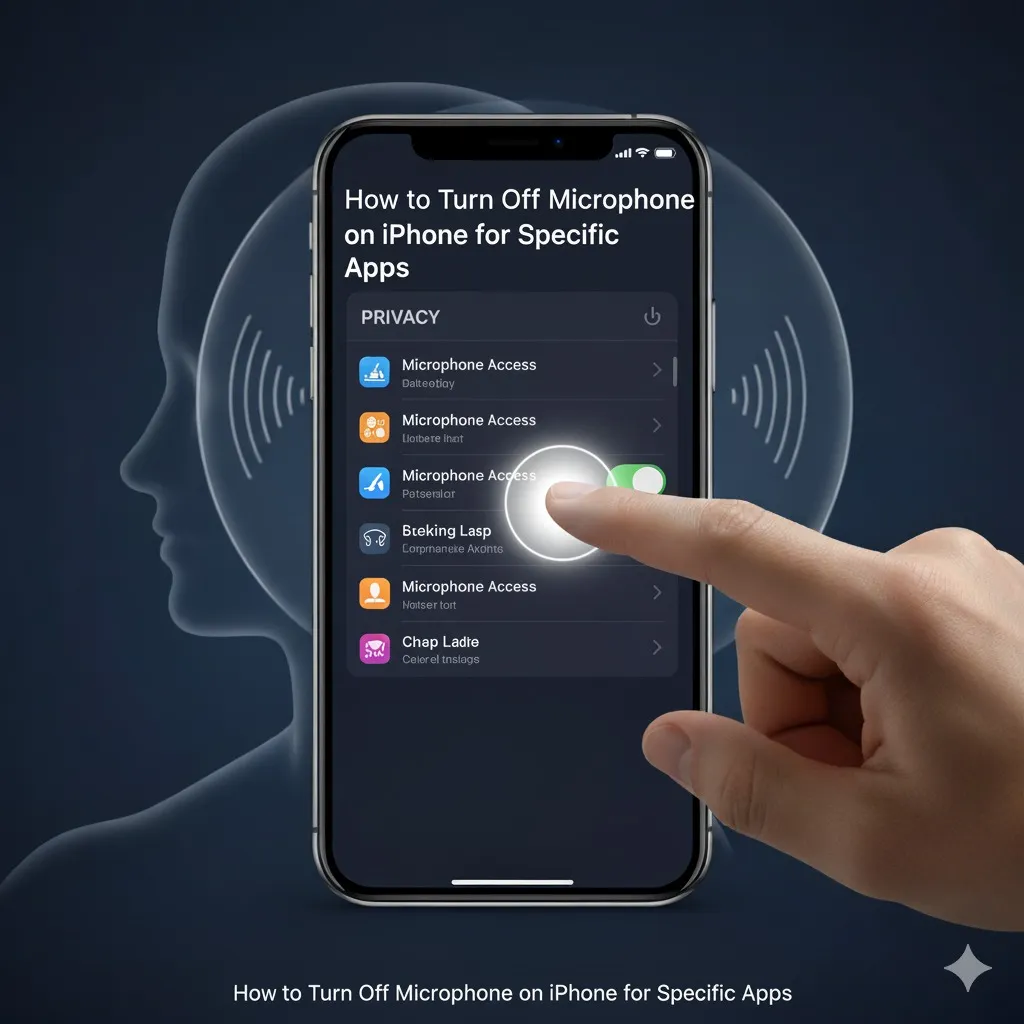
There are apps that you may need (like WhatsApp or Instagram) to allow access to your microphone, but limit other apps.
Here's how to manage it per app:
- Go to Settings > [App Name] (for example, "WhatsApp").
- Turn off the Microphone.
Alternatively:
Navigate to Settings > Privacy and Security > Microphone. After that, remove any apps that are listed.
This is the way I stopped my camera app as well as browser extensions from randomly using my microphone.
How to Turn Off Microphone on iPhone 11, iPhone 12, iPhone 13, iPhone 14, iPhone 15 & iPhone 16
It's good news that the process is the same for all models.
If it's an earlier iPhone 11 or the new iPhone 16 Pro, here's what you can expect:
- Settings > Privacy & Security > Microphone to block access.
- Settings > General > Keyboard to turn off Dictation to disable the keyboard microphone.
- Settings > Siri & Search to disable voice activation.
Apple's iOS 18 and 17 both use the same privacy system, which means that the steps are the same.
How to Turn Off Microphone on iPhone in Control Center (Quick Mute)
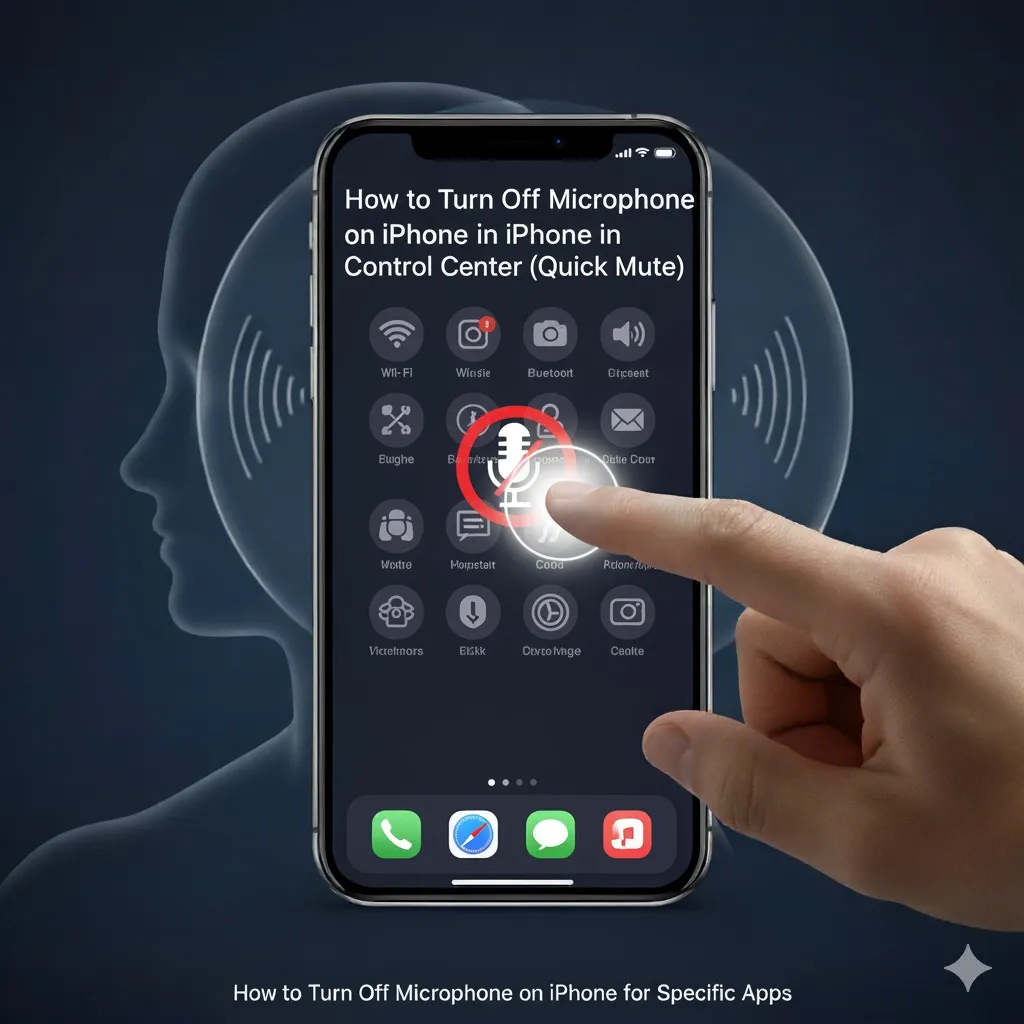
There's no dedicated mic switch in Control Center, you can quickly control mic access:
- Swipe down to open the Control Center.
- If you're in a call or recording, then press the Mic Mode (appears in FaceTime or Voice Memos).
- Select Standard, Voice Isolation, or Wide Spectrum - or turn off recording apps manually.
You can also utilize Focus Mode and Airplane Mode to make sure that your microphone isn't working in any way.
How to Stop iPhone Microphone From Listening When Locked
Sometimes, Siri or apps might listen even when the phone is locked. To avoid this:
- Go to Settings > Face ID & Passcode.
- Scroll to Allow Access When Locked.
- Switch off Siri and Reply with Message.
This makes sure that your mic doesn't activate accidentally when your phone is inside your bag or pocket.
How to Turn Off Microphone Permissions on Safari or Chrome (Web)
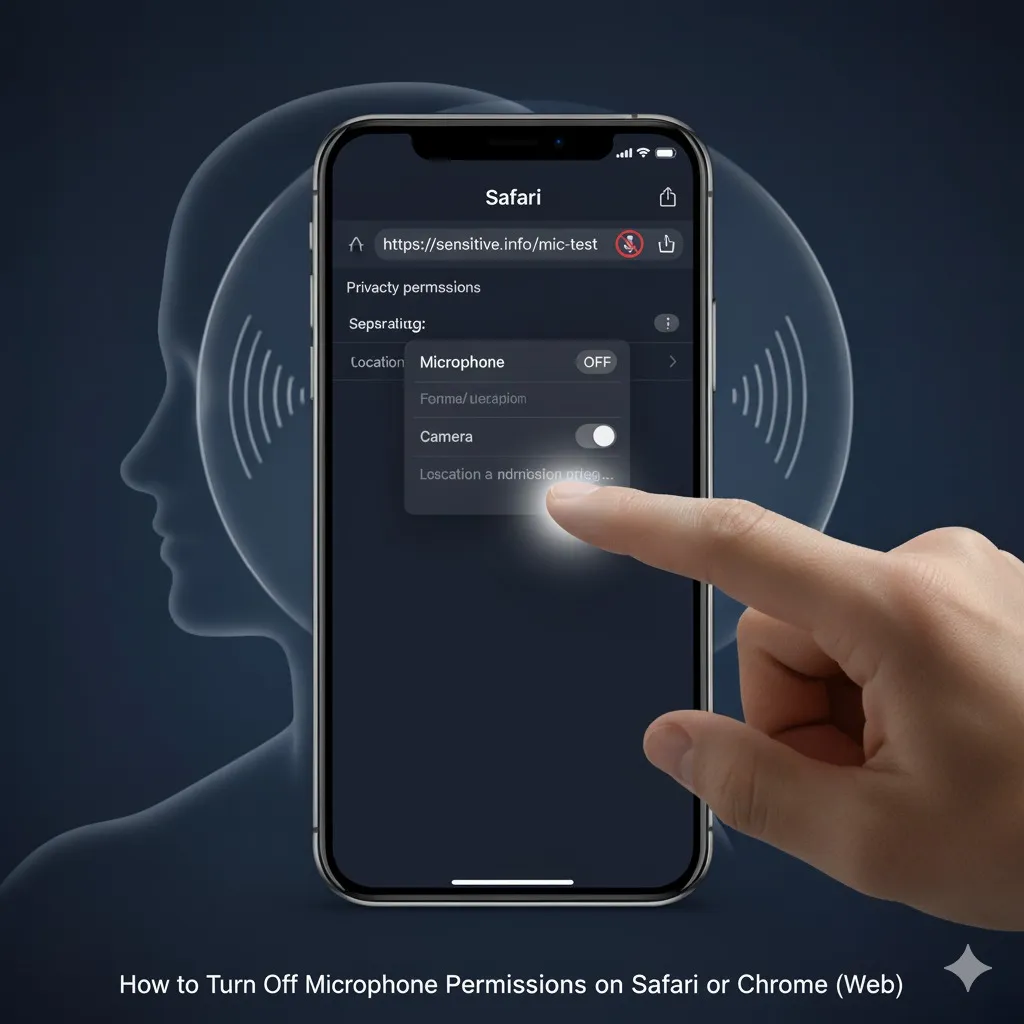
Some websites ask for the use of a microphone during calls or audio recordings. In order to stop it:
In Safari:
- Go to Settings > Safari.
- Tap Microphone under "Settings for Websites."
- Select Deny or Ask Every Time.
In Chrome:
- Open Google Chrome > Tap three dots > Settings > Site Settings > Microphone.
- You can toggle it off or block specific websites.
The website cannot connect to your microphone unless you approve it manually.
iPhone 16 Pro Microphone Keeps Turning On? Here's Why
If the iPhone 16 Pro microphone keeps turning on, it's because of:
- Siri or Voice Control is still enabled.
- Background applications like Instagram, WhatsApp, or Google Assistant use it.
- A web browser tab (like Zoom or Meet) is active.
- Accessibility or shortcuts trigger voice input.
To fix it:
- Turn off Siri.
- Close background applications.
- Restart your iPhone.
- Check microphone permissions again.
After I did the same thing on my iPhone 16 Pro, the random orange dots stopped appearing.
Pros and Cons of Turning Off the Microphone
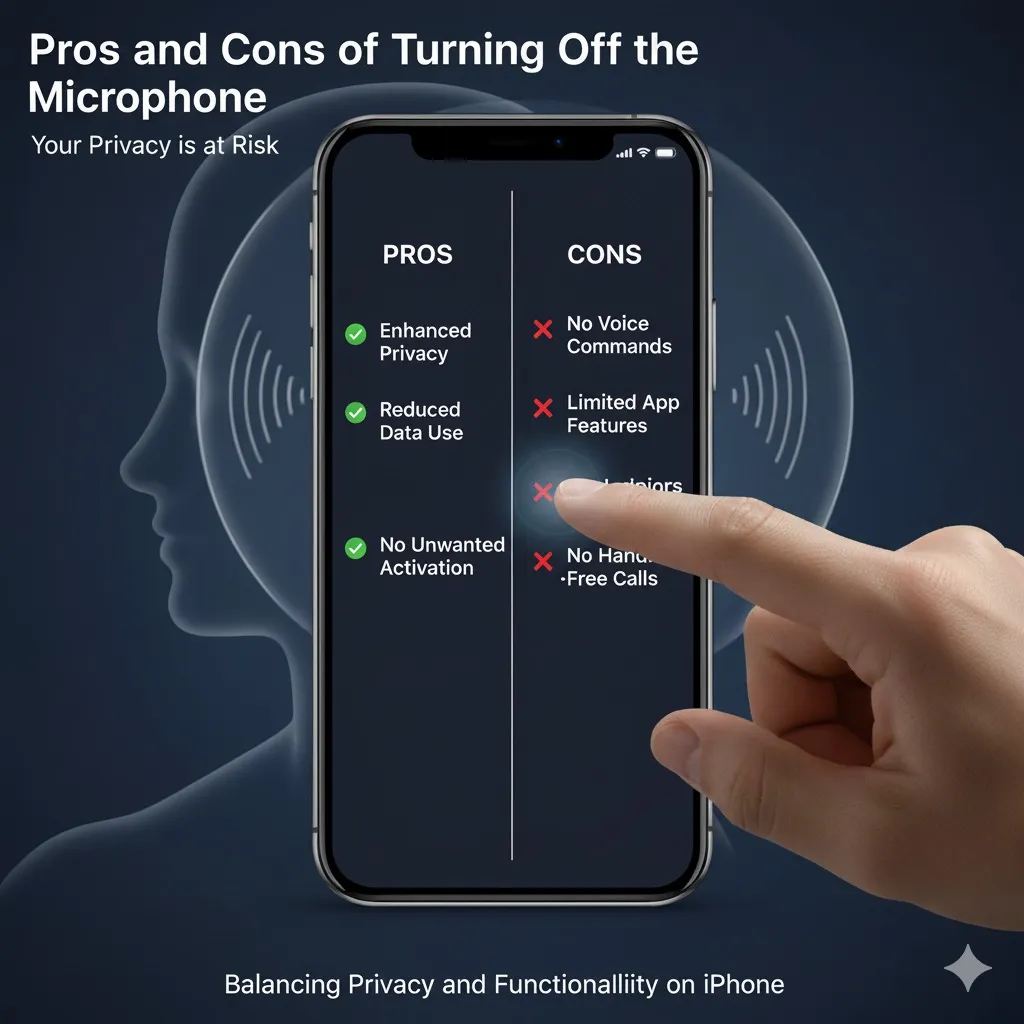
Pros:
- More privacy and data control.
- Blocks apps from listening in.
- Better battery performance.
- Prevents unwanted background audio usage.
Cons:
- Dictation and voice commands will not perform.
- Siri and voice-to-text are no longer available.
- You'll need to re-enable access to voice messages and calls.
Extra Tip: Turn Off Microphone Completely Using Restrictions
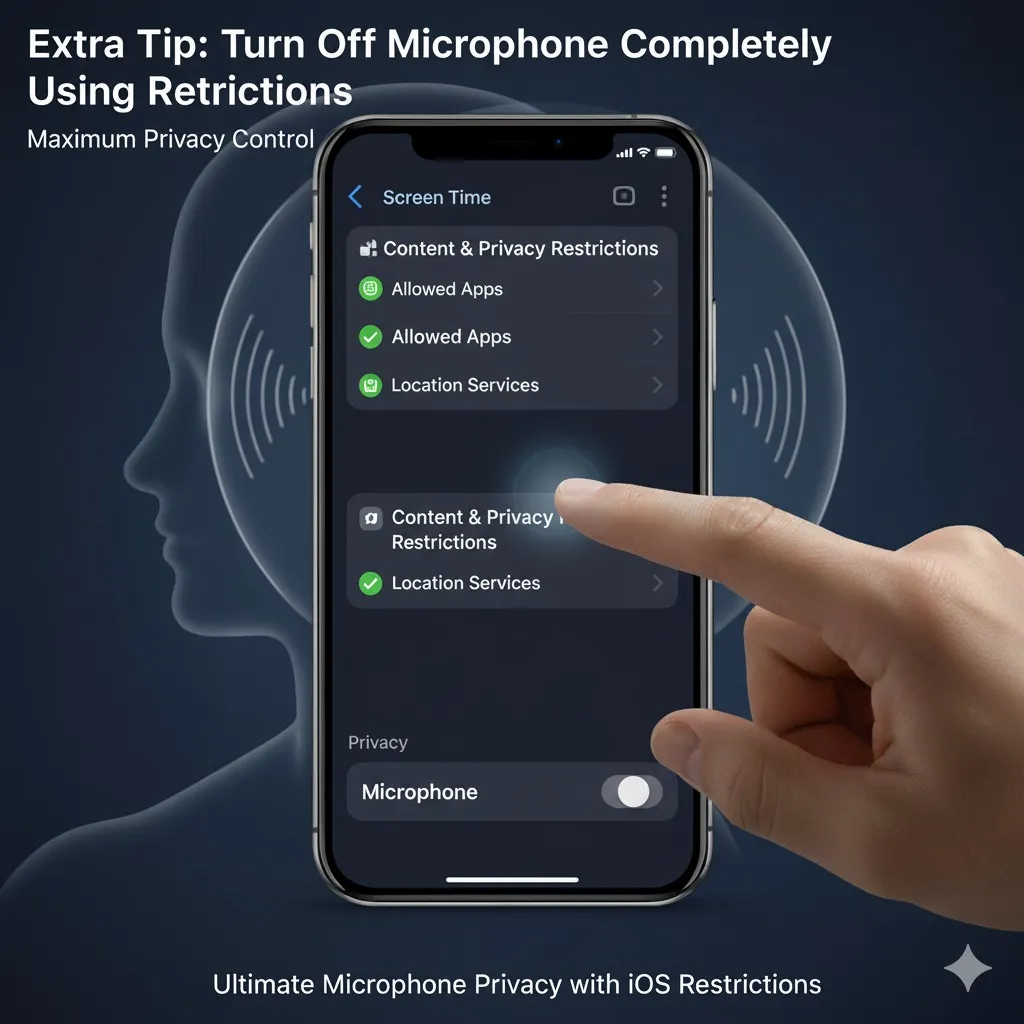
If you're looking to add an additional layer of control:
- Go to Settings > Screen Time > Content & Privacy Restrictions.
- Tap Microphone > Turn it Off.
- This will stop all apps (even brand new apps) from using the microphone until you enable it again.
It's perfect if you're handing your smartphone to children or using it in sensitive situations.
FAQ
1. How do I determine whether the iPhone microphone is on?
There's a tiny orange dot at the top right on your display.
2. How can I disable the microphone completely on my iPhone?
Go to Settings > Privacy and Security > Microphone. Turn off all applications.
3. How can I disable the microphone on an iPhone keyboard?
Settings > General > Keyboard, then disable Dictation.
4. What can I do to prevent my phone from listening to me?
Disable Siri, Voice Control, and revoke mic access for apps.
5. Why does my iPhone microphone keep turning on by itself?
Background applications or Siri might trigger it. Disable their permissions.
Conclusion
Now you know exactly how to turn off the microphone on iPhone -- whether it's for privacy, performance, or just peace of mind.
You can disable it app-by-app, stop Siri and the dictation feature, or block all access to the microphone at once. I tested this with my iPhone and it made me feel more secure knowing that nothing could listen in without my permission.
Take time to look over the settings of your microphone today. Your privacy is well worth it.
Citations
- Apple Support: Control access to hardware features on iPhone
- Apple Community: Orange dot on iPhone
- Lifewire: What Is the Orange Dot on iPhone?
- Apple Community: Microphone privacy settings
- Apple Community: Siri listening concerns
- Apple Community: Managing app permissions
- Apple Stack Exchange: Orange dot during phone calls